 Medvento
How to build contact lists and record consent before you message people
Import or add contacts to Medvento attendee lists, confirm consent, move and delete contacts safely, and link lists to an event's audience.
To build a contact list on Medvento, open Attendees, create a list, then import a CSV or Excel file (or add people one by one). The first time you import into a list, Medvento asks you to confirm that your organization has consent to contact everyone in the file. That confirmation is your own declaration: Medvento records it but cannot check it. Lists belong to your organization, not to one event, and you can link them to an event's Audience tab so they are suggested when you plan a campaign.
Before you start
- Read privacy and consent for organizers. The consent you confirm here is what lets you message these people.
- You need people's agreement to hear from you before you import them: for example a membership form, an earlier registration or a signed attendance sheet. Keep a record.
Step 1: Create a list
Open Attendees in the left menu. The page shows your Attendee lists with a count of members, how many have an email or phone, and a consent chip: Consent needed or Consent attested with a date. Select Create list and give it a name of 1 to 200 characters, such as "2028 Annual Conference Delegates".
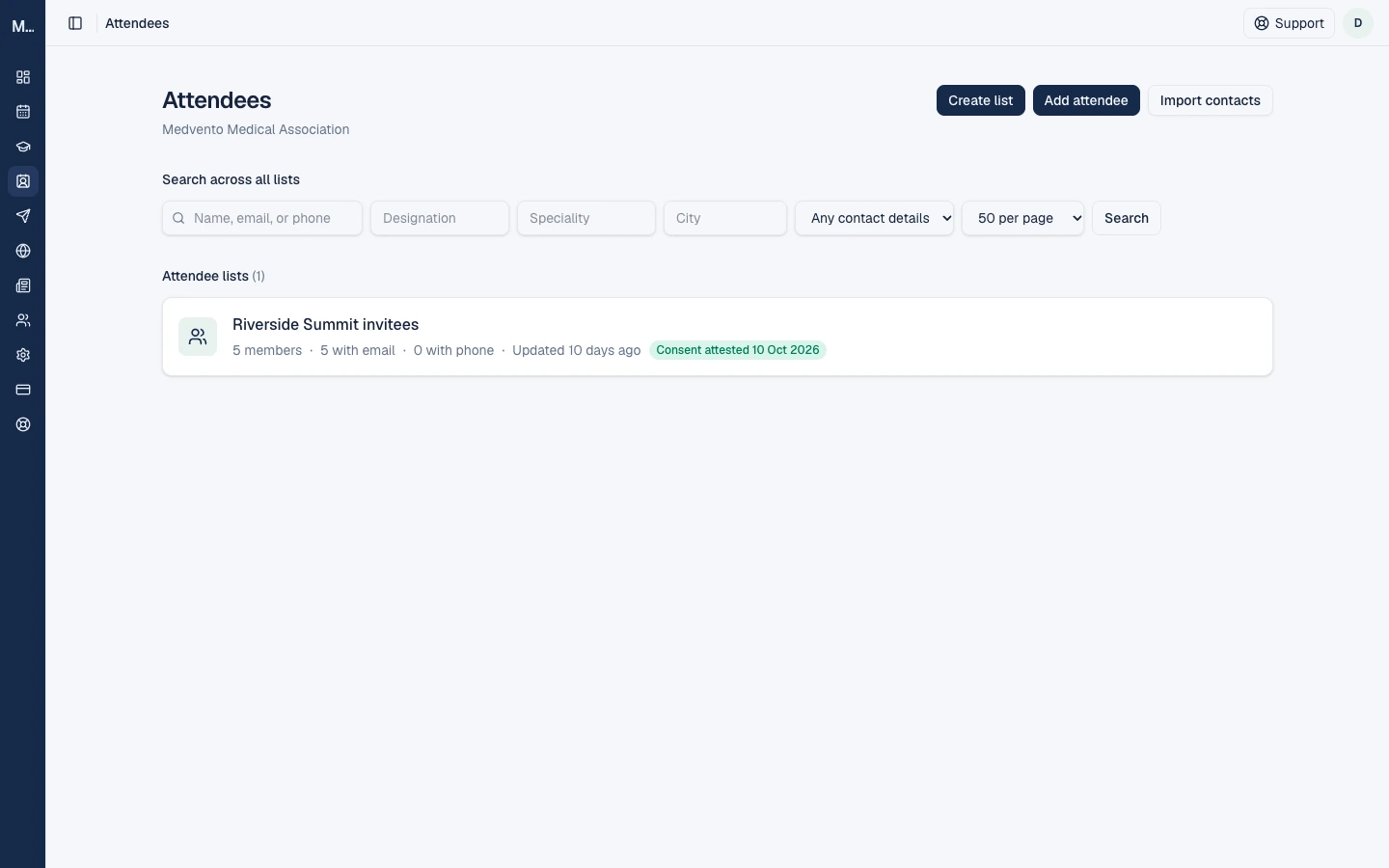
A list is organization-wide and independent of any single event. Each contact belongs to one list. You can search across all lists by name, email, phone, designation, speciality or city.
Step 2: Add contacts
Import a file
Select Import contacts, choose the list, and upload a file.
| Rule | Detail |
|---|---|
| File types | CSV or Excel (.xlsx). Older .xls files are refused. Excel files use the first sheet only |
| Size | Up to 10 MB |
| Columns | The first three columns must be Name, Email, Phone. After that, columns are matched by their header names: Designation, Speciality, Qualification, Institution, Address, City, State, Country, Pincode, Notes. A Download sample file link gives you the layout |
| Each row | Needs an email or a phone. A row with neither is skipped |
| Phone numbers | Converted to international format. Indian numbers need no +91. A number that cannot be converted skips that row |
| Result | "Added N contacts, M rows skipped", with the reason for each skipped row |
Tip for Excel: format the Phone and Pincode columns as Text before you save, or leading zeros can be lost.
The import does not check for duplicates. If you import the same file twice, you will have duplicate contacts. Medvento removes duplicates when it counts and sends a campaign, so each address is sent to and billed once, but your list will still look untidy. Add people one at a time to have duplicates rejected.
The consent confirmation
The first time you import into a list, a checkbox appears: "I attest that this organization has consent to contact everyone in this file. This is recorded once for this list and won't be asked again for future imports." Without it, the import is refused.
Treat this seriously:
- It is your declaration, not a check. Medvento cannot verify that anyone agreed.
- It is recorded once per list, with the date and the team member who confirmed it, and covers later imports into the same list without asking again.
- It is recorded only if at least one row was actually imported.
- Adding or moving people into a list that already has consent covers them under that record too. Only add people to a consented list if they agreed.
- Medvento does not stop you selecting a list with no consent record for a campaign. The consent record is your responsibility, not a gate.
Add one person
Select Add attendee, pick the list, and enter the person's details. An email or phone is required. A duplicate email or phone number anywhere in your lists is rejected. Adding one person does not ask for the consent confirmation.
Step 3: Move or delete contacts
Tick people in a list or in search results, and use the bar that appears. You can select up to 100 on screen, or Select all matching, up to 5,000.
| Action | What it does |
|---|---|
| Move | Moves the selected people to another list or a new one. Moving into a list that has consent shows a warning: "This list is marked as consented; the moved people will be covered by that record. Move anyway?" |
| Delete | Removes them for good, with a summary such as "Delete 50 people? This also removes 12 session check-ins and 3 event audience changes. This cannot be undone." Deleting more than 20 people needs you to type the number. Deleting more than 100 needs an owner |
Step 4: Link lists to an event
Open an event's Audience tab.
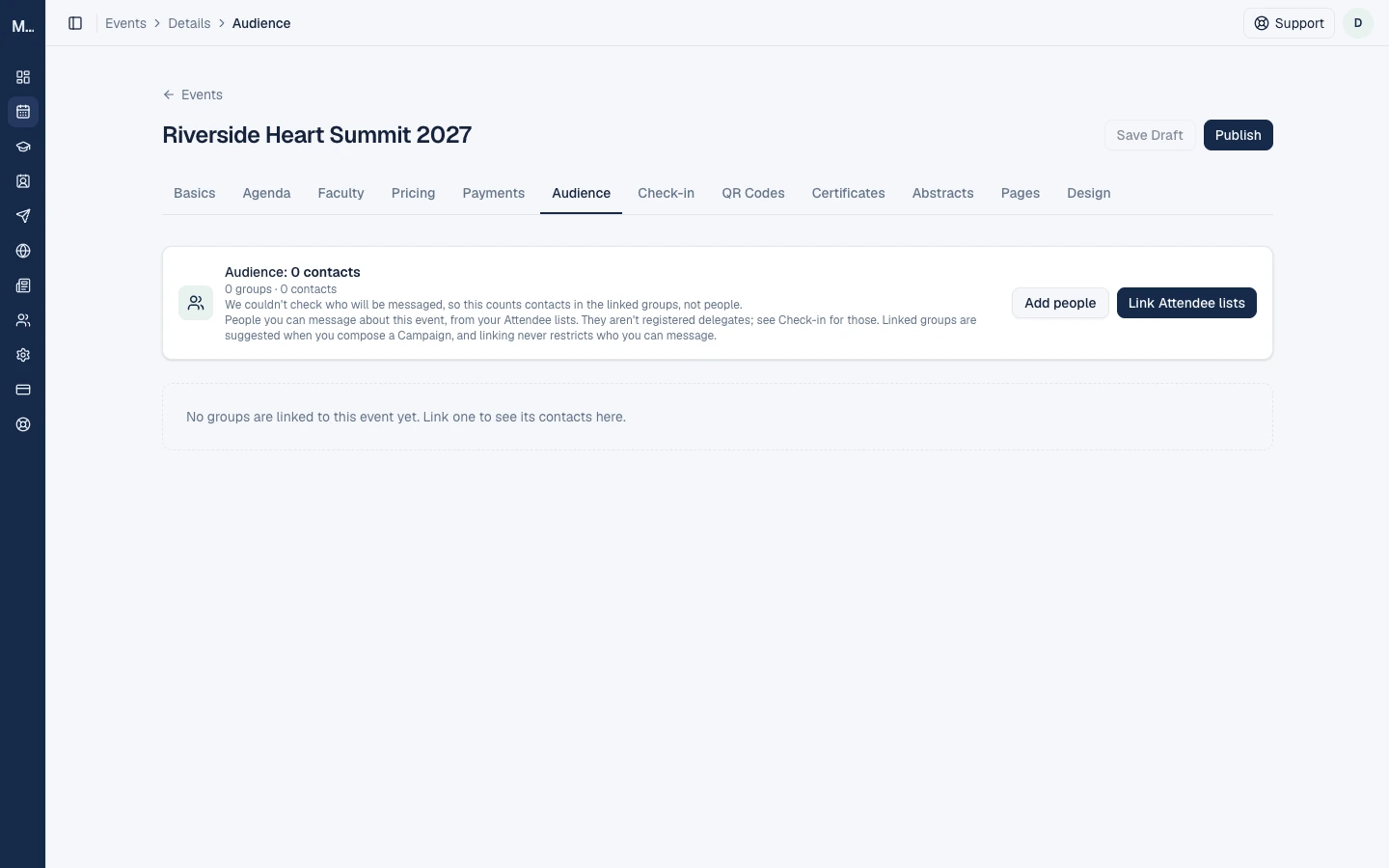
Select Link Attendee lists and choose the lists that belong to this event. Linking does not add anyone to the event and does not restrict who you can message. It only tags the list so it shows as Suggested when you compose a campaign for this event.
Change who is included for one event
On the Audience tab you can remove a person from this event (they stay in their list and everyone else is unaffected) and add people to this event. These changes apply only to campaigns linked to this event.
- Someone who shares an email or phone number with a removed person is also left out.
- A person you add must come from a list that has a consent record. Otherwise they cannot be added.
- You can make at most 2,000 changes per event.
- A removal takes effect at once, with an Undo.
- A suspended organization cannot change its audience.
The campaign's Payment tab shows how many people were excluded and added for the event.
Privacy and tidiness
- Keep each list to people who agreed to the same kind of message.
- Delete people who ask to be removed, or ask them to unsubscribe from campaigns, which blocks them without deleting them.
- Contacts' details are personal data. If someone asks to see or delete their data, use the privacy request process in privacy and consent for organizers.
Frequently asked questions
How do I import contacts into Medvento?
Open Attendees, select Import contacts, choose a list and upload a CSV or Excel file with Name, Email and Phone as the first three columns.
What does the consent confirmation do?
It records, once per list, that your organization attests it has consent to contact everyone you import. Medvento cannot check it, so keep your own evidence.
Can I import the same file twice?
You can, but it creates duplicates. Medvento sends to each address once, but your list will contain the duplicates.
Can I mix faculty and attendees in one list?
Attendee lists hold attendees. Faculty have their own groups under Faculties, and a campaign sends to one type at a time.
Does linking a list to an event change who gets messaged?
No. It only suggests that list when you plan a campaign for that event.
Next step
How to receive and verify a CME certificate from a Medvento event
How delegates get a CME certificate by email, what to do if it does not arrive, and how anyone can check a certificate is genuine with its QR code.
How to send email and WhatsApp campaigns: design, cost, sending and reports
Create a Medvento email or WhatsApp campaign, choose recipients, design and test it, understand cost and GST, and read the delivery report.