 Medvento
How to send email and WhatsApp campaigns: design, cost, sending and reports
Create a Medvento email or WhatsApp campaign, choose recipients, design and test it, understand cost and GST, and read the delivery report.
To send a campaign on Medvento, open Campaigns, select New Email Campaign or New WhatsApp Campaign, link an event if needed, choose recipients (faculty or attendees, not both), design the message, test it, and pay on the Payment tab. The price is worked out from your plan's free allowance and a per-recipient rate, with GST added. Once confirmed, a background job sends the messages at roughly 25 recipients per minute, and the Report page shows what happened. Every email carries an unsubscribe link that you cannot remove.
Before you start
- Have consent. Only message people who agreed to hear from you. Read how to build contact lists and record consent and privacy and consent for organizers. Medvento does not stop you selecting a list without a consent record, so the responsibility is yours.
- Your organization must be ready. Creating and editing needs an active plan. Paying needs a verified email, an organization that is not suspended, no messaging hold, and your organization's state set under Settings, Compliance (it decides the GST). See compliance details.
- Set your sender name under Settings, Campaign: "Sender display name", up to 120 characters. It appears as the "From" name on emails. If blank, your organization's name is used.
- Any team member can create and edit campaigns. Only owners download invoices.
Step 1: Create the campaign
Open Campaigns. The hub shows totals for all, draft and sent campaigns.
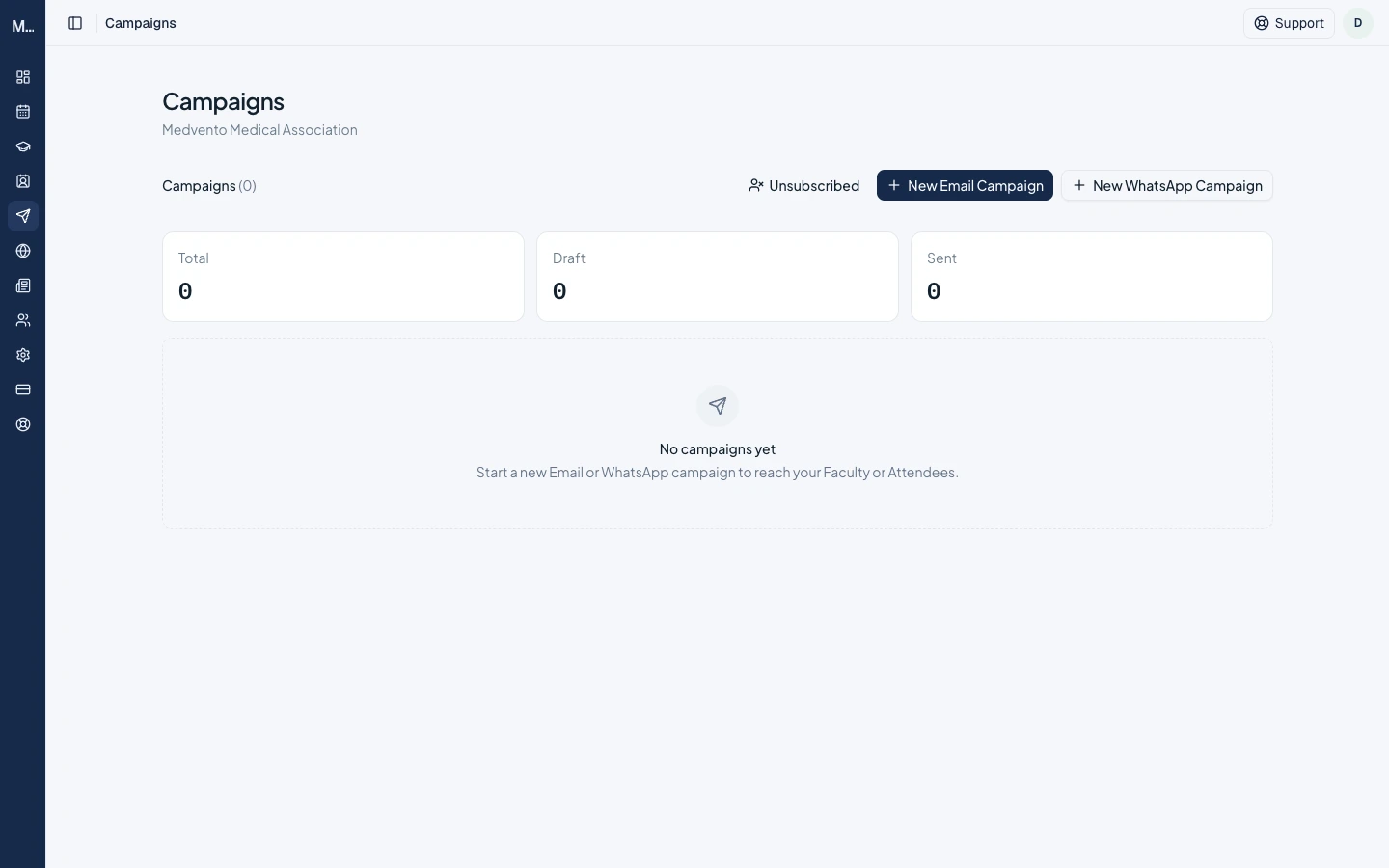
Select New Email Campaign or New WhatsApp Campaign. A draft is created at once with a default name such as "Email campaign, 14 Oct 2026". Rename it (1 to 80 characters). The name is for your team only and is never sent to recipients. The composer has four tabs: Event, Recipients, Design and Payment.
Step 2: Link an event (WhatsApp: required)
The Event tab links the campaign to an event. It is optional for email and required for WhatsApp, because WhatsApp templates use the event's details. Linking an event also lets you use the event's audience changes and details in merge tokens.
Step 3: Choose recipients
On the Recipients tab, choose a Recipient type: Faculty or Attendees. They cannot be combined in one campaign.
- For faculty, tick Faculty groups, and optionally add individual contacts.
- For attendees, tick Attendee lists. Lists linked to the event show a Suggested chip.
A live line shows "N selected, M will receive this", then who is not receiving and why: no address, invalid phone, unsubscribed, or duplicate. Each address is sent to and billed once. Unreachable, unsubscribed and duplicate contacts are not sent to or billed.
Step 4: Design the message
The Design tab has a block editor with a live preview.
| Item | Limit |
|---|---|
| Blocks | Text, button, image, heading, divider, spacer, footer, list, quote, session list, speaker grid and table. Up to 50 blocks, 5,000 characters of text per block |
| Subject | Up to 300 characters. If blank it falls back to the event name |
| Preheader | Up to 150 characters, the preview text next to the subject |
| Reply-to | A valid email, up to 320 characters |
| Attachment | One file up to 10 MB |
The session list and speaker grid fill themselves from the linked event. In a table, put one row per line, separate cells with the | character, and the first row is the header. In a list, put one item per line.
Merge tokens insert details for each person. Use exactly these:
| Token | Fills in |
|---|---|
{{delegate_name}} | The person's name |
{{delegate_email}} | Their email |
{{event_name}} | The linked event's name |
{{event_place}} | The event's venue |
{{event_meeting_link}} | The online meeting link |
{{event_meeting_passcode}} | The meeting passcode |
An unknown token is printed as it is. If an event token has no value, it becomes empty text, and a button whose address becomes empty is left out. Medvento warns you before you send. Only use the meeting link token for people who should have it: the link reaches every recipient you choose, and the Payment tab warns you if some are not registrants.
The unsubscribe footer is added automatically and cannot be removed. It reads "You're receiving this from" your organization, with an Unsubscribe link, and is also sent as an unsubscribe header that mail apps can use with one click.
WhatsApp uses fixed, pre-approved templates, so you only fill in a few fields. The message wording is fixed and signed with your organization's name.
| Template | You type | Filled automatically |
|---|---|---|
| Invite faculty | Banner image, event place, event link | Name, event, date, organizer |
| Invite attendees | Banner image | The rest |
| Event update | What changed | The rest |
| Event cancellation | A next-steps note | The rest |
| Thank you | Nothing | All |
| Join online | Nothing | All, including the meeting link. Needs the event to have a meeting link |
Each typed field is limited to 1,024 characters. Fill in every required field before you can pay. WhatsApp may withhold promotional messages from some recipients. Those show as Failed in the report. You can insert the meeting link into a free-text field, which is resolved when the message is sent.
Test before you send
Use Send test email or Send test message on the Design tab. It is sent at once to an address or number you control, using sample data, and is not billed and not added to your campaign history. You can send 20 test emails and 10 WhatsApp tests per organization in any 24-hour period. A test email has "[Test]" added to its subject. You cannot test-send to an address that has unsubscribed.
Step 5: Pay (or confirm)
The Payment tab shows the price.
| Line | Meaning |
|---|---|
| Selected contacts, Total recipients | Who will be messaged |
| Rate per recipient | Your plan's rate for this channel |
| Amount before GST | Billable recipients times the rate |
| CGST and SGST, or IGST | GST added to the amount |
| Total (including GST) | What you pay |
Your plan includes a free allowance of messages per period for email and for WhatsApp. Recipients covered by the allowance are not charged. If the whole campaign is covered, the tab says "Fully covered by your plan's remaining allowance, no payment needed" and the campaign is confirmed without a payment. A lapsed plan has no free allowance. GST is split into CGST and SGST if your place of supply is in the same state as Medvento's, and charged as IGST otherwise. Your place of supply comes from your GSTIN's state, or the state in your compliance settings.
Select Pay to open Razorpay's payment window.
What "locked" means
When you start checkout, the recipient list, rate and amount are frozen. The campaign shows "Pending payment" and its content cannot be edited. If you closed the payment window without paying, select Cancel checkout to return it to a draft, then pay again. After a payment, the page says it is awaiting confirmation and does not refresh by itself, so check the Campaigns hub.
If a payment is received but cannot be applied, the tab says nothing was sent and the payment will be refunded. Contact support@medvento.com.
Invoices and refunds
After payment, a GST tax invoice is available to owners on the campaign's Report page under GST documents. A background job prepares invoices roughly every 15 minutes, so allow up to about half an hour. Refunds are handled by Medvento's team, not from your account. Contact support.
Step 6: Sending, and how long it takes
After the campaign is confirmed, a background job runs every minute and sends about 25 recipients per minute. A campaign with 1,000 recipients takes roughly 40 minutes. You do not need to keep the page open.
| Status | Meaning |
|---|---|
| Draft | Not paid or confirmed yet |
| Pending payment | Checkout started |
| Confirmed | Paid and queued |
| Sending | Messages are going out |
| Sent | Finished |
| Failed | Could not be sent |
If your organization is suspended or its messaging is put on hold, sending stops within a few minutes and the remaining messages wait. They go out once the hold or suspension is lifted.
The report
Open a campaign's Report. Tiles show Sent, Failed and Pending. WhatsApp adds "Sent to WhatsApp, awaiting delivery", Delivered, Read and "Delivery failed". The table lists each contact, status, delivery, failure reason and last update, filtered by status, 50 per page. Contact details are partly hidden. A person who unsubscribes after you paid is caught at send time and not messaged.
WhatsApp sending never sends a message twice. If the outcome is unknown, for example after a timeout, the recipient is marked Failed instead, so a few messages may be under-sent but none are duplicated.
Unsubscribes
- Email: recipients select Unsubscribe in the footer. They see "You're unsubscribed" and still receive messages about their own registrations, such as confirmations and certificates.
- WhatsApp: a reply of STOP, UNSUBSCRIBE or STOP PROMOTIONS blocks that number for your organization's WhatsApp messages: campaigns and event messages. Only these exact words work.
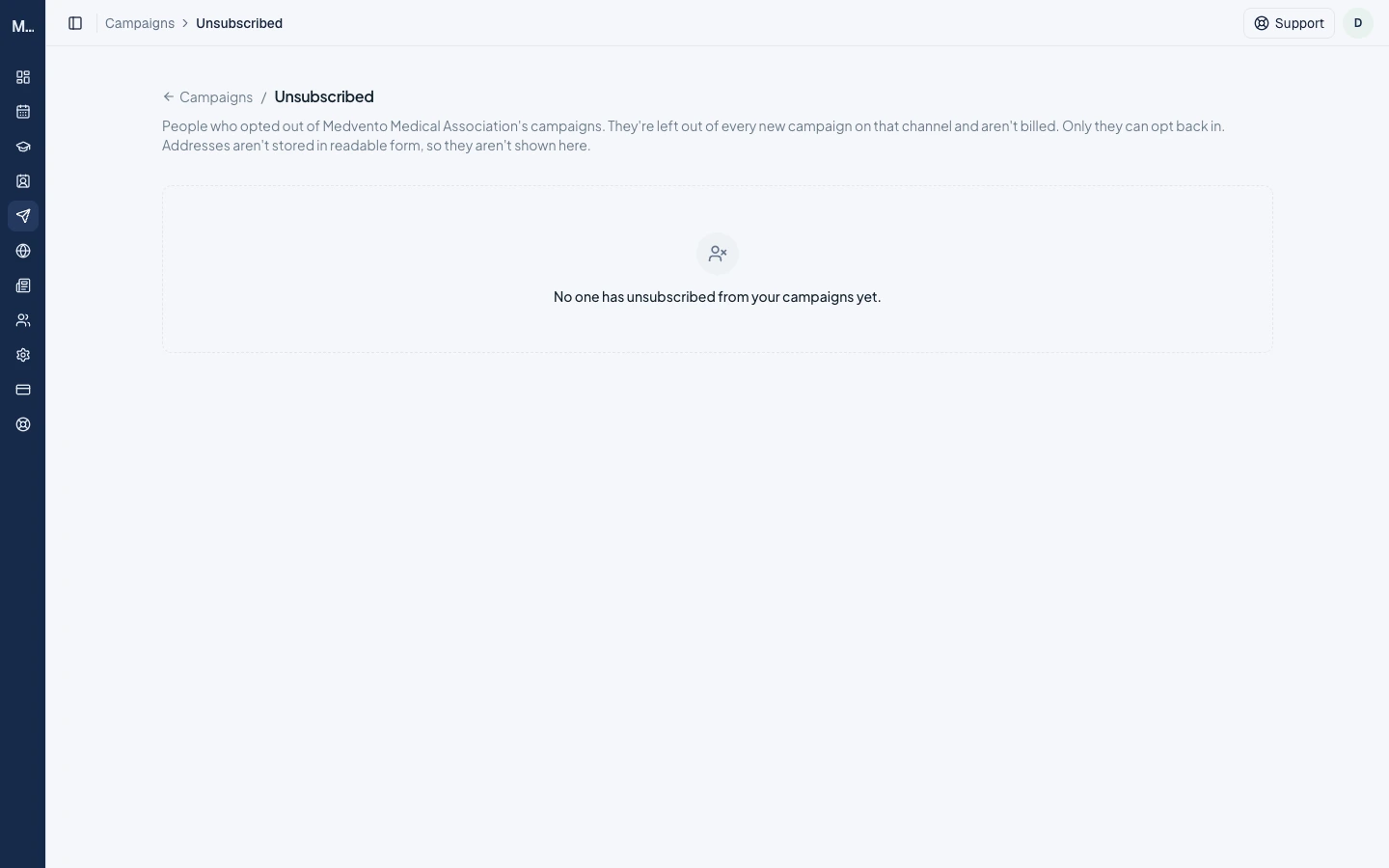
- Open Campaigns, Unsubscribed to see counts by channel and the latest 500 opt-outs with how and when. You cannot see who they are, because only a scrambled code is stored. They are left out of every new campaign and not billed. Only the person can opt back in.
Frequently asked questions
How do I send an email campaign to my members on Medvento?
Create a New Email Campaign, choose Attendees and your list, design the email, test it, pay on the Payment tab, and Medvento sends it in the background.
Can I send to faculty and attendees in one campaign?
No. A campaign goes to one recipient type.
How long does a campaign take to send?
About 25 recipients per minute, so 1,000 recipients take roughly 40 minutes.
Can I edit a campaign after I start checkout?
Not until you cancel checkout, which returns it to a draft.
Why did some WhatsApp messages fail?
WhatsApp may withhold promotional messages from some recipients, and a message with an unknown outcome is marked Failed instead of risking a duplicate.
Can I see who unsubscribed?
No. You see counts and dates only.
Can I remove the unsubscribe link?
No. It is added to every campaign email.
Next step
Read privacy and consent for organizers and return to the Attendees guide when you add people.
How to build contact lists and record consent before you message people
Import or add contacts to Medvento attendee lists, confirm consent, move and delete contacts safely, and link lists to an event's audience.
How to build your organization's website on Medvento: content, design and menus
Edit your organization's public home page on Medvento, set its logo, colours, fonts, menu, footer and social links, and publish it.