 Medvento
How to brand your event page: colours, fonts, layout and menus
Set your Medvento event page's colours, fonts, layout, menus, footer links and sponsors from the event's Design tab, or inherit your website design.
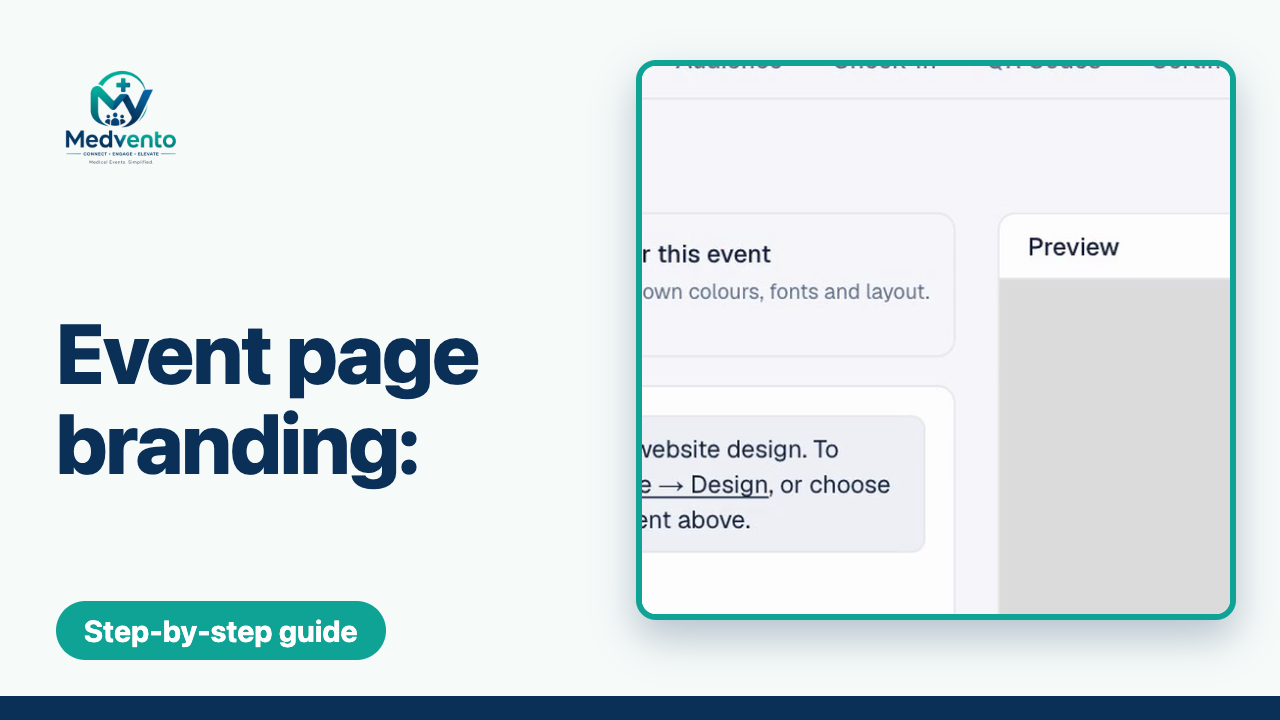
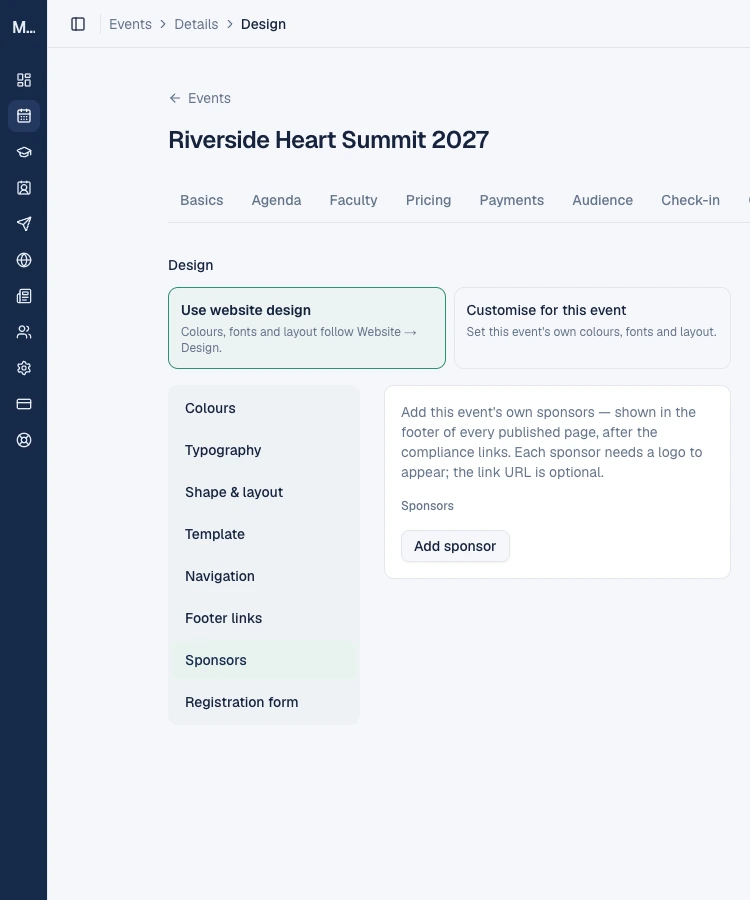
To brand a Medvento event page, open the event's Design tab. Choose Use website design to follow your organization's colours, fonts and layout, or Customise for this event to set this event's own. Then work down the list on the left: Colours, Typography, Shape & layout, Template, Navigation, Footer links, Sponsors and Registration form. The preview on the right shows the result, and the same choices apply to every page of the event.
Before you start
- Upload your organization logo and set the website design if you want events to match your organization. Events that use the website design follow it automatically.
- Create the event's pages first, or at least know which you will use: how to build and publish an event page.
Step 1: Choose between website design and a custom design
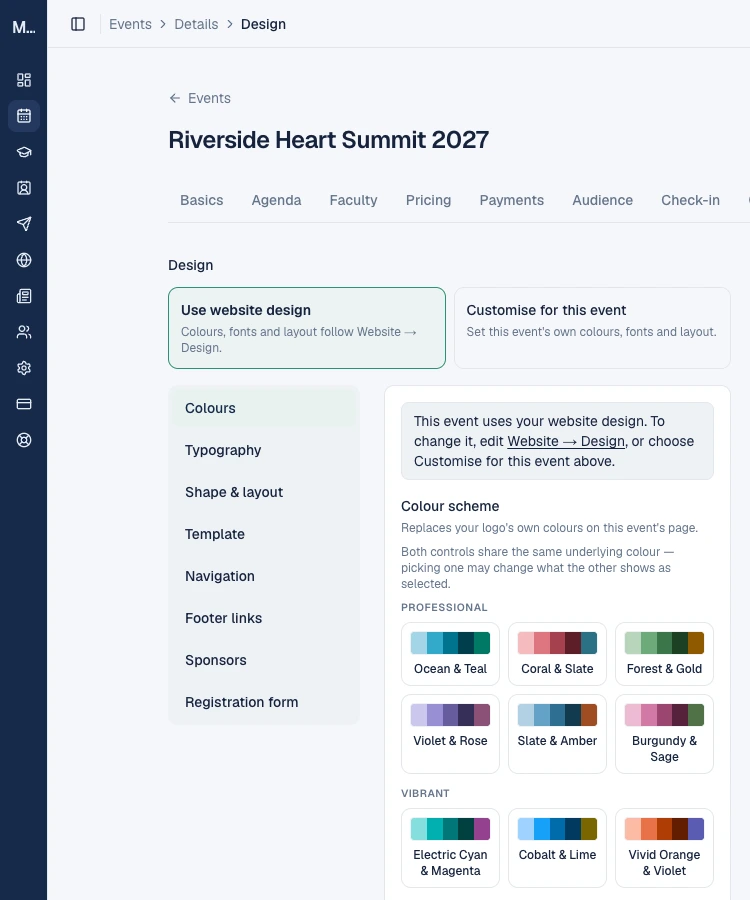
At the top of the Design tab are two cards.
| Choice | What it does |
|---|---|
| Use website design | Colours, fonts and layout follow your organization's website design. Change them once, in Website, Design, and every event that uses it follows |
| Customise for this event | Set this event's own colours, fonts and layout. Use it when the event has its own identity, such as an annual congress with a separate logo |
While you use the website design, the sections below show a notice and the controls are read-only. Choose Customise for this event to edit them.
A tip: keep events on the website design unless there is a reason not to. A consistent look across events builds recognition, and you only maintain one design.
Step 2: Colours
The Colours section replaces your logo's own colours on this event's page with a colour scheme.
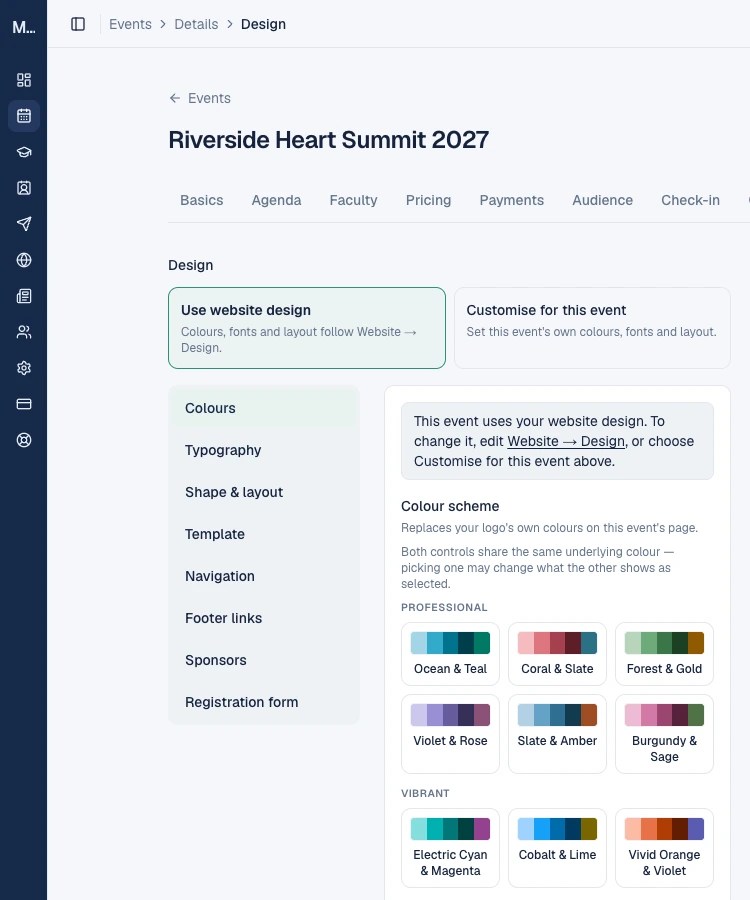
- Colour scheme: pick a ready-made palette. They are grouped as Professional (for example Ocean & Teal, Coral & Slate, Forest & Gold, Violet & Rose, Slate & Amber, Burgundy & Sage) and Vibrant (for example Electric Cyan & Magenta, Cobalt & Lime, Vivid Orange & Violet).
- Colour arrangement controls how your organization's logo colours are arranged on this event's page.
- Colour intensity has three levels: Reserved, Confident and Vivid.
- Page mode chooses a Light or Dark background for the entire page.
Both the logo colour arrangement and the colour scheme share the same underlying colour, so picking one may change what the other shows as selected. Medvento's ready-made colour schemes are built so that text stays readable against its background in both light and dark pages.
If no usable colour is set, the pre-publish check warns that the page will use a neutral palette. It is advice, not a blocker. Upload a logo or pick a scheme to fix it.
The hero background
The hero is the large banner at the top of the Home page. Its background can be a Brand gradient, a Solid colour, a Venue photo or a Pattern. If you upload a venue photo, you can adjust its Zoom and Brightness so the heading stays readable on top.
Step 3: Typography
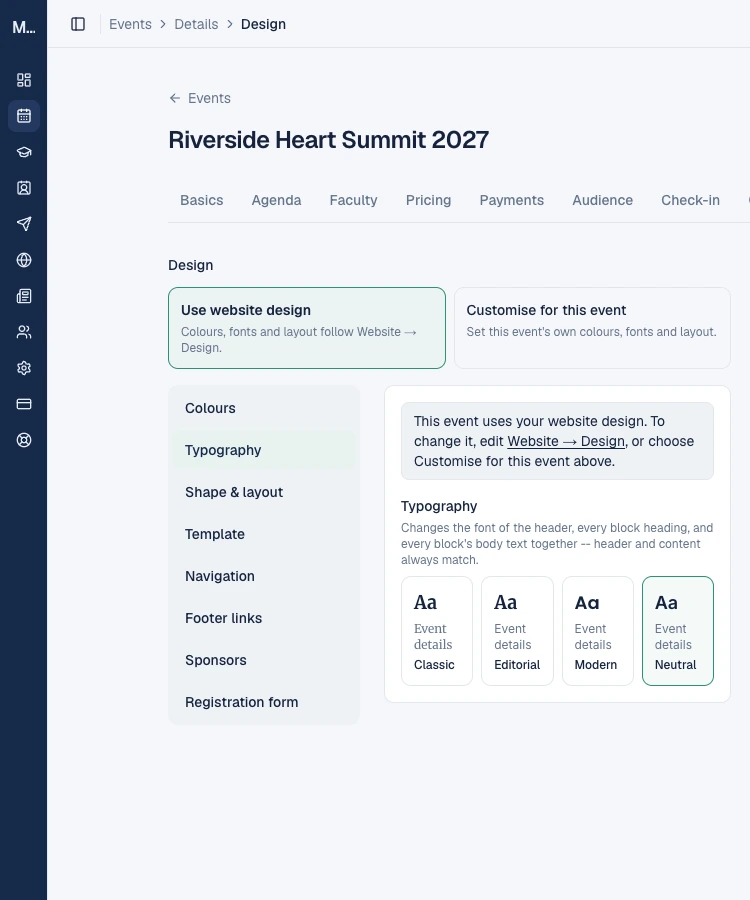
Typography changes the font of the header, every block's heading and every block's body text together, so the header and the content always match. Choose one of four pairings: Classic, Editorial, Modern or Neutral.
Step 4: Shape & layout
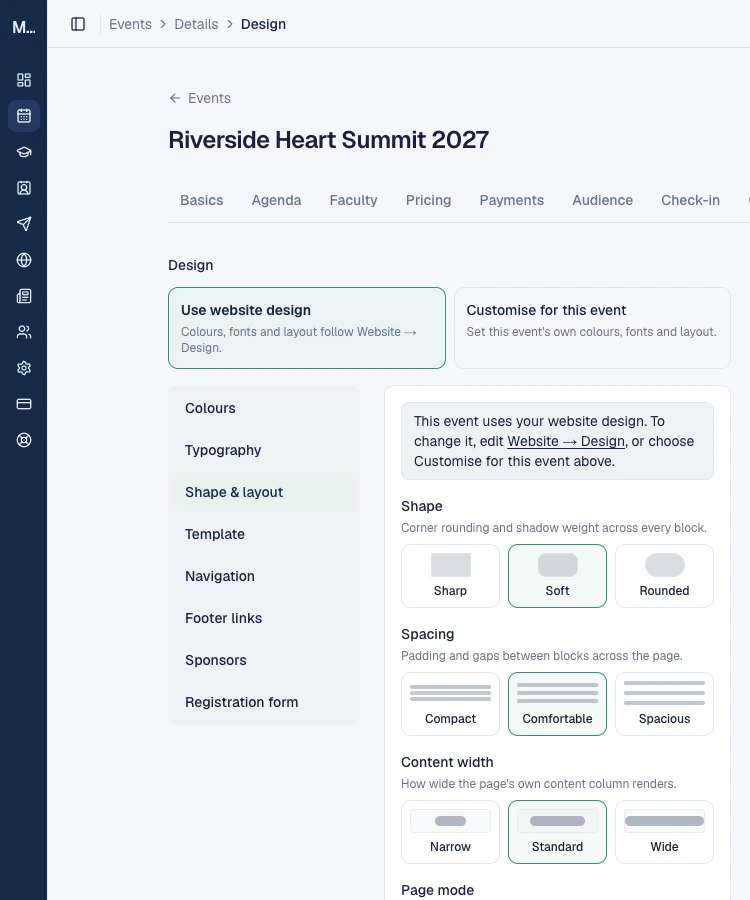
| Control | Options | What it changes |
|---|---|---|
| Shape | Sharp, Soft, Rounded | Corner rounding and shadow weight across every block |
| Spacing | Compact, Comfortable, Spacious | Padding and gaps between blocks across the page |
| Content width | Narrow, Standard, Wide | How wide the page's own content column renders |
Step 5: Template
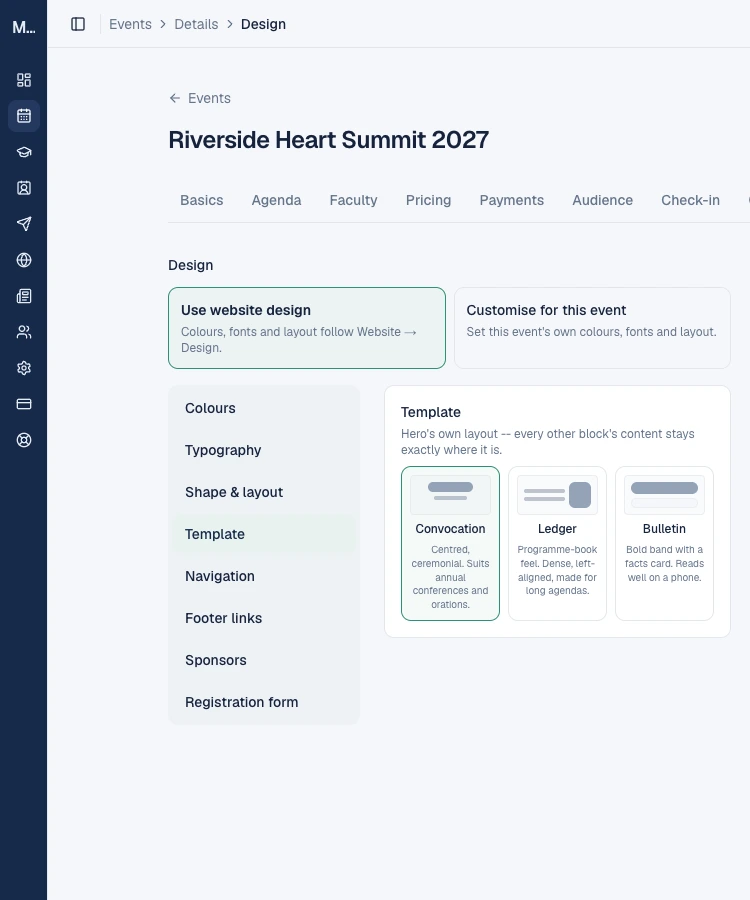
The template decides the layout of the Hero only. Every other block's content stays exactly where it is.
| Template | Look | Best for |
|---|---|---|
| Convocation | Centred and ceremonial | Annual conferences and orations |
| Ledger | A programme-book feel: dense and left-aligned | Events with long agendas |
| Bulletin | A bold band with a facts card | Reads well on a phone |
Step 6: Navigation
The organization menu bar
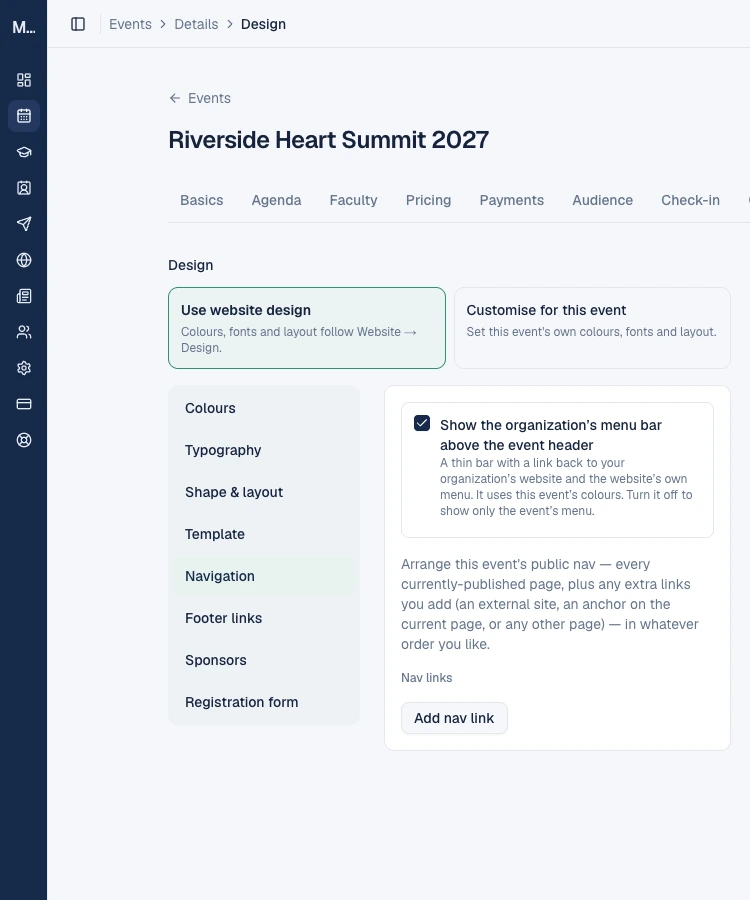
Tick Show the organization's menu bar above the event header to add a thin bar above the event header, with a link back to your organization and your website's menu. It uses this event's colours. Untick it to show only the event's own header. It applies to every page of the event, including the registration page.
The event menu
Below that, you arrange the event's public menu: every currently published page, plus any extra links you add, in whatever order you like. An extra link can go to an external website, to a section of the current page, or to any other page. Select Add nav link to add one.
Step 7: Footer links
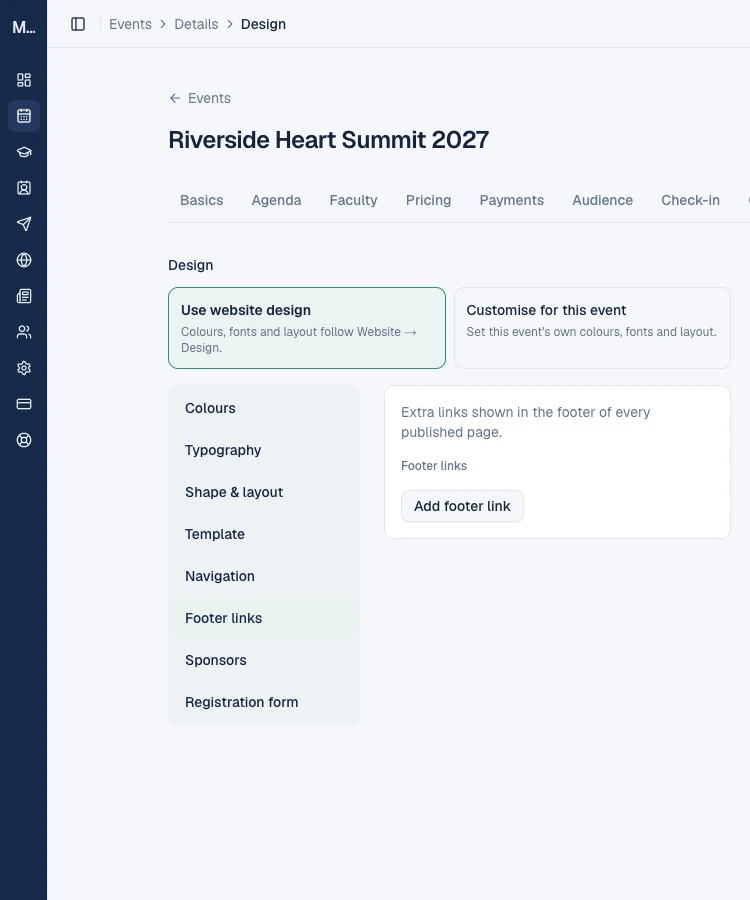
Footer links are extra links shown in the footer of every published page. Select Add footer link. Your organization's compliance pages (such as the Privacy Policy) appear in the footer automatically, so you do not need to add them.
Step 8: Sponsors
Add this event's own sponsors with Add sponsor. They are shown in the footer of every published page, after the compliance links. Each sponsor needs a logo to appear. The link URL is optional.
Only upload logos you have the right to display, and check that each sponsor agrees to appear.
Step 9: Registration form
The last item, Registration form, edits the fields delegates fill in. It is covered in tickets, payment and the registration form.
Checking your work
- Use Preview on the page editor to see the result as a visitor would.
- Look at the page on a phone-sized window as well. The Bulletin template and the Compact spacing read best on small screens.
- Run the pre-publish checks. They flag a small logo, a missing brand colour, a call to action that sits low on the page and two dark sections side by side.
Frequently asked questions
Do I have to design every event separately?
No. Leave the event on Use website design and it follows your organization's website design automatically.
Does changing the template move my other blocks?
No. The template changes only the layout of the Hero. Every other block's content stays where it is.
Can I use a dark page?
Yes. Set the page mode to Dark. The ready-made colour schemes keep text readable in both modes.
Where do my sponsors appear?
In the footer of every published page of the event, after the compliance links. A sponsor without a logo does not appear.
Why does my page look the wrong colour?
If no usable colour is set, the page falls back to a neutral palette. Upload a logo or choose a colour scheme under Colours.
Next step
Learn the blocks you can place on a page, including the table block: a guide to every block is planned next. Until then, see how to build and publish an event page.
How to build and publish an event page
Create your event's pages on Medvento from a template, add and arrange blocks, preview, pass the pre-publish checks and publish, Registration page first.
Event page blocks: what each block does, its limits and how to edit it
Every block you can add to a Medvento event page, such as Table, Fee table, Gallery and Contact persons, with its limits, edit options and consent rules.