 Medvento
How to build and publish an event page
Create your event's pages on Medvento from a template, add and arrange blocks, preview, pass the pre-publish checks and publish, Registration page first.
To build an event page on Medvento, open the event's Pages tab, select Create page, pick a template, and edit the page in the visual editor: hover between blocks to add one, hover a block to edit, move, replace or remove it. Select Preview to see the page as visitors will, then Publish. Publish your event's Registration page first, because Medvento will not publish the Home page until delegates have somewhere to register.
Before you start
- Create the event and finish its Basics: how to create an event. The event's name, dates and venue feed several blocks automatically.
- Set up tickets and the registration form, so the Registration page has something to show: tickets, payment and the registration form.
- Publish your Privacy Policy: compliance details.
- Choose your colours and fonts under the event's Design tab, or under Website, Design for the whole organization. A later guide covers branding in detail.
Step 1: Create a page from a template
Open the event and select the Pages tab. It lists the event's pages with their title, kind and status (Draft or Published). A new event already has a Home page in draft.
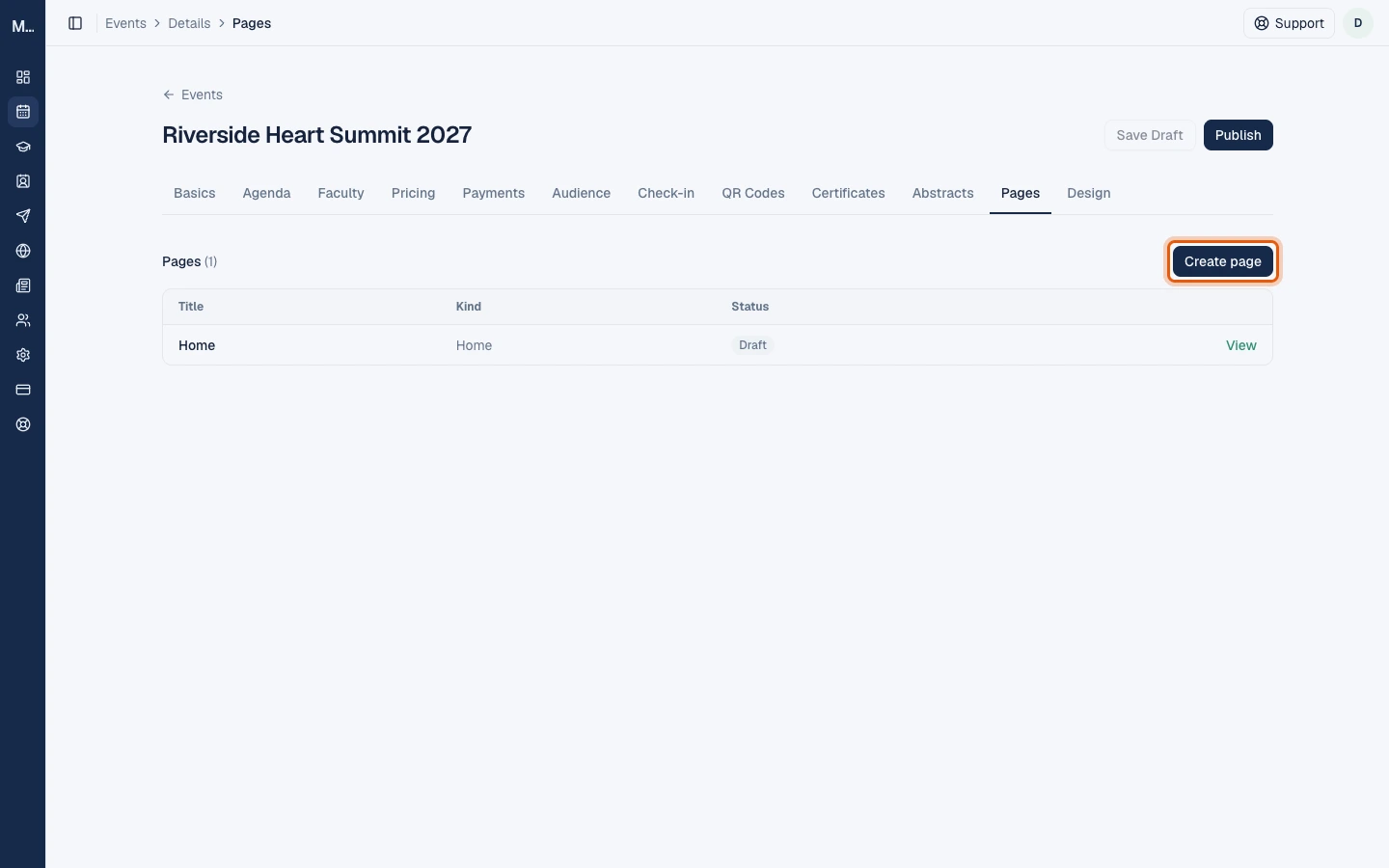
Select Create page and choose a template.
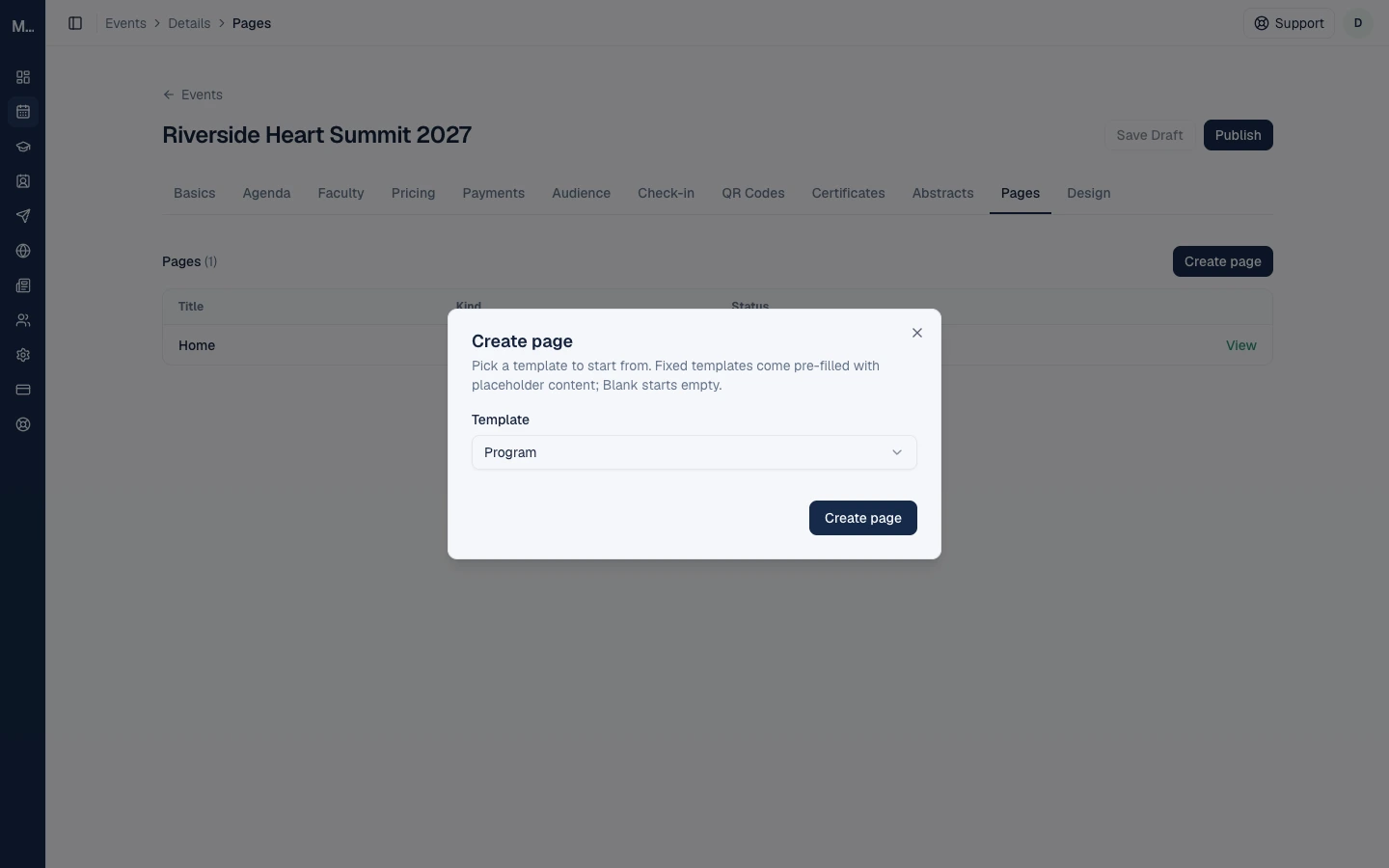
| Template | Address on the public site | Use it for |
|---|---|---|
| Home | The event's own address, medvento.com/<organization>/<event> | The landing page |
| Program | /program | The schedule |
| Faculty | /faculty | Speakers and faculty |
| Sponsors | /sponsors | Sponsor and partner logos |
| Registration | /registration | The page delegates are sent to, with the registration form |
| Travel | /travel | How to reach the venue and where to stay |
| Blank | A name you choose | Anything else |
Fixed templates come pre-filled with sample content for you to replace. A Blank page starts empty and asks for a title and a short address. Each event can have one page of each fixed kind, so a kind that already exists shows as "already created". The fixed addresses are reserved, so a blank page cannot use them.
Step 2: Edit the page in the visual editor
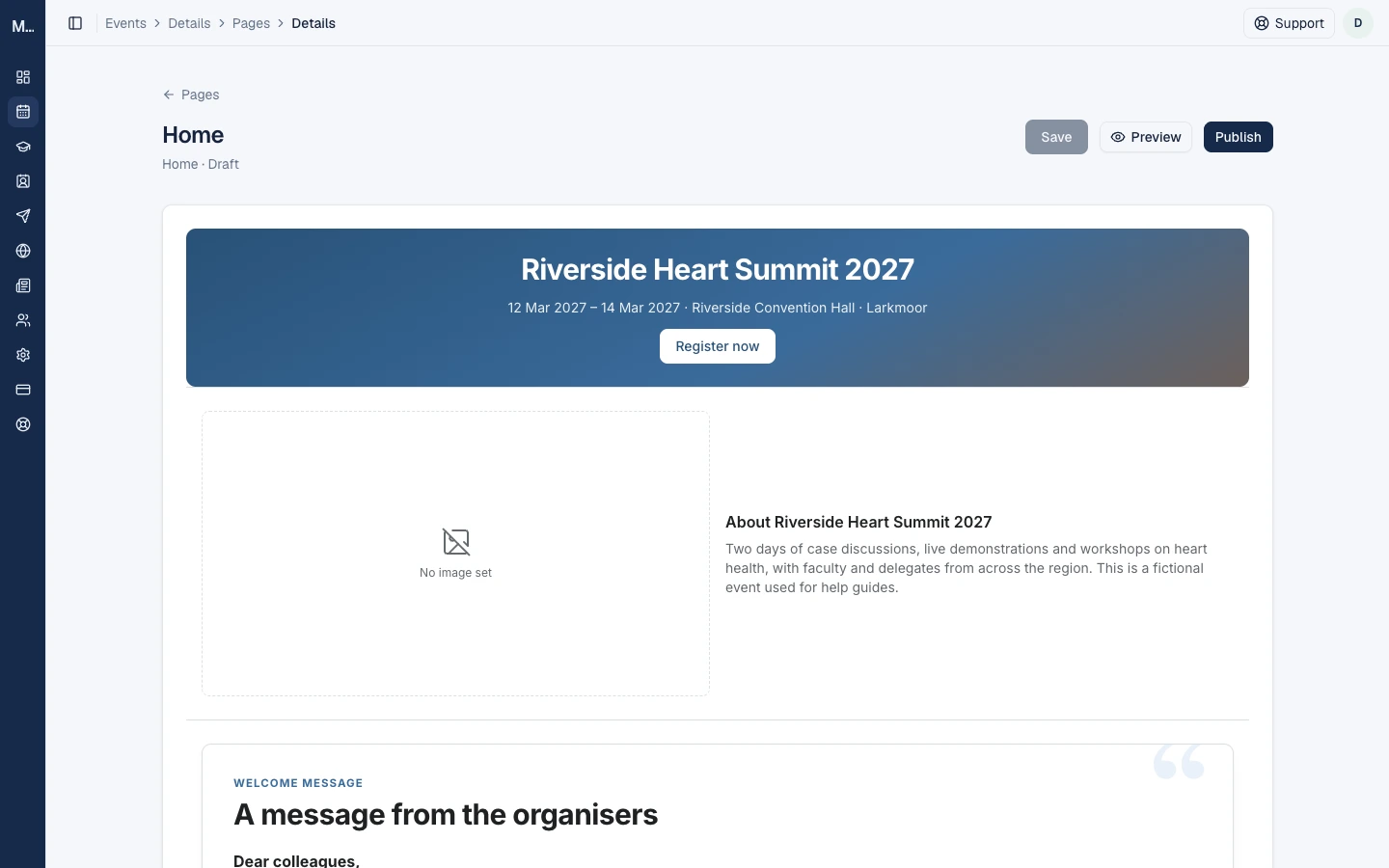
Open a page to edit it. The editor shows the page the way visitors will see it, with the Save, Preview and Publish buttons at the top right. Save becomes active when you have unsaved changes.
Add a block
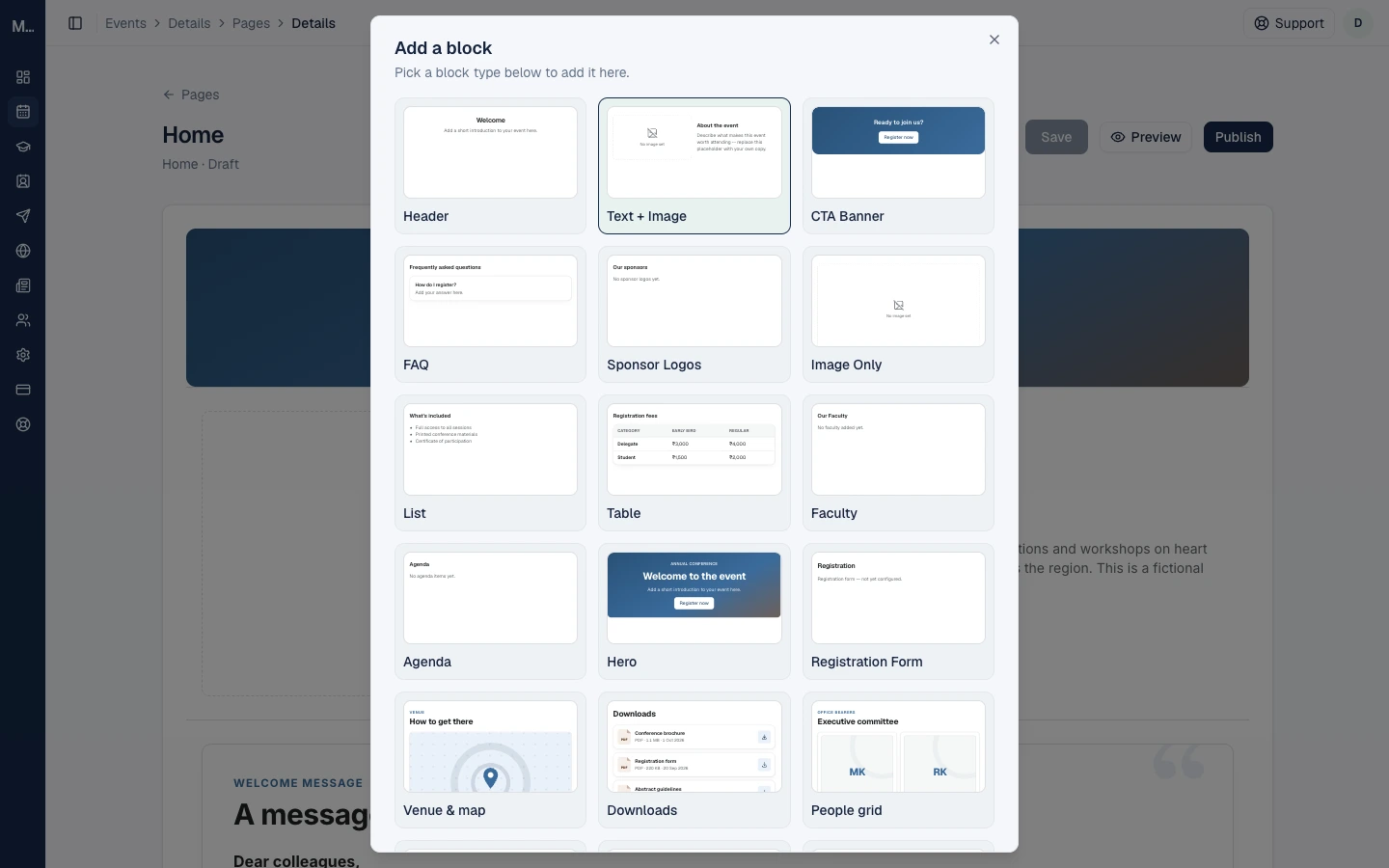
Hover between two blocks, or above the first one. A + button appears. Select it to open Add a block, a gallery of block types with a small preview of each, such as Header, Text + Image, CTA Banner, FAQ, Sponsor Logos, Image Only, List, Table, Faculty, Agenda, Hero, Registration Form, Venue & map, Downloads and People grid. Choose one and it is inserted at that spot.
Edit, move, replace or remove a block
Hover a block to show its controls in the top right corner of the block:
| Control | What it does |
|---|---|
| Edit (pencil) | Opens the block's fields. Each block has its own options |
| Up and down arrows | Move the block earlier or later on the page |
| Replace | Swap the block for another type |
| Remove (bin) | Delete the block from the page |
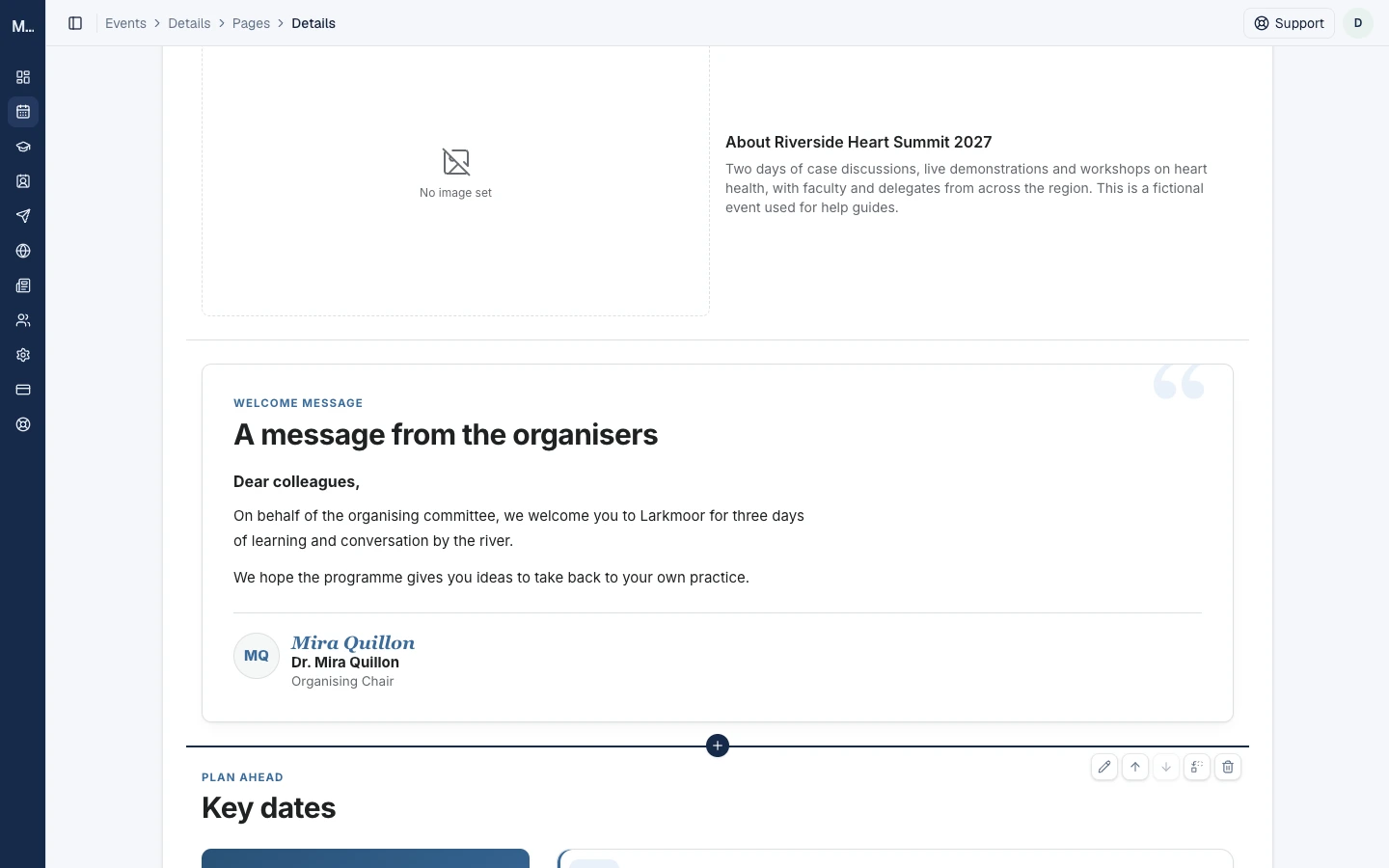
Some blocks fill themselves in from your event: the Venue & map block uses the venue from Basics, the Fee table shows your tickets, and the Key dates block uses your event dates. If the information is missing, the block hides itself, and the pre-publish check tells you so. A later guide describes every block, including how to enter table rows and columns.
Save often. Select Save to keep your changes.
Step 3: Preview
Select Preview to see the page as a visitor would, without publishing it. A preview cannot take a registration, so the registration form in a preview is for looking only.
Step 4: Publish, Registration page first
Select Publish. Medvento runs the pre-publish checks first and shows the result.
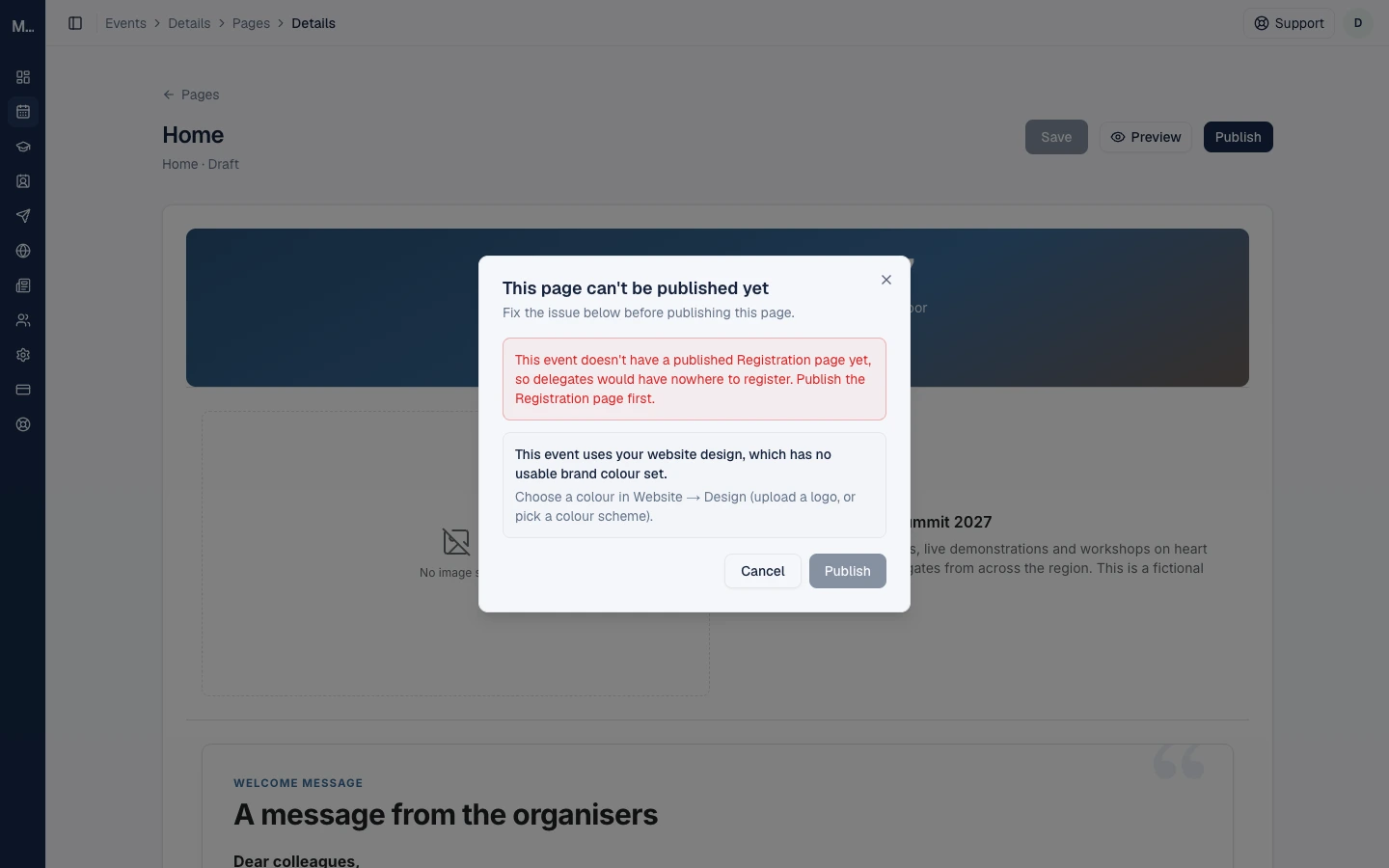
There are two kinds of message:
- Blockers (red): the Publish button stays inactive until you fix them. The most common one is "This event doesn't have a published Registration page yet, so delegates would have nowhere to register". Publish the Registration page first, then publish the Home page.
- Advice (grey): the page can still be published. Typical advice is that your organization logo is small, that no brand colour is set so the page uses a neutral palette, that two dark sections sit next to each other, or that a block such as the Venue & map or Fee table will be hidden because it has nothing to show.
Other things that can stop a publish
- Consent for people you list. If a Contact persons block shows people's names, phone numbers or email addresses, you must tick the consent box for the page, confirming those people agreed to be shown. Medvento will not publish or save a published page without it.
- A suspended organization cannot publish a page or save changes to a published one. You can still edit drafts.
- An organization plan that has lapsed is read-only.
After you publish
Published pages are served from a cache. Publishing refreshes the page straight away. A change to a ticket price slab or to a tier filling up can take up to an hour to show on the public page.
To change a published page, edit it and save. If your organization is suspended you cannot.
What to put on the pages
- Home: the event name, dates, venue and a clear "Register now" button.
- Registration: the Registration Form block plus a short note on fees. The form block shows the registration form you designed.
- Program and Faculty: an Agenda block and a Faculty block, filled from the Agenda and Faculty tabs.
- Contact details: use the Contact persons block rather than typing numbers into text, so consent is recorded.
Frequently asked questions
Which page should I publish first?
The Registration page. Medvento refuses to publish the Home page until the event has a published Registration page.
What is the difference between Save and Publish?
Save keeps your edits to the draft. Publish makes the page visible to the public. Opening registration for the event is a separate step; see how to create an event.
Can I preview a page before publishing it?
Yes. Preview shows the page as visitors will see it. It does not publish anything and cannot take a registration.
Can I have more than one page of the same kind?
No. Each event can have one Home, one Program, one Faculty, one Sponsors, one Registration and one Travel page. You can add any number of Blank pages.
Why can't I publish?
The pre-publish dialog lists the reason. The common ones are a missing Registration page, a missing consent tick for Contact persons, or a suspended organization.
Do blocks update themselves?
Some do. The Venue & map, Fee table and Key dates blocks read from your event. Others, such as text and images, show exactly what you enter.
Next step
Choose your event's colours and fonts, and learn every block in detail: guides for branding and for the block library are planned next. For attendee lists, see manage attendees.
How to build your event agenda: sessions, topics and speakers
Add sessions to your Medvento event with times, rooms and CME credits, break them into topics, assign speakers and show the programme on your event page.
How to brand your event page: colours, fonts, layout and menus
Set your Medvento event page's colours, fonts, layout, menus, footer links and sponsors from the event's Design tab, or inherit your website design.