 Medvento
How to set up tickets, payment and the registration form
Set up an event's registration on Medvento: create free or paid tickets, choose how delegates pay, add price slabs and design the registration form.
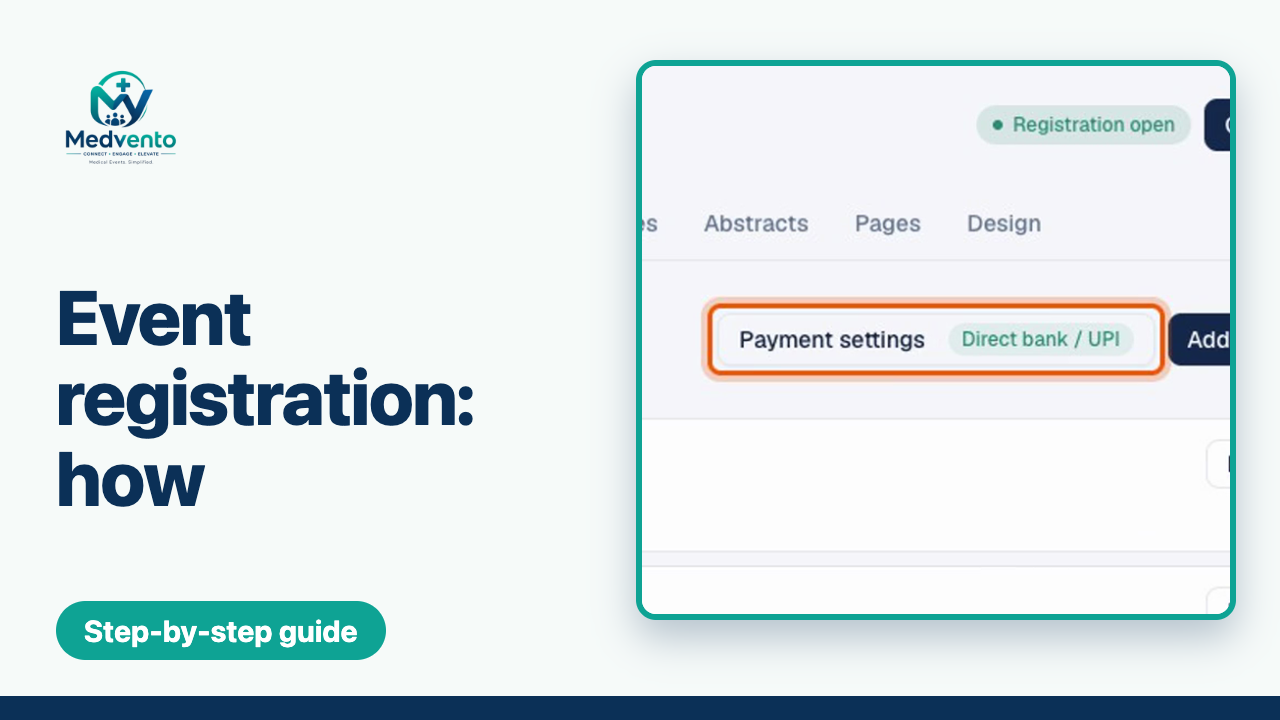
To set up registration for a Medvento event, open the event's “Pricing” tab, choose a payment setting if any ticket is paid, add at least one ticket (every event needs one, even a free one), and then shape the registration form under Design, Registration form. Delegates cannot register until the event has a ticket and you have opened registration. Today, paid tickets are paid directly to your organization by bank transfer or UPI, and you confirm each payment against your own bank statement.
Before you start
- Create the event first: how to create an event.
- If you plan to charge for tickets, have your bank or UPI details ready, and decide how many days you will hold a seat for an unpaid delegate.
- Publish your Privacy Policy, because registration cannot open without it: compliance details.
Step 1: Decide how delegates will pay
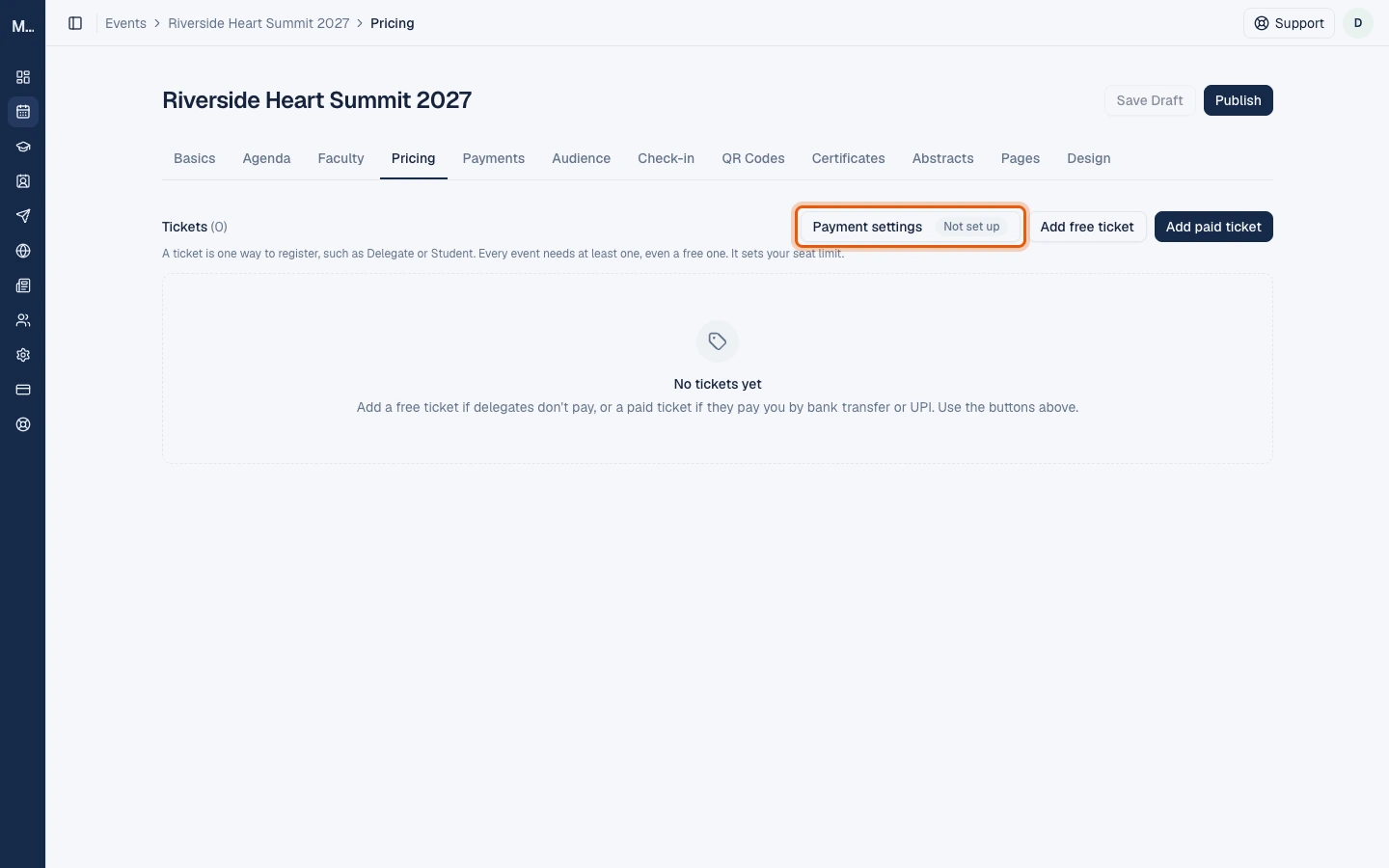
Open the event's “Pricing” tab. At the top right you see Payment settings, Add free ticket and Add paid ticket.
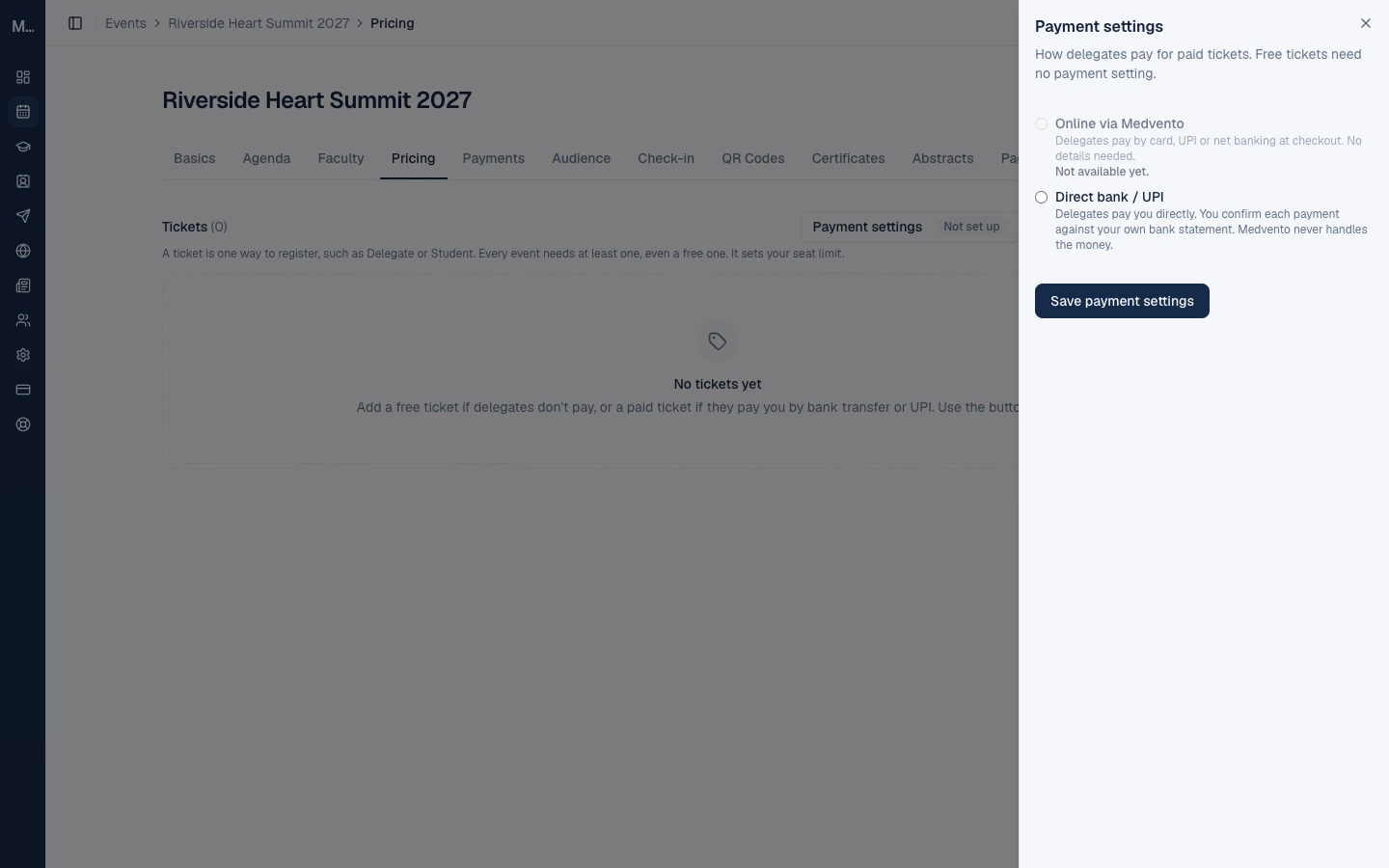
Select Payment settings. Free tickets need no payment setting. For paid tickets you choose one of two modes:
| Mode | What it means | Availability |
|---|---|---|
| Online via Medvento | Delegates pay by card, UPI or net banking at checkout, with no details needed from you | Shown as "Not available yet" |
| Direct bank / UPI | Delegates pay you directly. You confirm each payment against your own bank statement. Medvento never handles the money | Available |
Direct bank / UPI details
When you choose Direct bank / UPI, Medvento asks for the details delegates will pay into:
| Field | Limit |
|---|---|
| Payee name | The name on the account |
| UPI id (for example name@bank) | 100 characters |
| Bank name | 100 characters |
| Account number | |
| IFSC (for example HDFC0001234) | 20 characters |
| Note for delegates (optional) | A short instruction, such as what to write in the payment remark |
| Seat hold (days, 1 to 7) | How long an unpaid registration keeps its seat. The default is 3 days |
Only an owner can change the payment setting. These details are shown to delegates only after they register, and they are never written to logs. They are your organization's details, not Medvento's.
Plan the mode early. Once the first paid registration is confirmed for an event, its payment mode is locked.
Step 2: Add tickets
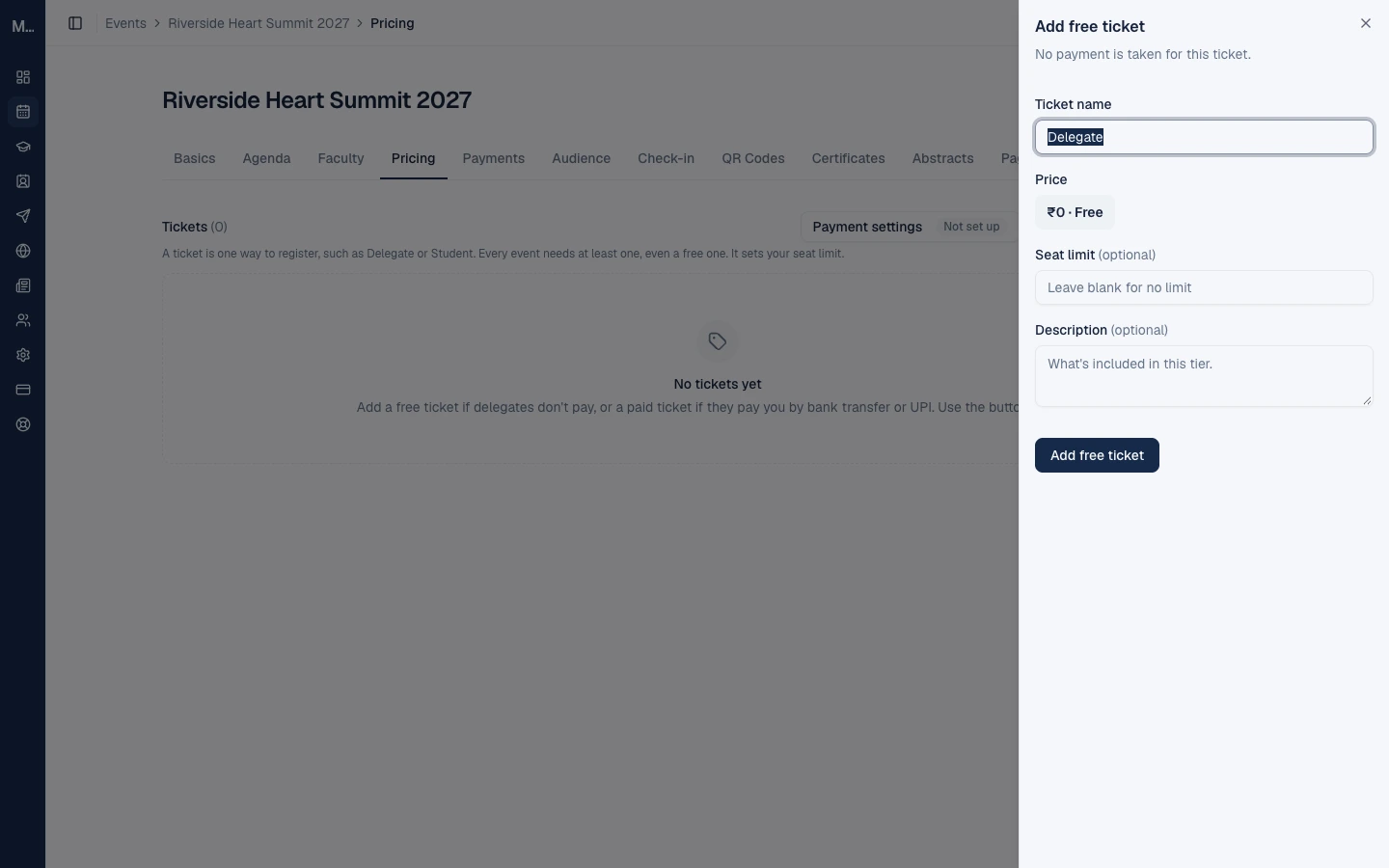
A ticket is one way to register, such as Delegate or Student. It also sets a seat limit. Select Add free ticket or Add paid ticket.
| Field | What to enter | Limit |
|---|---|---|
| Ticket name | What delegates choose, for example "Delegate" or "Student" | 200 characters |
| Price | Paid tickets only, in rupees | At least 0.01. Free tickets have no price to enter |
| Seat limit | The maximum number of seats for this ticket | Leave blank for no limit |
| Description | What the ticket includes | 2,000 characters |
Every event needs at least one ticket. A free ticket lets delegates register without paying, so an event with only free tickets needs no payment setting.
What happens when a ticket is full
When confirmed registrations reach the seat limit, the ticket shows as full on the event page. Unpaid holds count towards the limit while they last, so a page can show a ticket as full while a hold is still waiting for payment. When a hold lapses, the seat returns, but the public page may take up to an hour to show it.
Changing a ticket after people have registered
Once a paid ticket has a confirmed registration, its price is locked. Plan prices before you open registration.
Step 3 (optional): Price slabs for early-bird and late fees
If your fee changes by date, use price slabs instead of one price. A slab is a date range with a label, for example "Early bird", "Regular" and "On-spot".
- Slabs belong to the event and are shared by every ticket. Each ticket gets its own price per slab, or none (leave blank for "Not offered").
- Each slab has a label (up to 40 characters) and an end date. A slab applies up to and including its end date, in the event's timezone. The last slab has no end date.
- Each event can have at most 10 slabs, and the end dates must increase from one slab to the next.
- Delegates pay the price of the slab in force on the day they register. Someone who registers during the early-bird slab keeps that price for their hold even if the slab ends before they pay.
- A slab that a confirmed or in-progress registration uses cannot be removed. Editing a slab that has ended changes nothing already paid.
- Price slabs cannot be changed once registration has closed.
If you remove all slabs, you must enter a single price for each paid ticket in the same save.
Step 4: Design the registration form
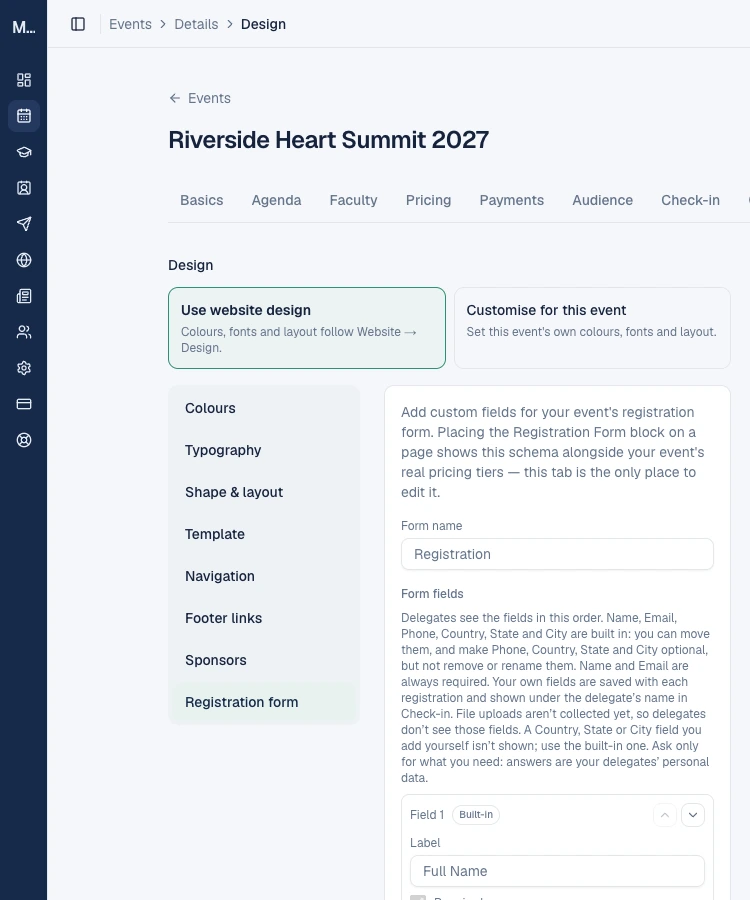
Open the event's Design tab and choose Registration form. This is the only place the form is edited. Delegates see the form wherever the Registration form block sits on your event page.
Built-in fields
The form starts with six built-in fields: Full Name, Email, Phone, Country, State and City. You can move them and make Phone, Country, State and City optional. You cannot remove or rename them. Name and Email are always required.
Your own fields
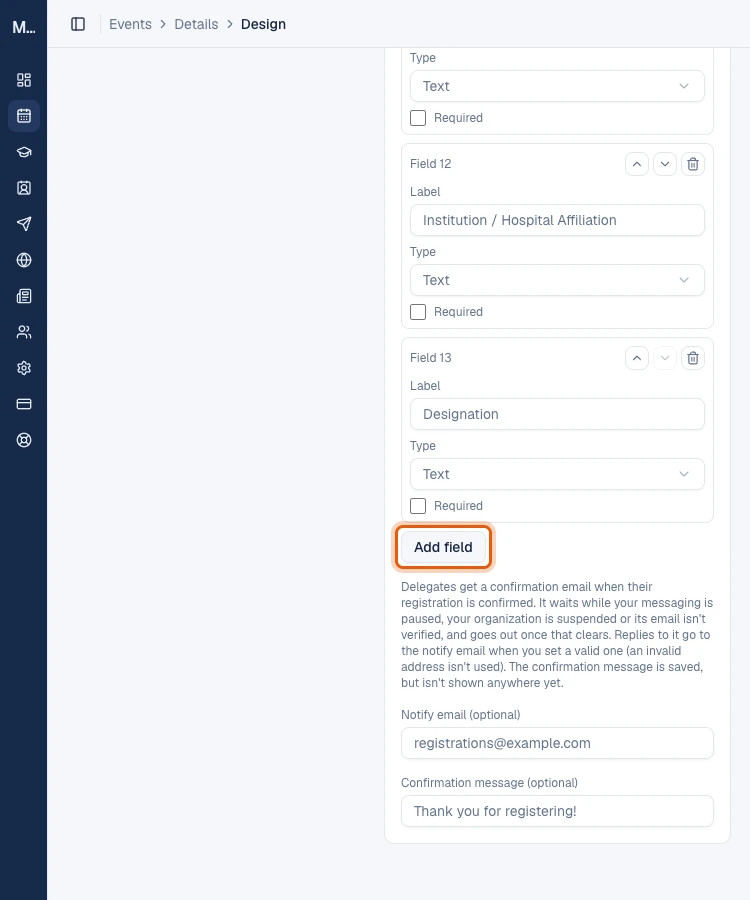
Select Add field to ask for more, such as an institution or a registration number.
| Rule | Detail |
|---|---|
| Field types | Text, email, phone, dropdown, checkbox, and the location types country, state and city |
| How many | Up to 30 fields of your own |
| Answer length | Up to 1,000 characters per answer |
| Required or optional | You choose for each field |
| File uploads | Not collected. Delegates do not see file fields |
Answers appear next to each delegate's name on the Check-in roster, and are included when a delegate asks for their data.
Ask only for what you need. Answers are your delegates' personal data. Each extra question is something you must protect and, if a delegate asks, show or delete. Prefer the built-in Country, State and City fields over a free-text version.
Confirmation email settings
At the bottom of the form settings, you can set a Notify email (replies to the confirmation email go there) and a Confirmation message. Every confirmed delegate receives a confirmation email, sent in the background. It usually arrives within a few minutes of the registration being confirmed. If your organization's messaging is paused or suspended, the email waits and is sent once that clears.
Step 5: Check, then open registration
Before you open registration, confirm that:
- Your Privacy Policy is published.
- The event has at least one ticket.
- If any ticket is paid, a payment setting and your payment details are saved.
- The registration deadline, if you set one, has not passed.
- The registration form asks only for what you need.
Then use Publish in the event header to open registration, and publish your event page so delegates can reach the form. See how to create an event and how to build your event page.
Frequently asked questions
How do delegates pay for a ticket on Medvento?
At the moment, paid tickets use Direct bank / UPI: delegates pay your organization and you confirm each payment in Medvento. Online card payment through Medvento is shown as not available yet.
Does Medvento hold my delegates' money?
No. With Direct bank / UPI the money goes straight to your own account, and you confirm it against your bank statement.
Do I need a ticket for a free event?
Yes. Every event needs at least one ticket, even a free one. A free ticket needs no payment setting.
Can I charge different prices for early and late registration?
Yes, with price slabs. You can set up to 10 slabs, each with its own end date and a price per ticket.
Can I add my own questions to the registration form?
Yes. Add up to 30 fields of your own under Design, Registration form. Name and Email are always asked.
Can I change the price after delegates have paid?
No. After a paid ticket has a confirmed registration, its price is locked.
Next step
Share the registration page and see what delegates experience: the delegate guide is planned next. Until then, see manage attendees.
How to get help from Medvento: raise and follow a support ticket
Raise a support ticket from the Medvento organizer app, attach screenshots, follow replies and understand ticket statuses and limits.
How to share your registration page, confirm payments and track registrations
After you open registration on Medvento: share the page, see who registered, confirm direct bank or UPI payments and understand the emails delegates get.