 Medvento
How to publish news, circulars and articles on your Medvento website
Write circulars, news and articles in Medvento, attach a PDF or link, publish to your News page, hide old notices and understand takedowns.
To publish a circular on your Medvento website, open News, select New post, choose a Kind (Circular, News or Article), enter a title, date and summary, optionally attach a PDF or a link, and select Publish. Each post gets its own page on your website and appears on your News page. Owners and staff can write posts. Nothing is public until you publish, and nobody is emailed when you do.
Before you start
- Your organization must be active and not suspended to publish.
- Have the title, a 2 to 3 line summary and, for a circular, the PDF ready.
- Nothing you publish here is private: everything in the text, PDF, link and images is public. Do not publish members' personal data.
Step 1: Choose a kind
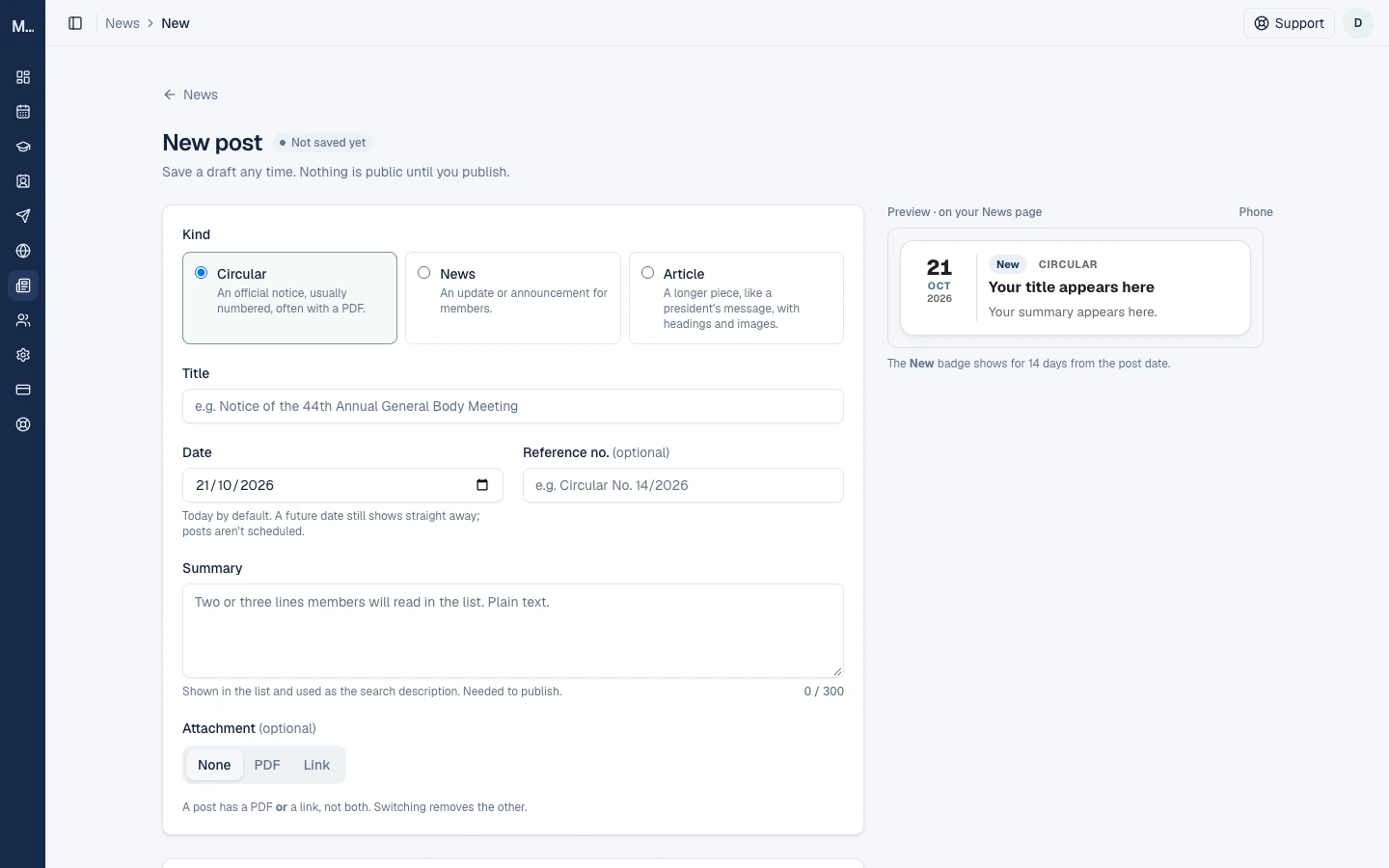
| Kind | Use it for |
|---|---|
| Circular | An official notice, usually numbered, often with a PDF |
| News | An update or announcement for members |
| Article | A longer piece, like a president's message, with headings and images |
Step 2: Fill in the post
| Field | Rule |
|---|---|
| Title | Required, up to 160 characters |
| Date | Defaults to today. A future date still shows straight away: posts are not scheduled |
| Reference no. | Optional, up to 60 characters, such as "Circular No. 14/2026" |
| Summary | Up to 300 characters of plain text. Required to publish. It is shown in the list and used as the search description |
| Article text | Articles only. Up to 40,000 visible characters, headings, lists, links and images |
| Attachment | Optional: one PDF or one link, not both. A PDF is up to 15 MB. A link must start with http:// or https:// and be up to 500 characters, and it opens in a new tab |
| Event | Optional. The post's page links to this event while the event is on your website |
| Hide after | Optional date for time-bound notices |
Article images: up to 20, in JPEG, PNG or WebP. Each needs alt text (up to 200 characters) and can have a caption (up to 200).
The form shows a live preview of how the post will look on your News page.
Step 3: Save and publish
- Save draft keeps it private. Publish makes it live: "Published. It's live on your News page."
- Save changes on a published post goes live straight away.
- Unpublish takes it off your website and back to Drafts. A published post must be unpublished before you can delete it.
- The post's web address is made from the title when you first publish and is fixed afterwards, so shared links keep working.
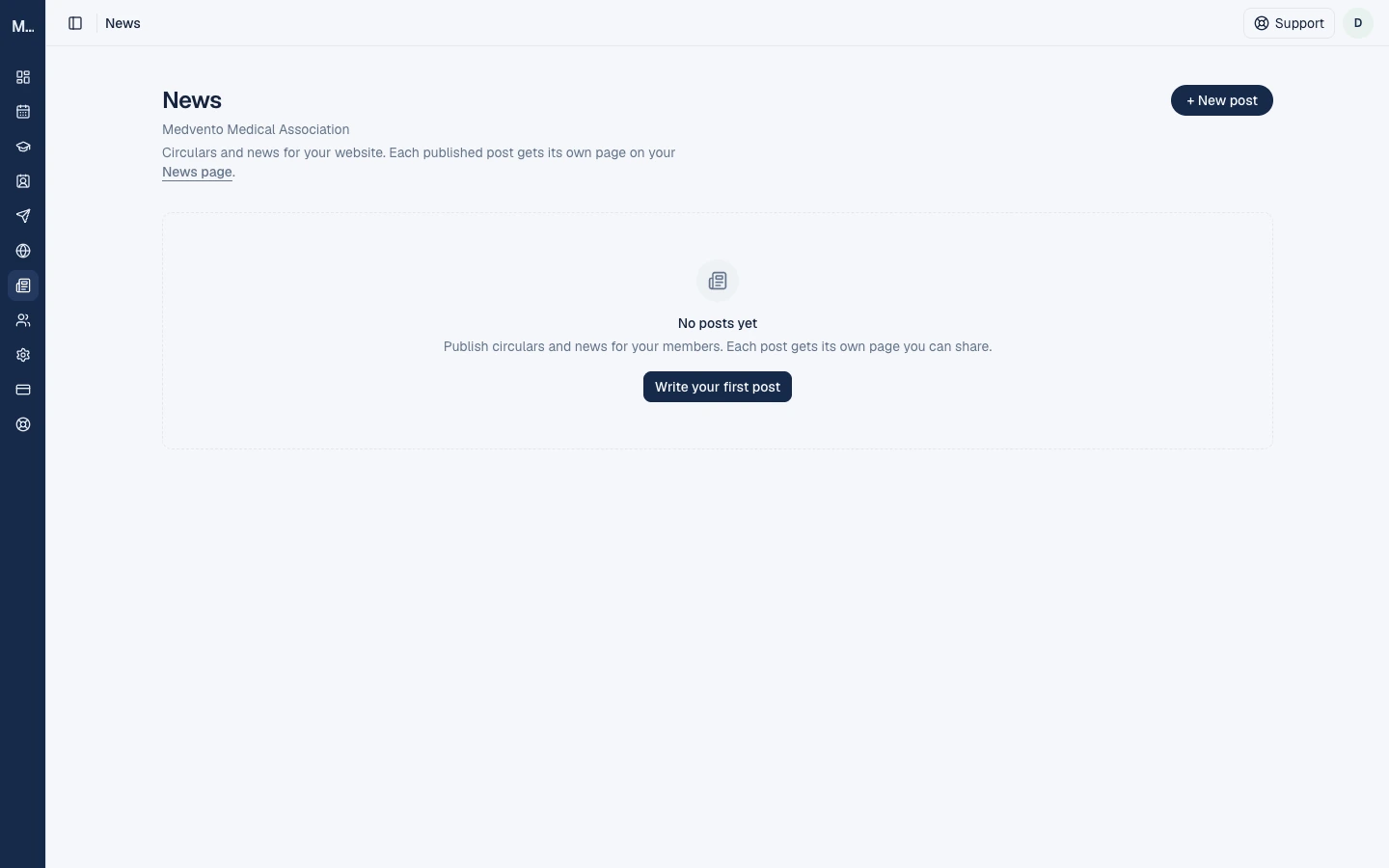
The list has filters for All, Published and Drafts, and for each kind. Labels include "Summary missing" and "Hidden since" a date.
Hide a notice after a date
Use Hide after for a deadline reminder. After that date (in Indian time) the post leaves your News page and any Latest news block. Its own link still opens, with a banner "This notice is no longer current", and search engines are asked not to index it.
Where your posts appear
- Your News page, at
medvento.com/<your-organization>/news, and each post's own page. The page shows 10 posts, then "Older news" loads 10 more. A New badge shows for 14 days. - The Latest news block on your website or event pages: see the block reference.
- Your website menu, if you add a News link: see your organization's website. It shows only while you have a published post.
Changes appear within seconds of saving, and within about 5 minutes at most.
If Medvento takes a post down
Medvento's team can take down a published post. It leaves your News page and every Latest news block at once, and its link shows "not found". Your PDF and images are kept. In the app you see the pill Taken down by Medvento and: "Medvento has taken this post down. It isn't shown on your website. You can edit or delete it. To publish it again, contact support@medvento.com." Every owner gets an email. The reason is never shown to your organization. When the team restores it, it returns as Unpublished.
Frequently asked questions
Can I schedule a post for later?
No. A post with a future date still shows as soon as you publish it. Save it as a draft until you are ready.
Can a post have both a PDF and a link?
No. Choose one. Switching removes the other.
Can I change a post's web address?
No. It is fixed once the post has been published.
Are members notified when I publish?
No. Share the link yourself, for example in a campaign.
Why is my post not on the News page?
It may be a draft, past its hide-after date, or taken down.
Next step
Show your latest posts on your website with a Latest news block.
How the Medvento referral program works: refer a society, earn a free month
Share your Medvento referral code or link with another society. When it signs up and pays within 30 days, you earn a free month on your paid term.
How to get help from Medvento: raise and follow a support ticket
Raise a support ticket from the Medvento organizer app, attach screenshots, follow replies and understand ticket statuses and limits.