 Medvento
How to get help from Medvento: raise and follow a support ticket
Raise a support ticket from the Medvento organizer app, attach screenshots, follow replies and understand ticket statuses and limits.
To get help from Medvento, open Support in the left menu, select New ticket, choose a category, write a subject and message, optionally attach screenshots, and select Send ticket. The Medvento team replies on the ticket, and everyone in your organization can follow it. You can also write to support@medvento.com. Support always works, even when your plan has lapsed or your organization is suspended.
Raise a ticket
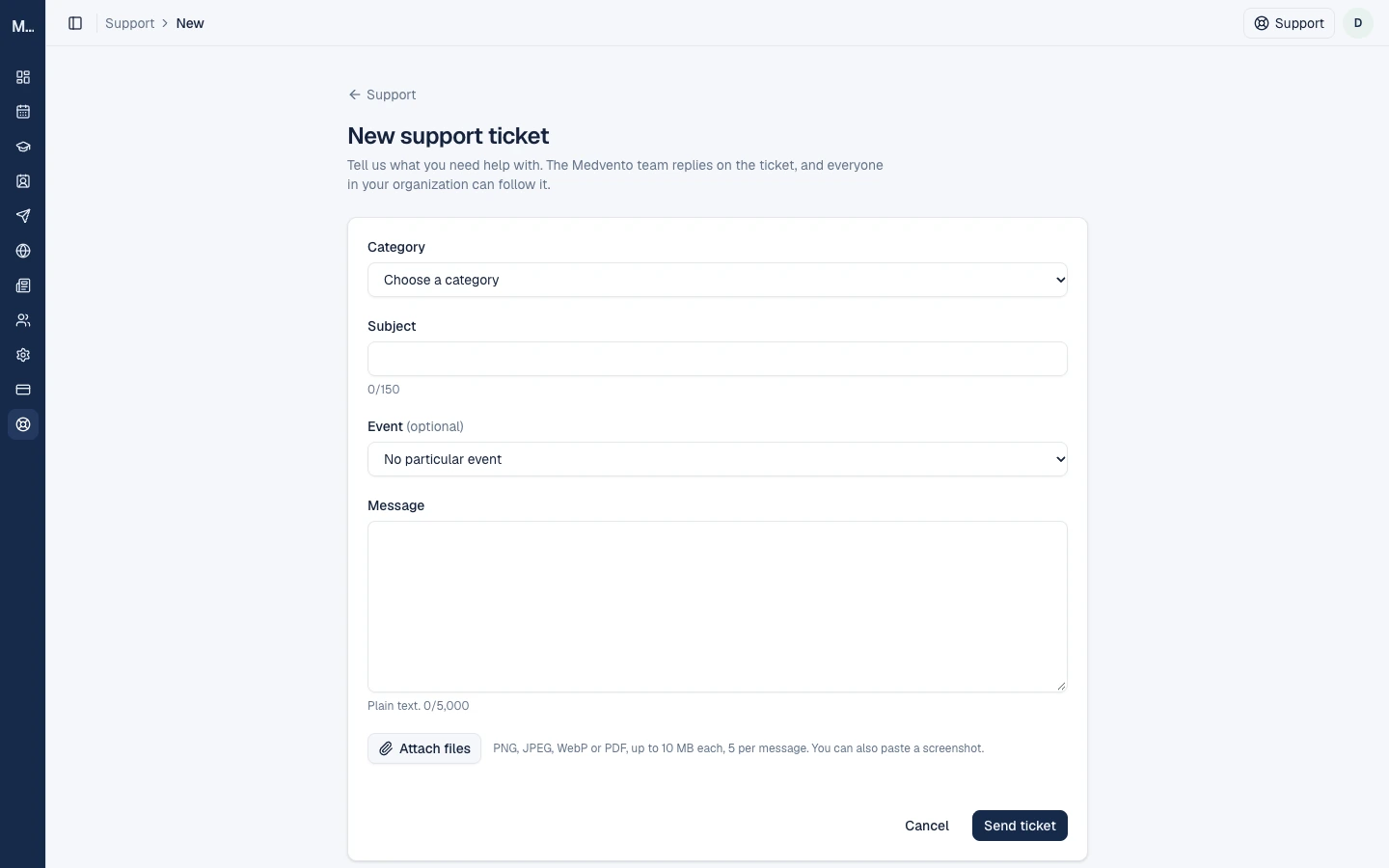
| Field | Rule |
|---|---|
| Category | Required: Billing & plans; Payments & refunds; Events & registrations; Website & pages; Messaging (email/WhatsApp); Account & team; Other |
| Subject | Required, up to 150 characters |
| Event | Optional. Pick the event the problem concerns |
| Message | Required, plain text, up to 5,000 characters |
| Attachments | PNG, JPEG, WebP or PDF, up to 10 MB each, 5 per message. You can also paste a screenshot |
Each ticket gets a reference such as SUP- followed by 8 characters.
Write a good ticket
- Say what you expected and what happened, and name the event or page.
- Add a screenshot of the error.
- Never include passwords, card or bank details, or members' personal data. The form only takes plain text, and everyone in your organization can read the ticket.
Follow your ticket
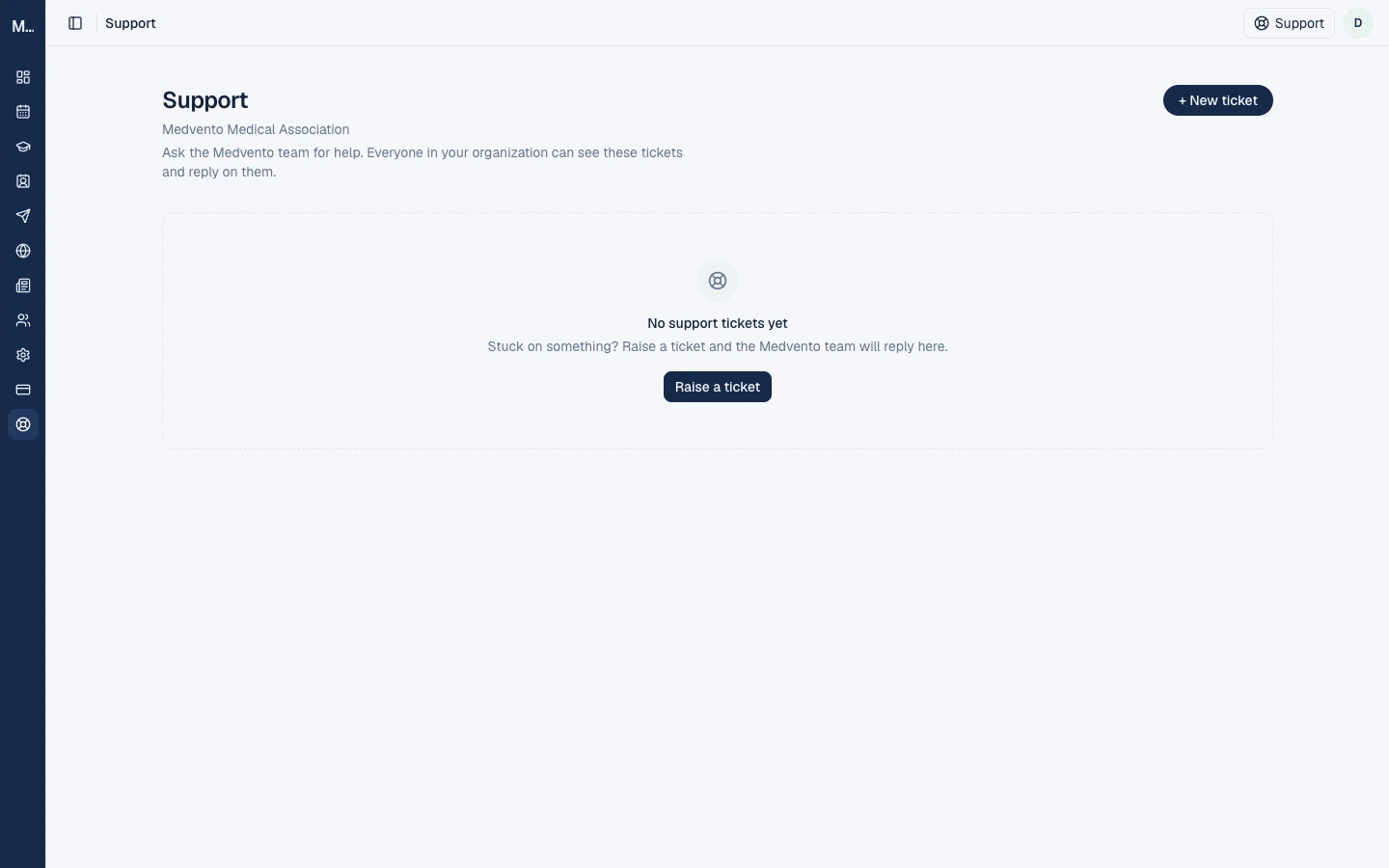
The Support page lists open tickets first, then resolved ones.
| Status | Meaning |
|---|---|
| Awaiting Medvento | You wrote last. Medvento owes a reply |
| Awaiting your reply | Medvento replied. The sidebar Support item shows a count of these |
| Resolved | Closed |
Open a ticket to read the thread and add a Reply, with attachments. Mark resolved closes it. Replying to a resolved ticket reopens it. Medvento's replies are signed "Medvento Support", and yours show the author's email.
Who sees tickets, and emails
- Every member of your organization sees all of its tickets.
- Only the person who raised the ticket gets email, for a reply ("Medvento replied") and for resolution. Other members must check the Support page.
- Replying to the email does nothing. Answer in Medvento.
- Medvento's team is alerted for every new message.
Medvento does not state a guaranteed response time.
Limits
- 20 new tickets per organization in 24 hours, and 200 messages in 24 hours.
- The thread shows the latest 999 messages.
- Medvento's replies are text only.
Privacy
Support tickets can hold personal data. They are included when someone asks for a copy of their data, with only their own messages and Medvento's replies, and never other members' messages. A person removed on request shows as "A member" to colleagues.
Frequently asked questions
How do I contact Medvento support?
Open Support in the organizer app and raise a ticket, or email support@medvento.com.
Can I attach a screenshot?
Yes. Attach PNG, JPEG, WebP or PDF files up to 10 MB each, five per message, or paste a screenshot.
Does support work if my plan has lapsed?
Yes. Support is never blocked by a lapsed plan, a suspension or a messaging hold.
Who else can see my ticket?
Everyone in your organization.
Will I get an email when Medvento replies?
Yes, if you raised the ticket. Others should check the Support page.
Next step
If your question is about paying, read plan, billing and GST invoices.
How to publish news, circulars and articles on your Medvento website
Write circulars, news and articles in Medvento, attach a PDF or link, publish to your News page, hide old notices and understand takedowns.
How to set up tickets, payment and the registration form
Set up an event's registration on Medvento: create free or paid tickets, choose how delegates pay, add price slabs and design the registration form.