 Medvento
How to build your organization's website on Medvento: content, design and menus
Edit your organization's public home page on Medvento, set its logo, colours, fonts, menu, footer and social links, and publish it.
Every organization on Medvento has a public home page at medvento.com/<your-organization>. Open Website in the left menu to edit it: the Content tab builds the page from blocks, and the Design tab sets your logo, colours, fonts, shape, menu and footer links for the page and for every event that uses the website design. Until you publish your own version, visitors see a default page that lists your published events. Both owners and staff can edit it, and a free organization can edit and publish its website too.
Before you start
- Read how to build and publish an event page and the block reference. The website uses the same editor and blocks.
- Have your logo ready: PNG, JPG, GIF or WEBP, up to 5 MB.
- Publish your compliance pages first: compliance details. They appear in your website footer.
What your website is
| Page | Address |
|---|---|
| Home page | medvento.com/<your-organization> |
| News | .../news and each post, if you have published posts |
| Policy pages | .../compliance/privacy-policy and the five others |
| Data requests | The page where people ask for their data |
| Each event | .../<event>, with its own pages and design |
The home page is public from the moment your organization exists. Event pages link back to it from their header logo and footer.
Step 1: Edit the Content tab
Open Website, Content. The heading shows "Your organization's public home page" and Draft or Published, and a link to the live address.
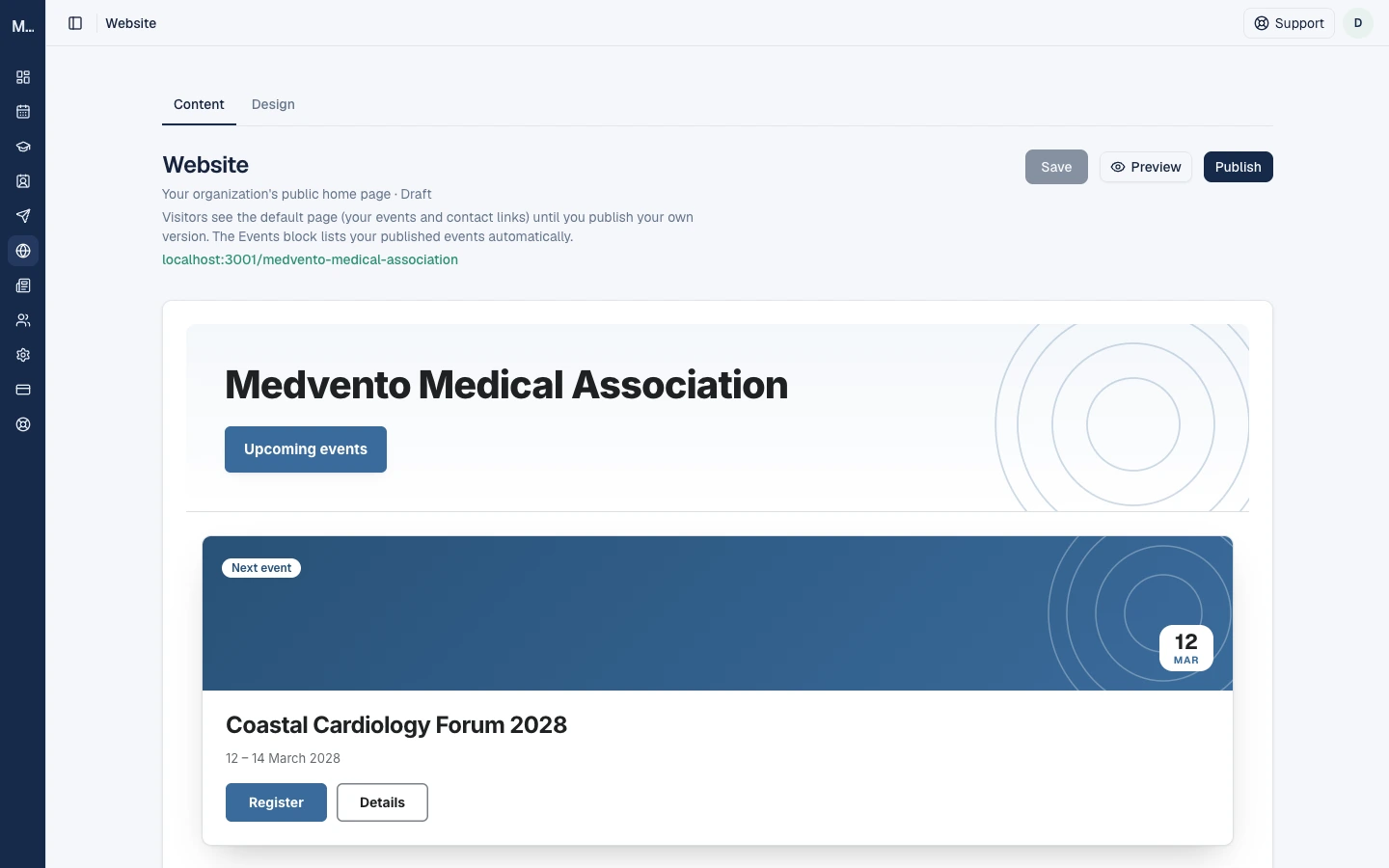
While the page is a draft, visitors see the default page: "Visitors see the default page (your events and contact links) until you publish your own version." After you publish, "Changes you save go live straight away."
The default page
It has two blocks: a masthead (the Hero, with your organization's name and an Upcoming events button) and the Events block, which lists your published events automatically. Nothing is saved until you first save or publish.
Blocks
You add, edit, move and remove blocks exactly as on an event page. Available blocks:
- Website only: Events, with an optional featured-event picker. When automatic it features the event happening now, else the next upcoming one.
- Shared with event pages: Header, Text + Image, CTA Banner, FAQ, Sponsor Logos, Image Only, List, Table, Hero, Venue & map, Downloads, People grid, Contact persons, Welcome message, Card grid, Fee table, Key dates, Gallery, Video and Latest news.
- Not available on the website: Faculty, Agenda and Registration Form.
Venue & map, Fee table and Key dates can follow the next upcoming event automatically or be pinned to one published event.
The masthead
The first Hero on your home page becomes the masthead, with extra fields in a box called Website masthead:
| Field | Rule |
|---|---|
| Heading | Leave empty to show your organization's name |
| Show your logo | A checkbox |
| Founded year | Four digits, from 1800 to the current year |
| Tagline | Up to 200 characters |
| Second button text and link | Text up to 100 characters, link up to 500. The link needs text and the text needs a link. A link can be a web address, mailto, tel, a page on your site such as /about, or a section |
| Stats | Up to 3, each with a figure (up to 12 characters) and a label (up to 40) |
Save and publish
Select Publish. Medvento saves your edits and runs the pre-publish checks. Most are advice and do not stop you: a block that will be hidden, an empty block, a small logo. Two things block publishing: Contact persons need the consent tick and Gallery photos need the consent tick. See privacy and consent for organizers.
After the first publish, each Save of the page goes live straight away. There is no separate draft of a published page. Saving and publishing are refused while your organization is suspended, or while a paid subscription is lapsed or its payment is incomplete. Opening the page and Preview are always allowed.
Step 2: Set the design
Open Website, Design. A banner shows how far a change reaches, for example "Changes go live straight away on your website and on 3 events that use the website design."
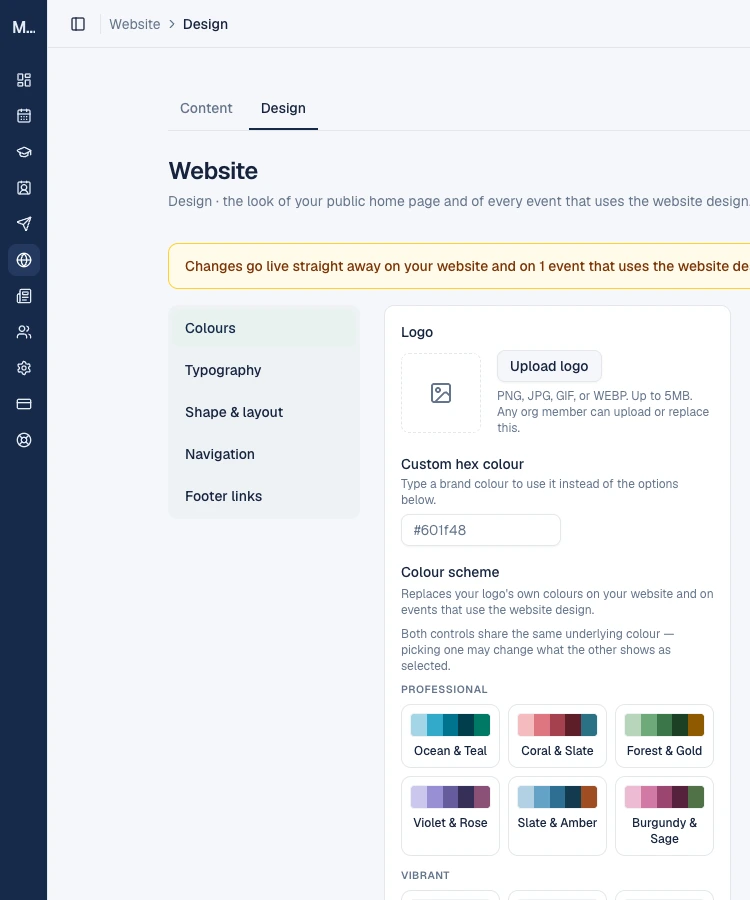
Everything on this tab saves automatically and goes live at once. There is no draft.
| Section | What you set |
|---|---|
| Colours | Your logo (Upload logo, PNG, JPG, GIF or WEBP, up to 5 MB, replacing asks you to confirm), a custom hex colour such as #601f48, a colour scheme (Professional or Vibrant palettes), colour intensity (Reserved, Confident, Vivid), page mode (Light or Dark) and the header background (Brand gradient, Solid, Venue photo or Pattern, with an optional uploaded photo up to 5 MB) |
| Typography | Classic, Editorial, Modern or Neutral |
| Shape & layout | Shape (Sharp, Soft, Rounded), spacing (Compact, Comfortable, Spacious), content width (Narrow, Standard, Wide) |
| Navigation | Your website's menu |
| Footer links | Extra links in the footer |
The website has no Template choice: the home page always uses the default layout. If your logo has no strong colour, Medvento offers colour presets. A narrow logo can look blurry, and the pre-publish check warns you.
Which events follow the website design
Each event's Design tab has Use website design (colours, fonts and layout follow Website, Design) or Customise for this event. New events follow the website by default. Events that followed the website take your colours, fonts, shape, layout and header photo, but keep their own template, and do not show the website's menu and footer links. Events created before this feature were set to Customise, so changing the website design does not affect them until you switch them back. See event page branding.
The menu (Navigation)
Arrange your website's menu: sections of your home page, your News page and links to other websites, in any order. Your home page is reached from your logo, so it is not listed.
- Select Add website link. Entry types: a Home page section (a section can be linked once), a Link (label and web address) and the News page (shows only while you have a published post, at most one).
- Up to 50 entries. A label is up to 100 characters and an address up to 500.
- Allowed addresses: https or http,
mailto:,tel:, a relative path, or a#anchor. - The menu appears only once it has 2 or more links.
- A section link disappears silently if its block is not on the published page.
Footer links
Select Add footer link to add up to 10 extra links, shown after your policy links. Your compliance pages and the Data requests link are always in the footer.
Step 3: Social media links
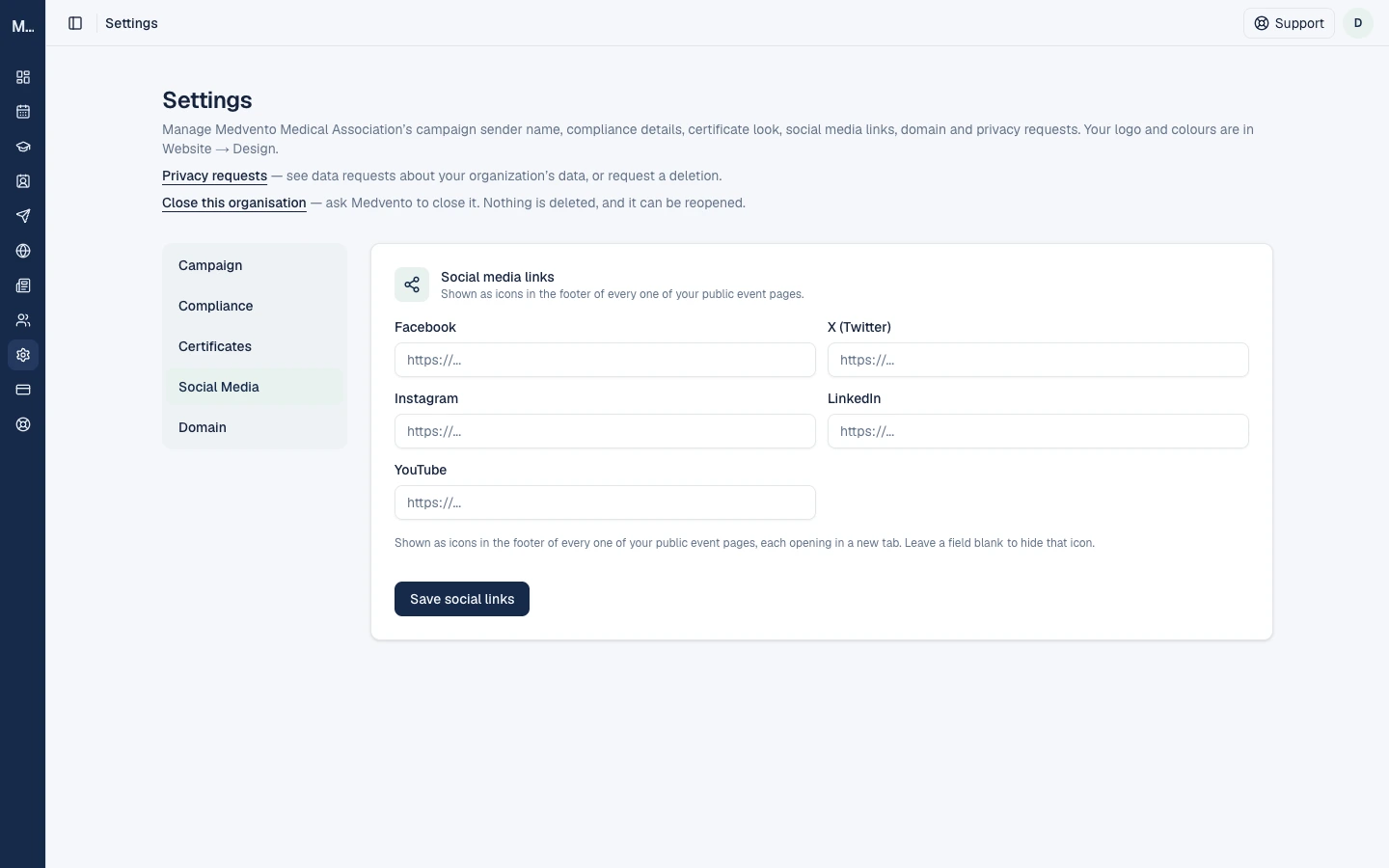
Social links live in Settings, Social Media, not in Website, Design. You can set Facebook, X (Twitter), Instagram, LinkedIn and YouTube. Each address must start with https:// and is up to 500 characters. Leave a field blank to hide its icon. Select Save social links.
How long changes take
Changes you save in the editor usually appear within seconds, because Medvento refreshes the public page when you publish. If that refresh fails, the page updates within about 5 minutes anyway. Navigation and footer changes behave the same way.
What a free organization can and cannot do
| Everything below works on any plan | Paid plans only |
|---|---|
Edit and publish the home page, change the design, set the menu, footer and social links, use the medvento.com/<your-organization> address | Choose your own subdomain and connect your own domain: see subdomain and custom domain |
Frequently asked questions
Do I have to build a website?
No. Your organization already has a default home page that lists your published events.
Can staff edit the website?
Yes. Owners and staff can edit the content and design.
Why is my menu not showing?
A website menu appears only once it has 2 or more links.
Why did my design change go live straight away?
The Design tab has no draft: it saves and publishes immediately. Content blocks need Save and Publish.
Why do my older events look different from the website?
Events created before the website design feature were set to Customise. Switch them to Use website design in their Design tab.
Can I unpublish my home page?
There is no unpublish option. Edit the page to change what visitors see.
Next step
Connect a subdomain or your own domain, and publish news and circulars.
How to send email and WhatsApp campaigns: design, cost, sending and reports
Create a Medvento email or WhatsApp campaign, choose recipients, design and test it, understand cost and GST, and read the delivery report.
How to set up your Medvento subdomain or your own domain for event pages
Choose a your-name.medvento.com address or connect a domain you own to your Medvento website, with the rules, DNS steps, plan requirements and limits.