 Medvento
How to set up compliance details and publish your privacy policy
Add your grievance officer, registration and GST details in Settings, Compliance. Medvento then publishes six policy pages for your events.
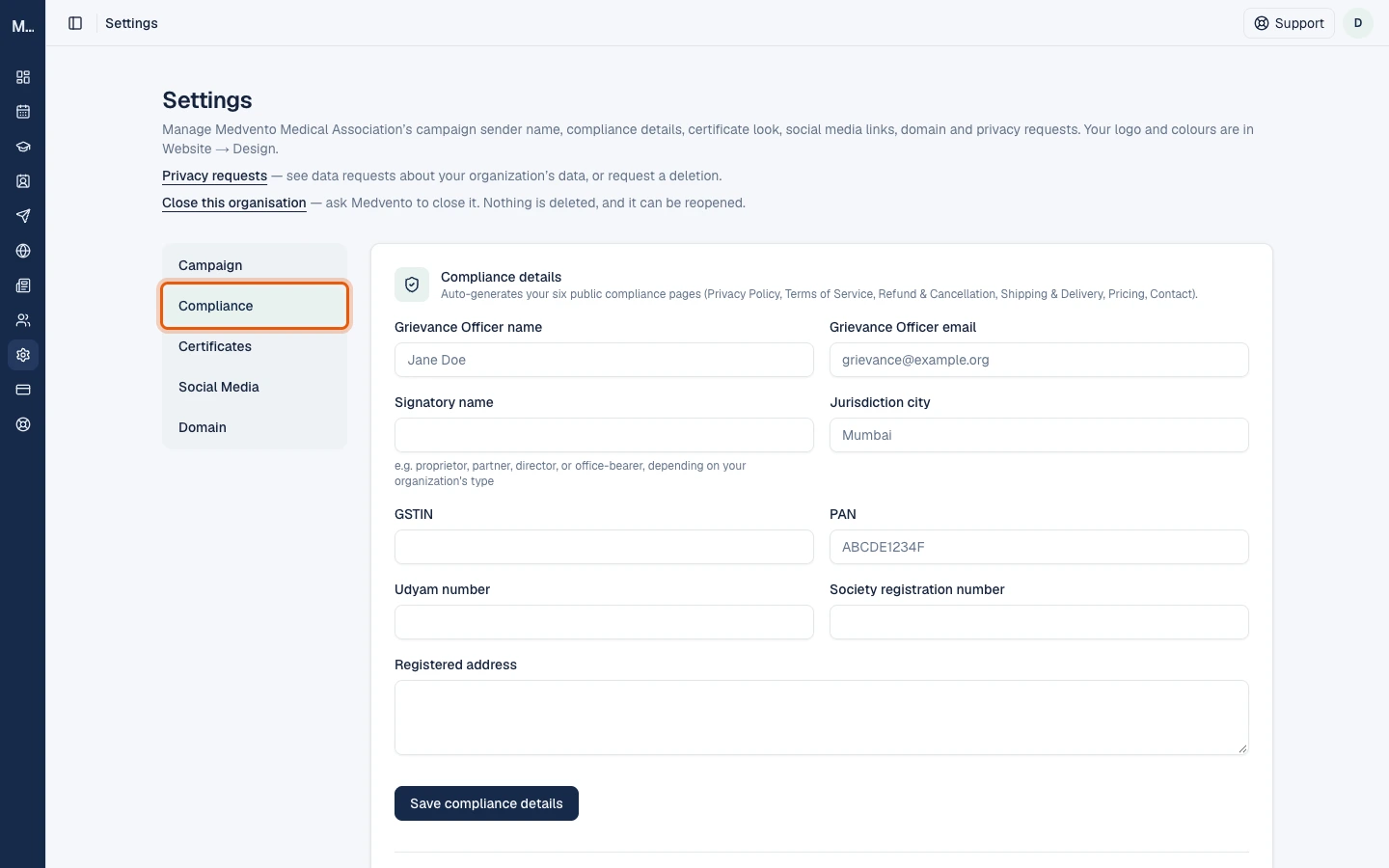
To publish your organization's privacy policy on Medvento, an owner opens Settings, Compliance, fills in the organization's legal and contact details, and selects Save compliance details. Saving immediately generates and publishes six public pages (Privacy Policy, Terms of Service, Refund & Cancellation, Shipping & Delivery, the Pricing page and Contact). Medvento does not let you open registration for an event until the Privacy Policy is published.
Why this matters before your first event
Delegates give you personal data when they register: name, email, phone number and any extra answers your form asks for. Indian law (the Digital Personal Data Protection Act) expects the organization that collects that data to tell people what it collects, why, and who to contact with a complaint. Your organization is the one collecting the data, so these pages are published under your organization's name, with your grievance officer's contact details.
Medvento builds the pages from the details you enter, so there is nothing to write from scratch. The pages are a standard template, not legal advice. If your society has a lawyer or an auditor, ask them to read the generated pages once.
Who can do this
- Owners can view and edit compliance details.
- Staff cannot see or change the private details (such as PAN and GSTIN). They see a note asking them to ask an owner. Read roles and permissions for the full split.
Where to find it
You can reach the form three ways:
- From the pop-up Finish setting up compliance details, which appears on your dashboard until a Privacy Policy is published. Select Set up now.
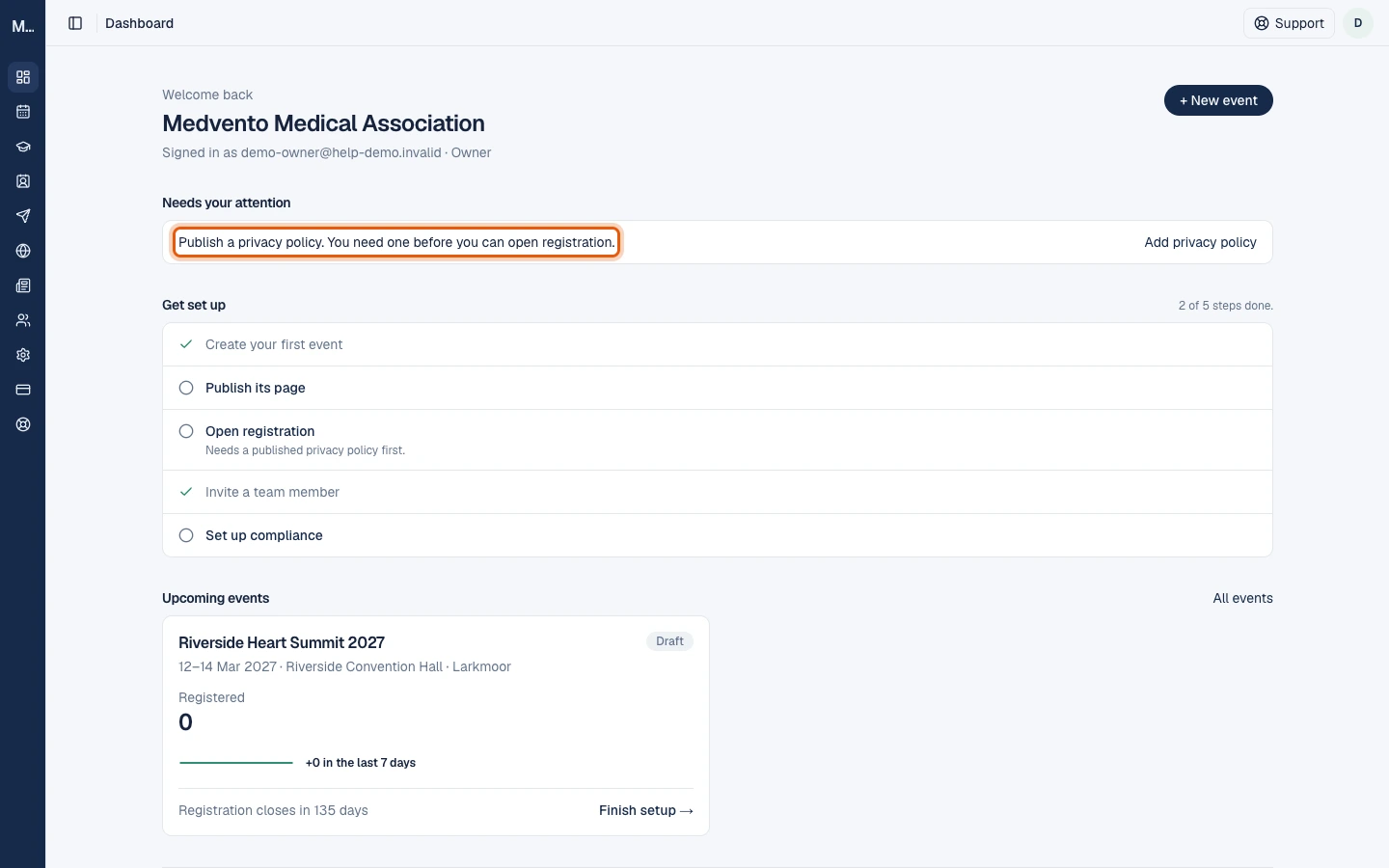
- From the dashboard's Needs your attention list: select Add privacy policy.
- Directly: open Settings and choose Compliance in the left-hand list.
What to enter
| Field | What to put in it | Limit |
|---|---|---|
| Grievance Officer name | The person delegates should write to with a privacy complaint | 200 characters |
| Grievance Officer email | A mailbox that someone reads regularly; it is printed on your Privacy Policy | 200 characters, must be a valid email |
| Signatory name | The person who signs for the organization: a proprietor, partner, director or office-bearer, depending on your type | 200 characters |
| Jurisdiction city | The city whose courts apply to your terms | 200 characters |
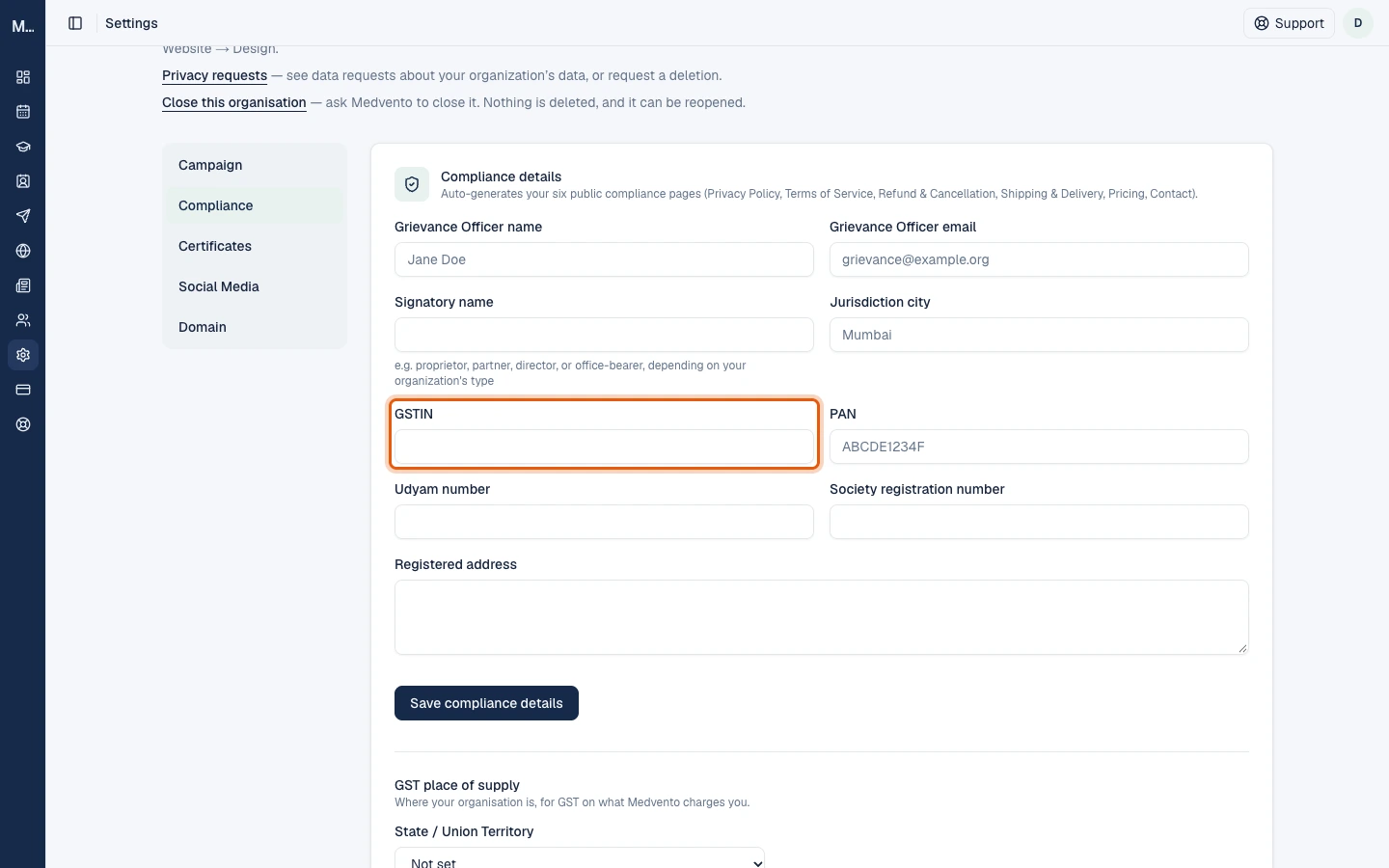
| GSTIN | Your GST registration number, if you have one. Medvento checks the format, the state code and the check character, and refuses a number that is not real | 15 characters |
| PAN | The organization's PAN | 15 characters |
| Udyam number | Your Udyam number, if you have one | 50 characters |
| Registration number | Its label follows the organization type you chose at sign-up: Society registration number, Trust registration number, or CIN for a private limited or Section 8 company | 200 characters |
| Registered address | The address on your registration | 500 characters |
Companies (private limited and Section 8) are also asked for the signatory's DIN. Organization types that have no registration number do not see that field at all.
What happens if you leave a field blank
You can save with blanks. Medvento does not block you, but each blank detail appears on the published page as a visible note such as "[registered address not yet provided]". Delegates will see that text, so fill in every field before you open registration.
What happens when you select Save
- Medvento checks the GSTIN and the other fields.
- It regenerates all six pages from your details and publishes them at once. There is no draft stage.
- The pages appear on Medvento's public site under your organization's address, in the form
medvento.com/<your-organization>/compliance/<page>: for exampleprivacy-policyfor the Privacy Policy andterms-of-servicefor the Terms of Service. The other four pages follow the same pattern. - Event registration pages link to them, and the Privacy Policy gate for opening registration is cleared.
To change anything later, edit the details and save again: the pages regenerate every time. You do not edit the generated pages directly.
What the Privacy Policy says
It names your organization and registered address, lists what is collected at registration (name, email, phone and any questions your form adds), explains how the information is used, explains that videos on your pages load from YouTube only when a visitor presses play, and states delegates' rights to access, correct or erase their data, with your grievance officer as the contact. Requests that arrive through your public data-request form are handled by Medvento on your behalf; you are told when one is received and when it is closed.
GST place of supply
Under the form, GST place of supply asks for your State or Union Territory. Medvento uses it to work out whether the GST on your plan invoice is split into CGST and SGST (your state) or charged as IGST (another state). A valid GSTIN fills the state in for you. Only an owner can change it.
How the privacy policy affects opening registration
An event moves from configuration to registration open only when the Privacy Policy is published. If you try earlier, Medvento stops with the message "Save your organization's Privacy Policy (Settings → Compliance details) before opening registration". It is a hard stop, not a warning, so finish this page before you plan registration dates.
Frequently asked questions
Do I have to fill in every compliance field?
No field is mandatory to save, but blank ones show on the public pages as "not yet provided". Fill in all of them before delegates see the pages.
How do I publish my organization's privacy policy on Medvento?
Open Settings, choose Compliance, fill in the details and select Save compliance details. The Privacy Policy and five other pages publish immediately.
Can staff members edit the compliance details?
No. Only owners can view and change them, because they include identifiers such as PAN and GSTIN.
How do I change the privacy policy text?
Change the details in the form and save again. Medvento regenerates all six pages each time. The pages are not hand-edited.
Is the generated policy legal advice?
No. It is a standard template filled with your details. Ask your own advisor to review it, especially if your events collect more than the standard registration data.
Where do delegates see these pages?
At medvento.com/<your-organization>/compliance/privacy-policy and the five sibling pages, and through links on your registration pages.
Next step
Read privacy and consent for organizers for the full checklist, then create your first event. Return here first if the dashboard still shows the compliance reminder.
How to sign up for Medvento and set up your organization
Sign up for Medvento in four steps: verify your email with a 6-digit code, name your organization, pick a plan and pay, then finish compliance.
Team roles and permissions: what owners and staff can do on Medvento
Medvento has two roles, owner and staff. See what each can do across events, money, compliance and the team, and how to invite, change or remove members.