 Medvento
How to sign up for Medvento and set up your organization
Sign up for Medvento in four steps: verify your email with a 6-digit code, name your organization, pick a plan and pay, then finish compliance.
To start using Medvento, an organization admin opens medvento.com, selects See plans, and completes four steps: Account, Verify, Organization and Plan. Medvento emails a 6-digit code (valid for 10 minutes) to confirm your email address. On the Free plan you land on your dashboard straight away; on a paid plan you pay through Razorpay first. After that, you sign in at org.medvento.com.
What you need before you start
- An email address you can open right now. Medvento sends a verification code to it, and later uses it for sign-in and billing notices. The person who signs up becomes an owner of the organization.
- Your organization's name and legal type: Society, Trust, Private limited company or Section 8 company.
- For a paid plan only: your organization's state or union territory, and your GSTIN if you have one. Medvento needs the state to work out the GST on your invoice. A valid GSTIN fills the state in for you.
Nothing is created until you finish the last step. If you close the page earlier, you simply start again.
Step 1: Start from the plans page
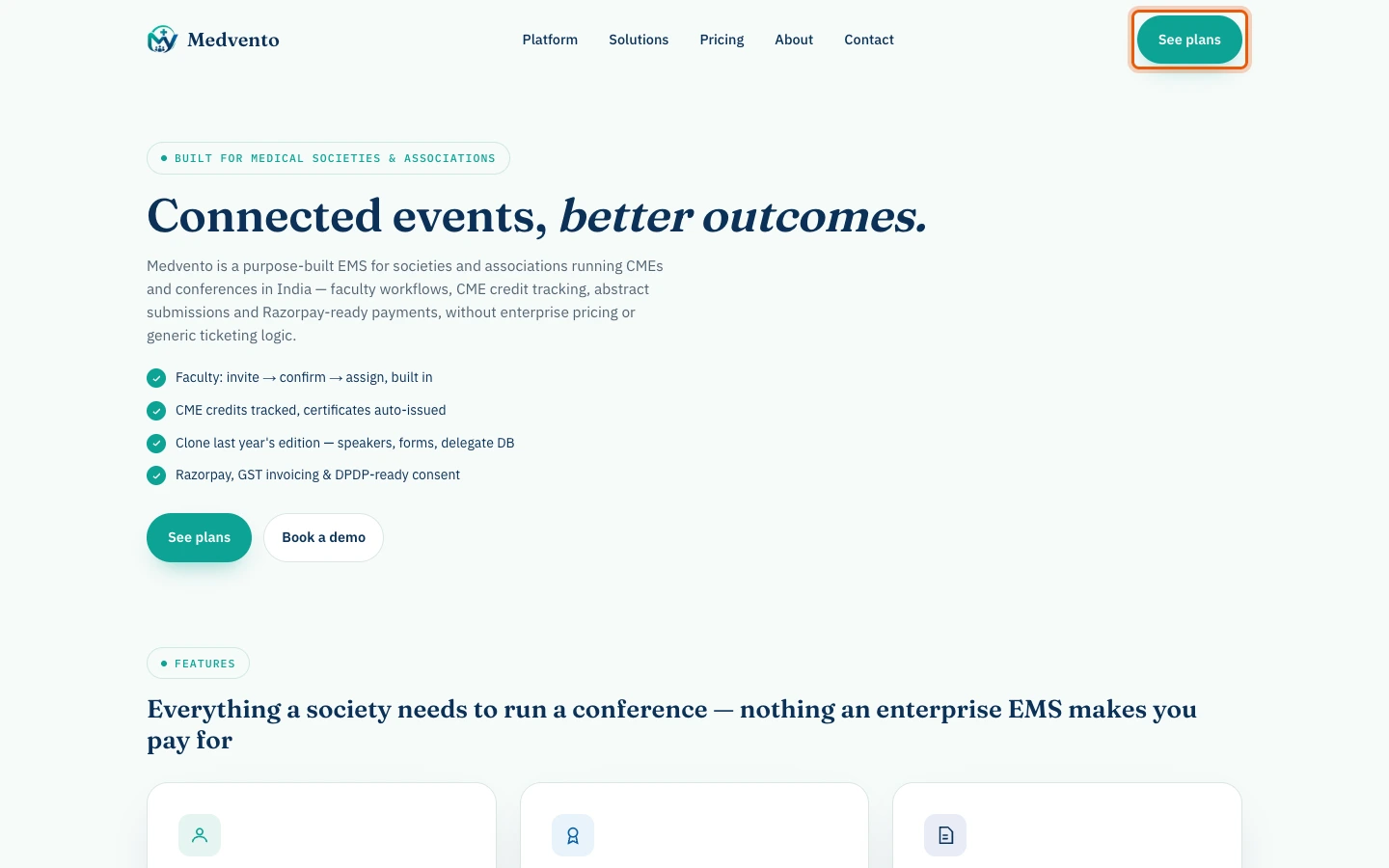
- Open medvento.com and select See plans.
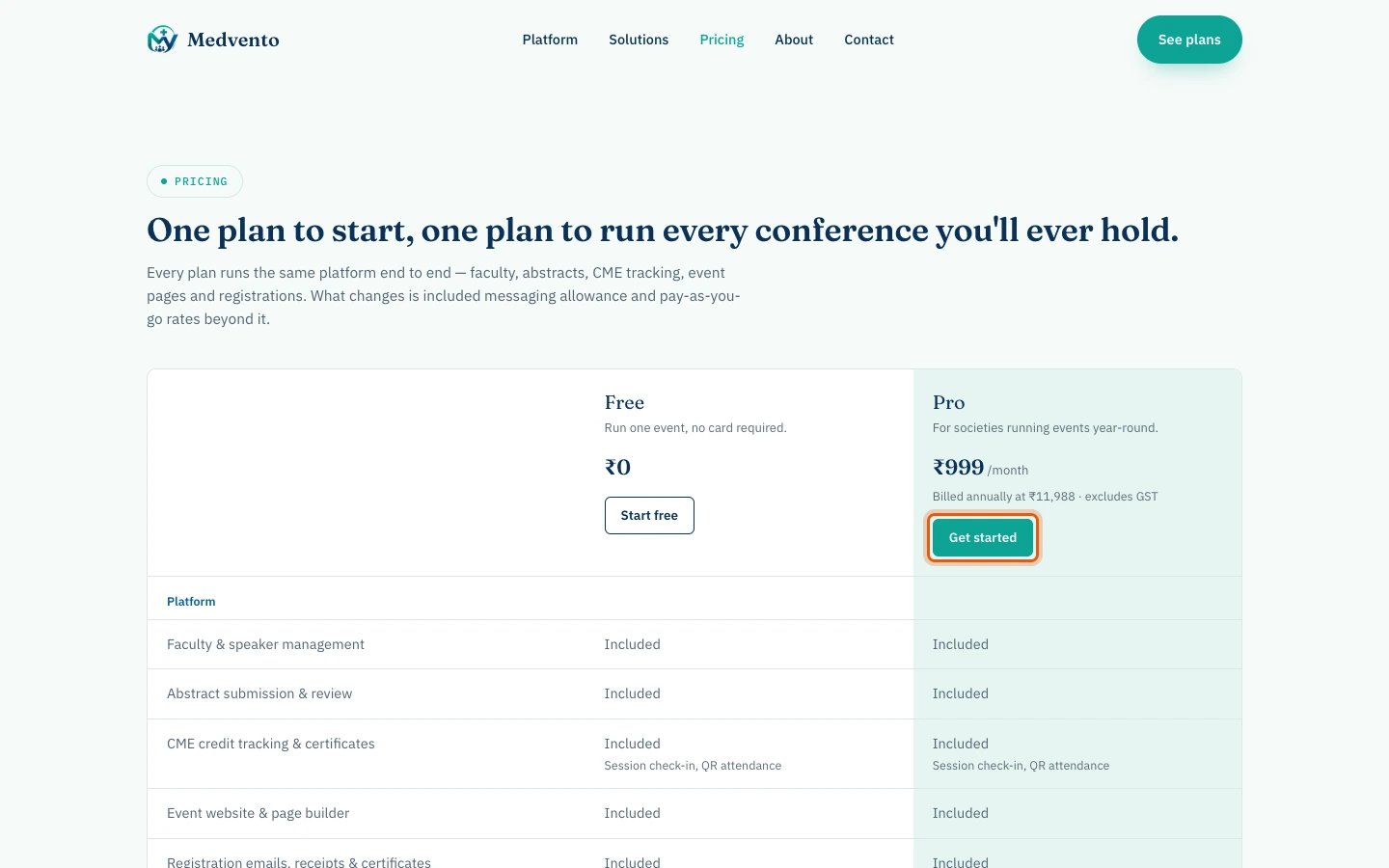
- Compare the plans. Select the button on the plan you want. The plan you chose is carried through the next steps, so you don't need to pick it again from scratch.
- You arrive on the Medvento sign-up page at org.medvento.com, at Step 1 of 4: Account.
Step 2: Create your account and verify your email
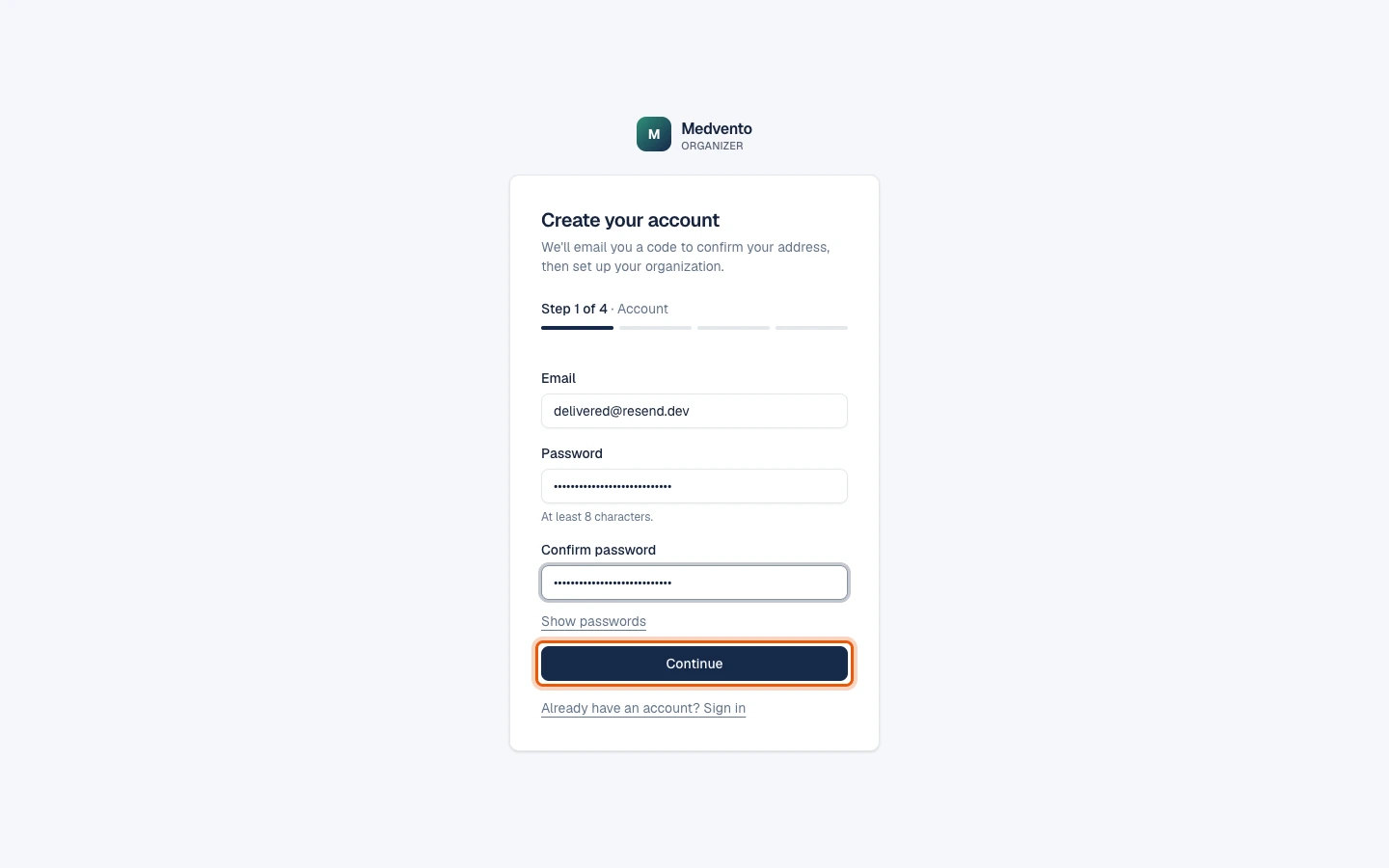
- Enter your email and choose a password of at least 8 characters. Type the password again in Confirm password.
- Select Continue. Medvento emails you a 6-digit code.
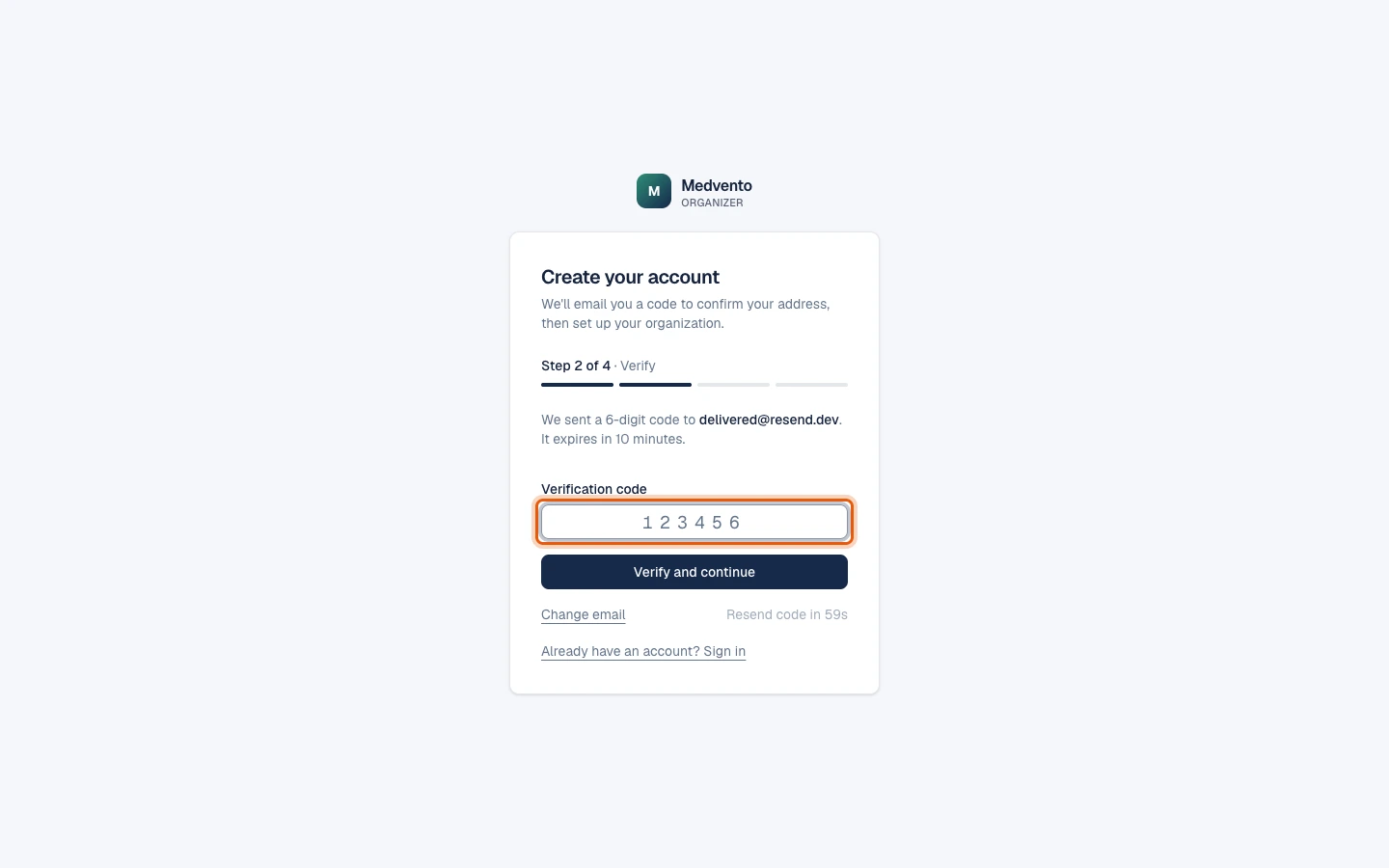
- On the Verify step, enter the code.
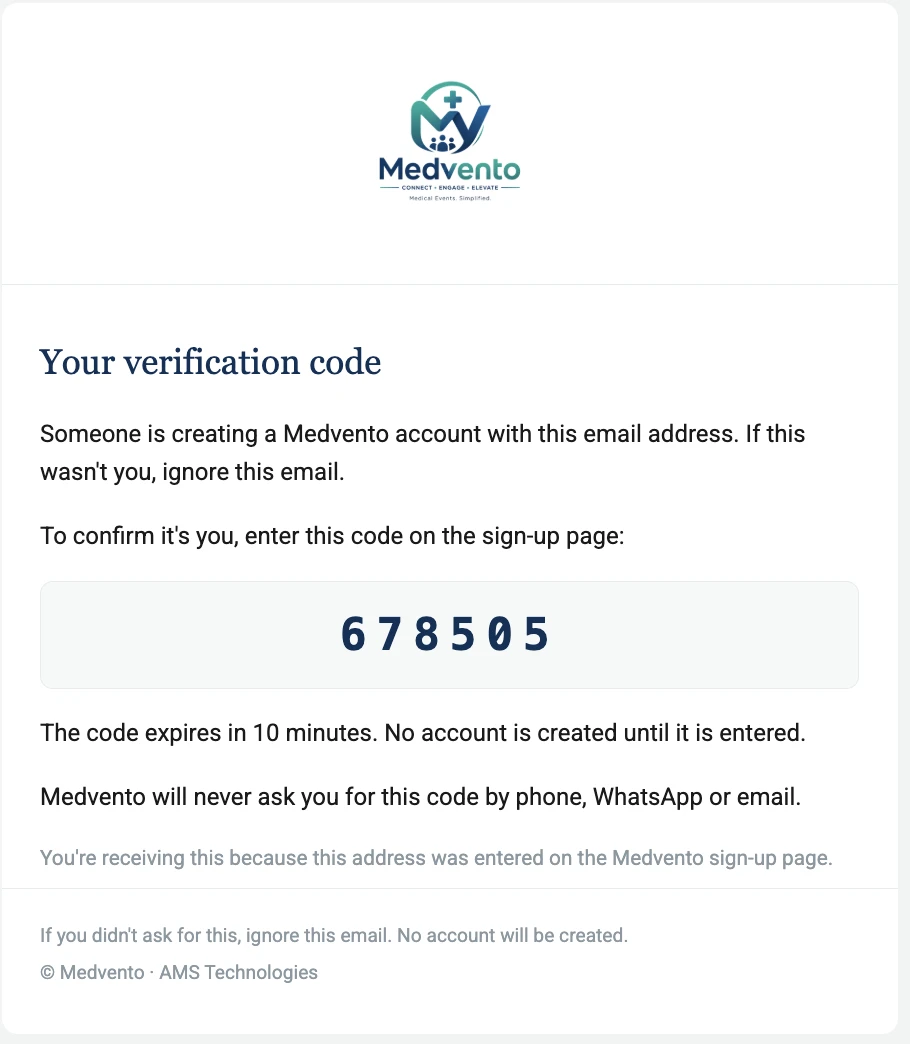
The email is titled Your verification code and shows the 6 digits in a box. Medvento will never ask you for this code by phone, WhatsApp or email: enter it only on the sign-up page.
What if the verification code doesn't arrive?
Check your Spam or Junk folder as well as your inbox, because automated emails sometimes land there. The email usually arrives within a minute. If it hasn't, you can select Resend code once 60 seconds have passed. If you typed the wrong address, select Change email to go back to step 1.
Limits on the code
- The code is valid for 10 minutes.
- You get 5 tries per code. After that, request a new code.
- Medvento creates your account only after the code is correct, so a mistyped email never leaves a half-made account behind.
Step 3: Describe your organization
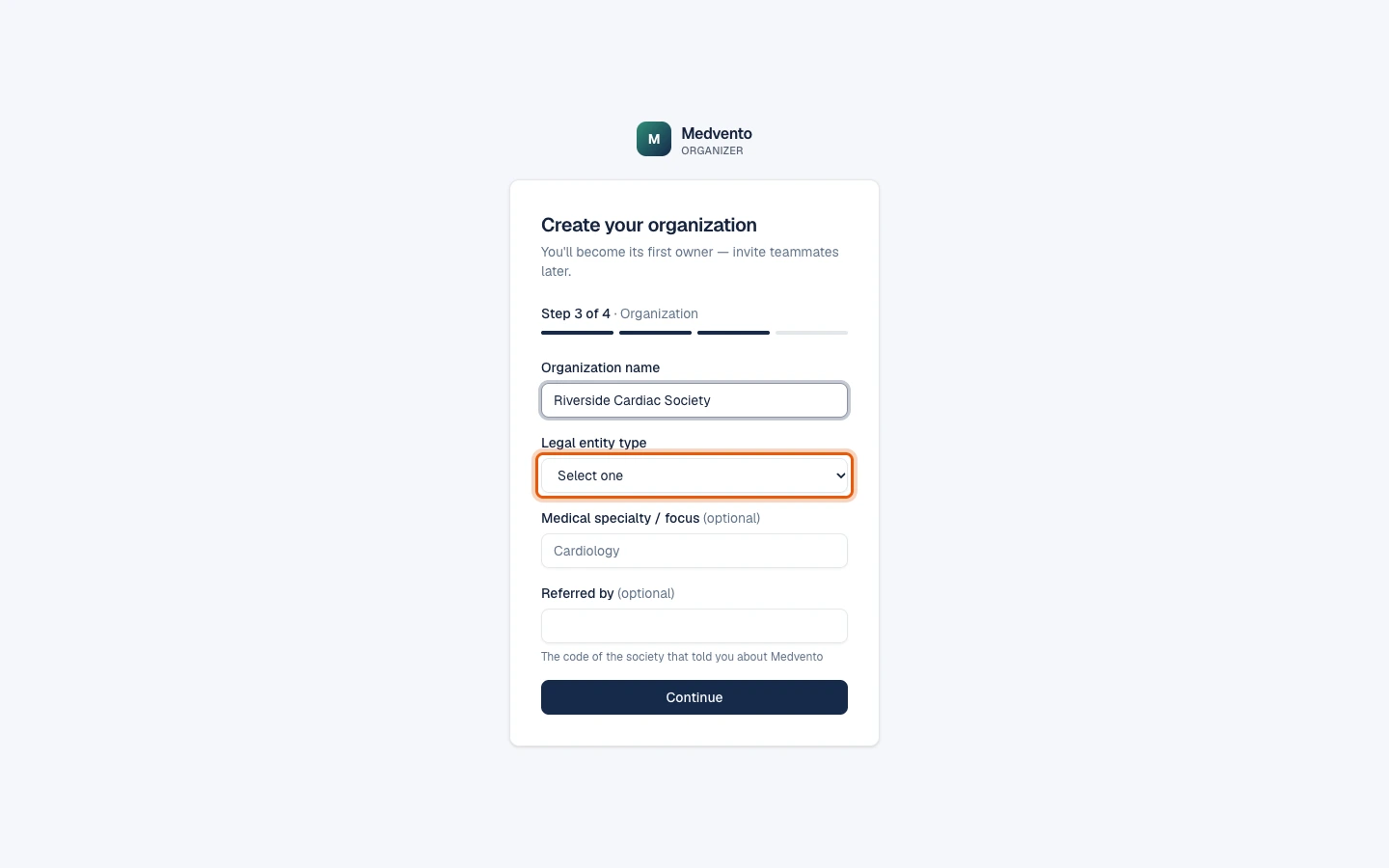
Enter your organization name, choose the legal entity type, and optionally add your specialty. Choose the type that matches how your organization is actually registered: Medvento uses it to decide which registration details to ask for in your compliance settings later.
Selecting Continue moves you to the plan step. Nothing has been created yet.
Step 4: Choose a plan and create the organization
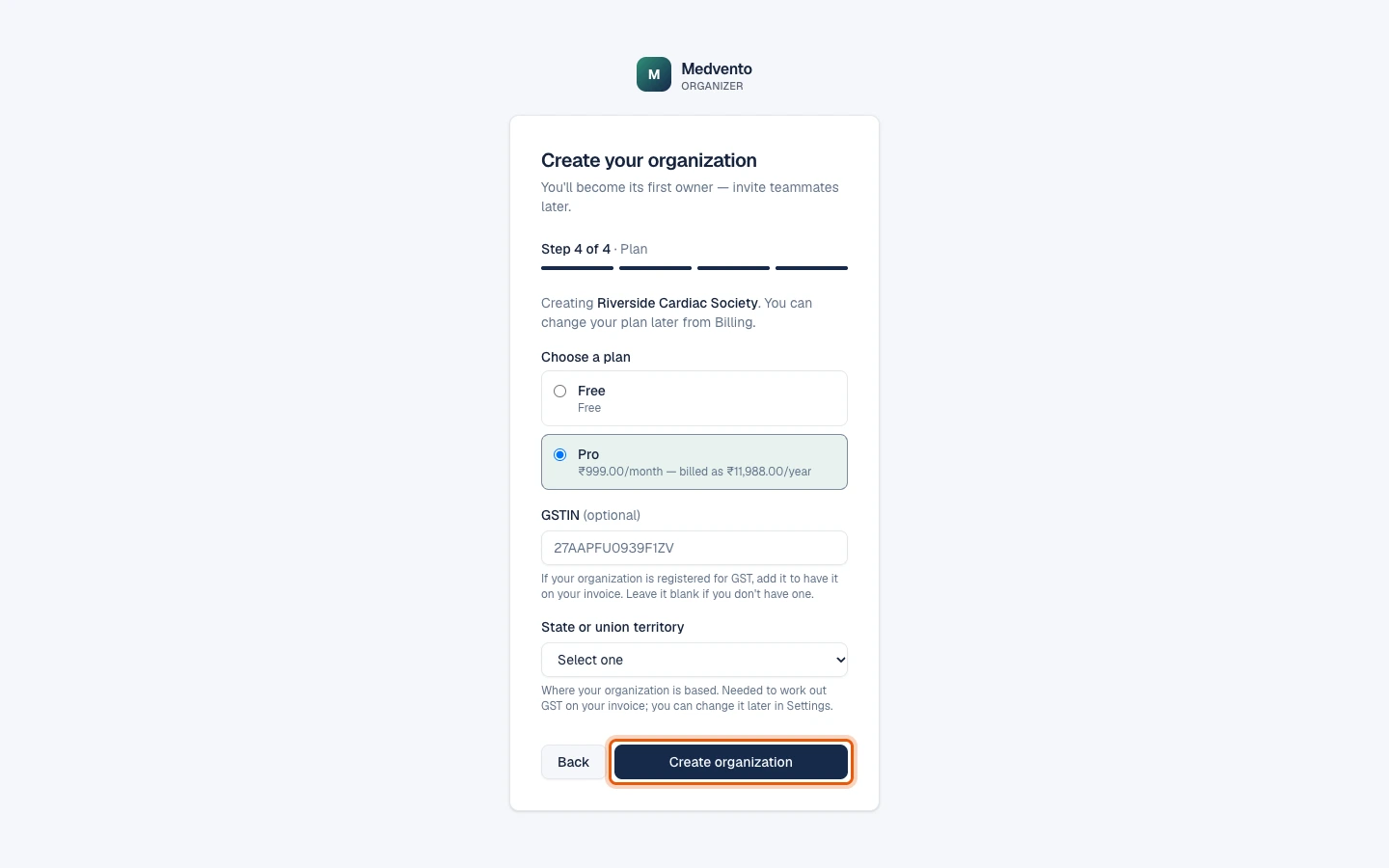
- Under Choose a plan, select the Free plan or the paid plan.
- For a paid plan, enter your GSTIN if you have one, and choose your state.
- Select Create organization. This is the moment your organization is created.
What happens next depends on the plan:
| Plan | What happens after Create organization |
|---|---|
| Free | You go straight to your dashboard. |
| Paid | You go to Billing, where the Razorpay payment window opens. You reach the dashboard once the payment succeeds. |
Paying on a paid plan
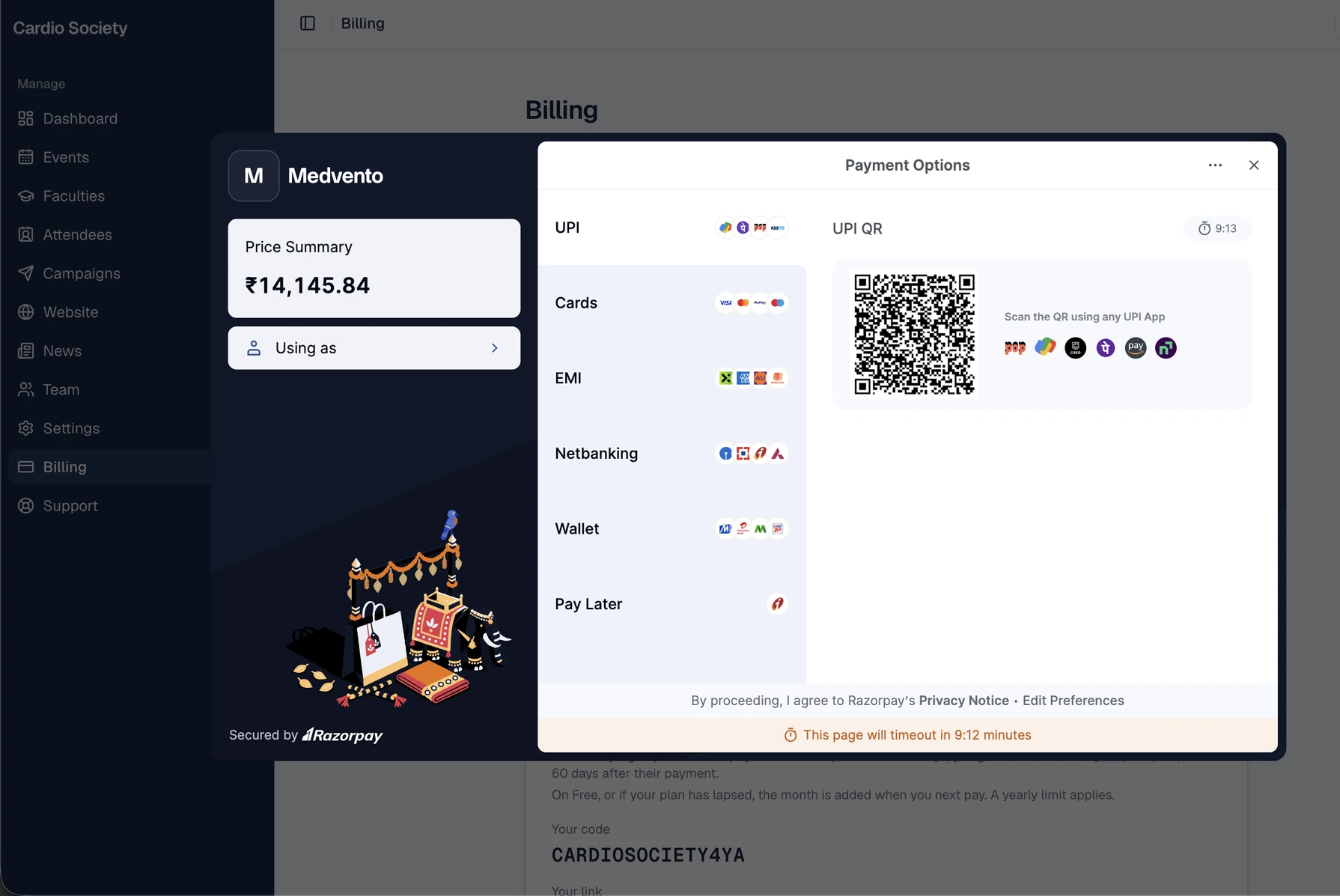
On a paid plan, the Billing page opens Razorpay's secure payment window straight after you create the organization. Razorpay, not Medvento, handles your card or bank details.
- Check the Price Summary in the top left. It is the plan's yearly charge with GST added.
- Choose how to pay: UPI (scan the QR code with any UPI app), Cards, EMI, Netbanking, Wallet or Pay Later.
- Complete the payment. The window shows a countdown of about 10 minutes, after which it times out and you can start again from Billing.
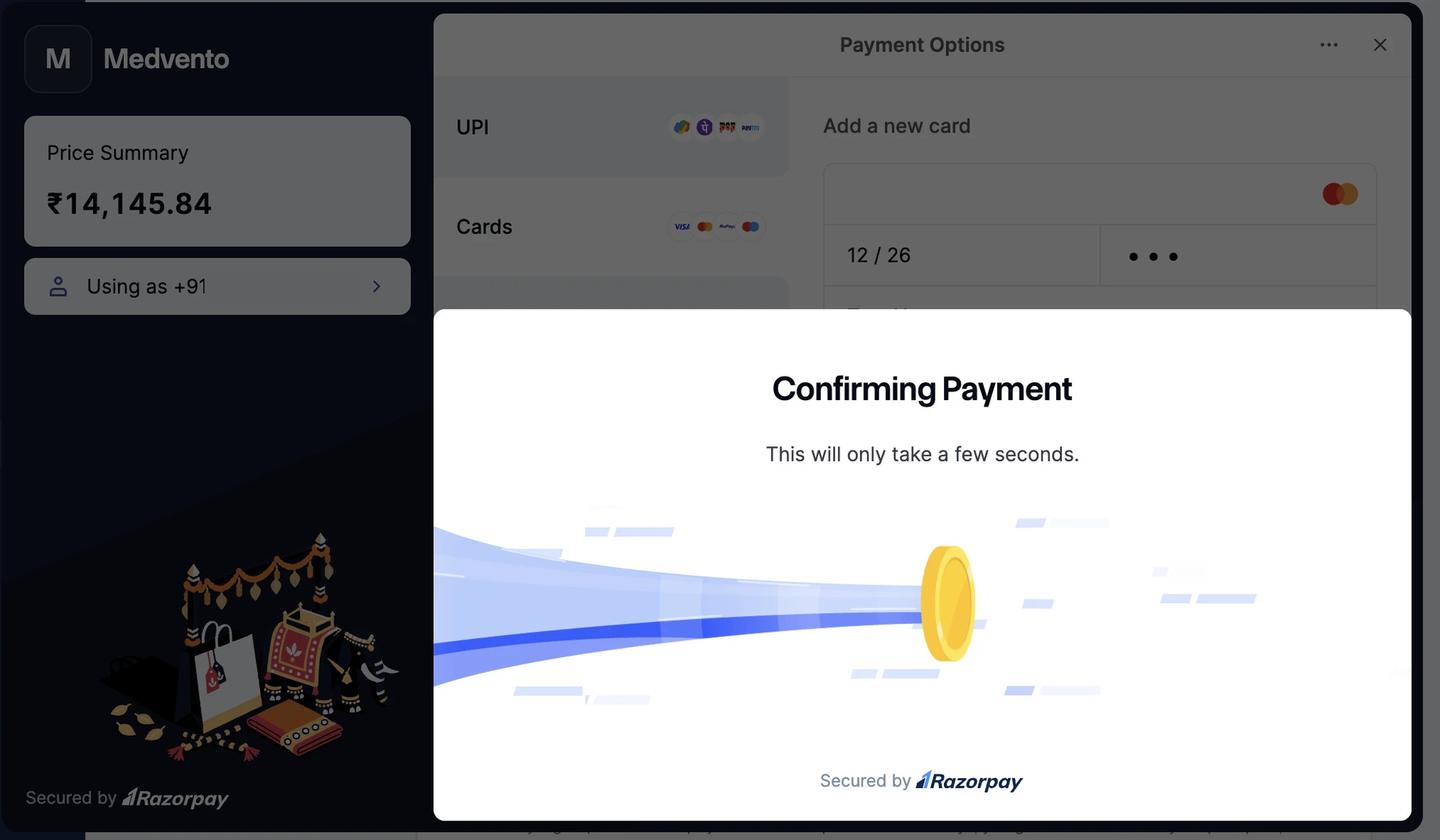
After you pay, the window shows Confirming Payment for a few seconds. Keep the window open until it closes by itself, then Medvento takes you to your dashboard.
What if Billing says "Payment never completed" right after you paid?
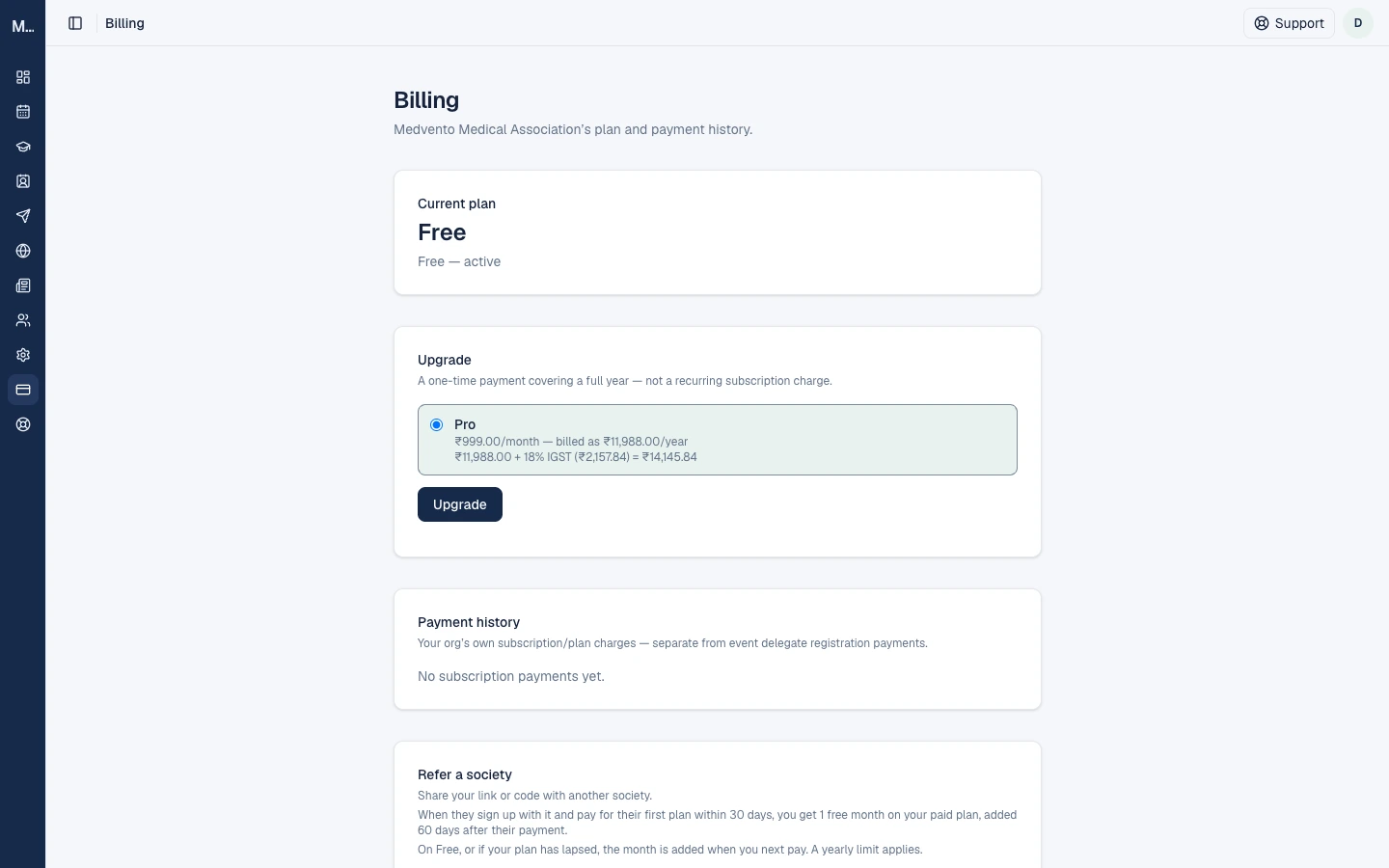
Straight after a payment, the Billing page can briefly show a red warning: "Payment never completed — your organization is read-only until you renew." This usually happens when your bank has accepted the payment but the confirmation has not reached Medvento yet. The payment itself has not failed.
- Wait a minute, then refresh the page. The warning normally disappears by itself and your plan shows as active.
- If it is still there after about 10 minutes, do not pay again. Contact support from the Support option in the portal, or email support@medvento.com, and mention your organization name and the time of the payment. Medvento can check the payment on its side.
Until the payment is confirmed, your organization stays read-only, which means you can look around but cannot make changes that need an active plan.
Your plan invoice is a PDF that Medvento prepares in the background after the payment. It usually appears under Billing within about 15 to 30 minutes.
What if the payment fails?
Your organization already exists, so nothing is lost. You stay on the Billing page, where you can retry the payment.
 If it keeps failing, contact support using the Support option inside the Medvento portal, or email support@medvento.com. Include your organization name and the time of the attempt, but never your card or bank details.
After you sign up
The compliance pop-up
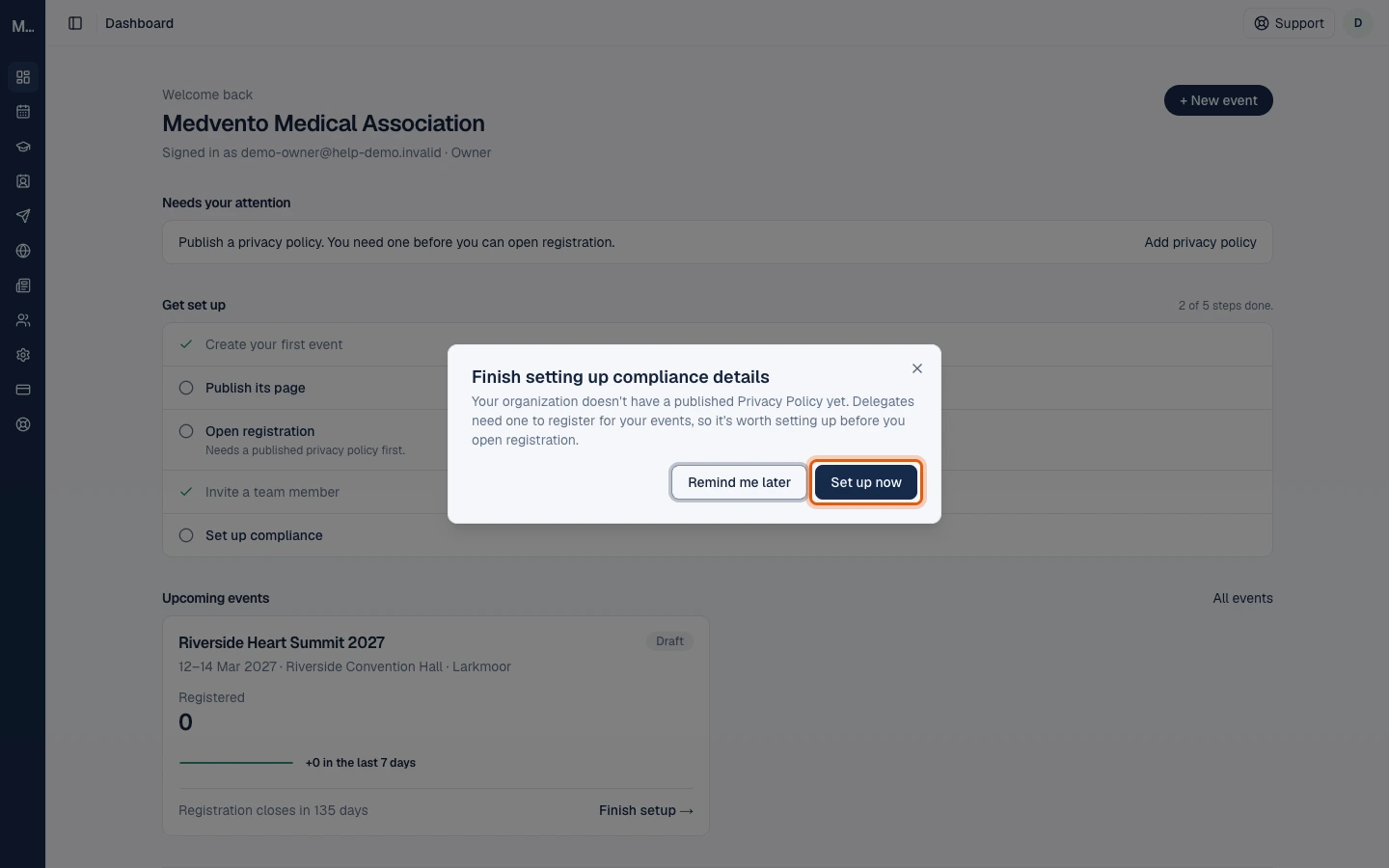
The first time you open your dashboard, Medvento shows Finish setting up compliance details. It appears because your organization does not yet have a published Privacy Policy, and delegates need one before they can register for your events.
- Set up now takes you to Settings, Compliance, where you enter your registration details, grievance officer and registered address. Medvento then generates your public compliance pages, including the Privacy Policy, from those details.
- Remind me later closes the pop-up for now. It does not block anything yet, but you cannot open registration for an event until the Privacy Policy is published.
Only an owner can complete the compliance details; staff members see a note asking them to ask an owner. The step-by-step guide is how to set up compliance details and publish your privacy policy.
Your confirmation email
Medvento also sends a welcome email to the address you signed up with. It contains the sign-in address, your email, and the words "Set by you" where the password would be.
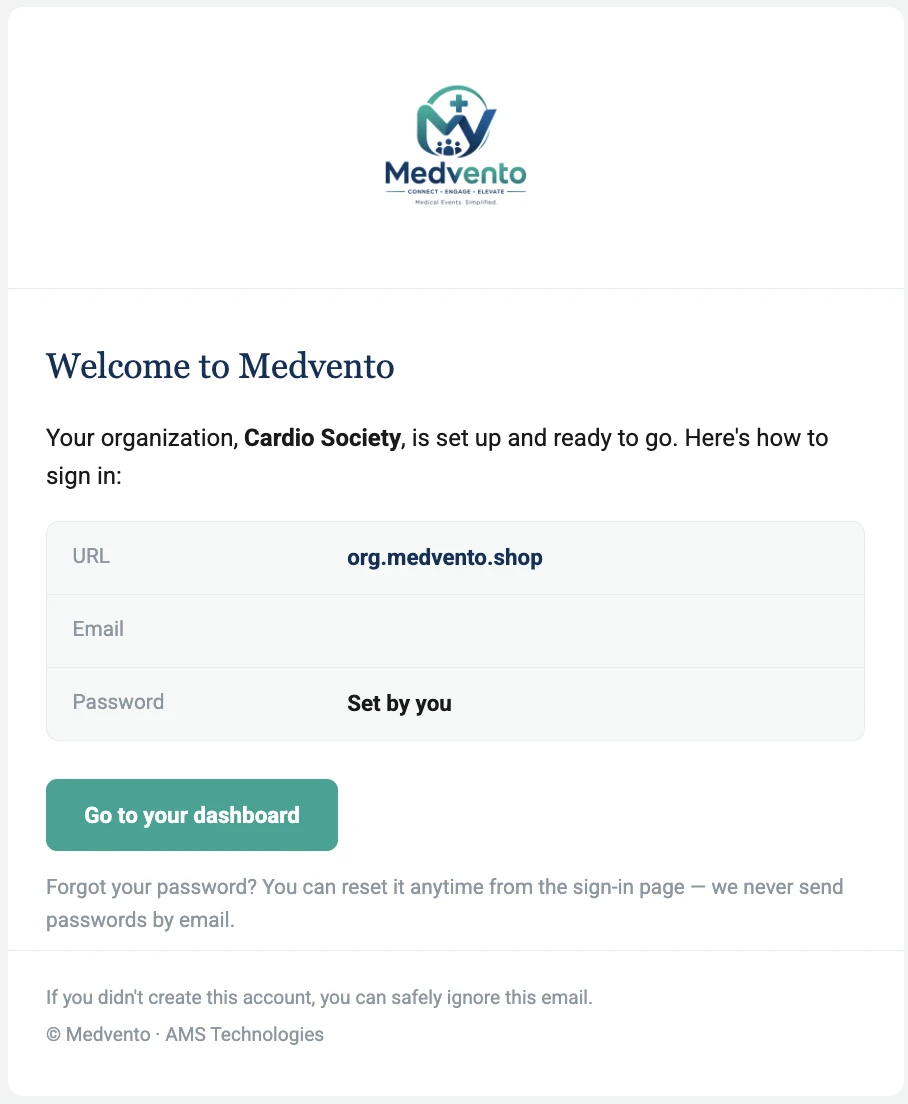 Medvento never emails your password. If the email doesn't show up within a few minutes, check Spam or Junk.
Signing in next time
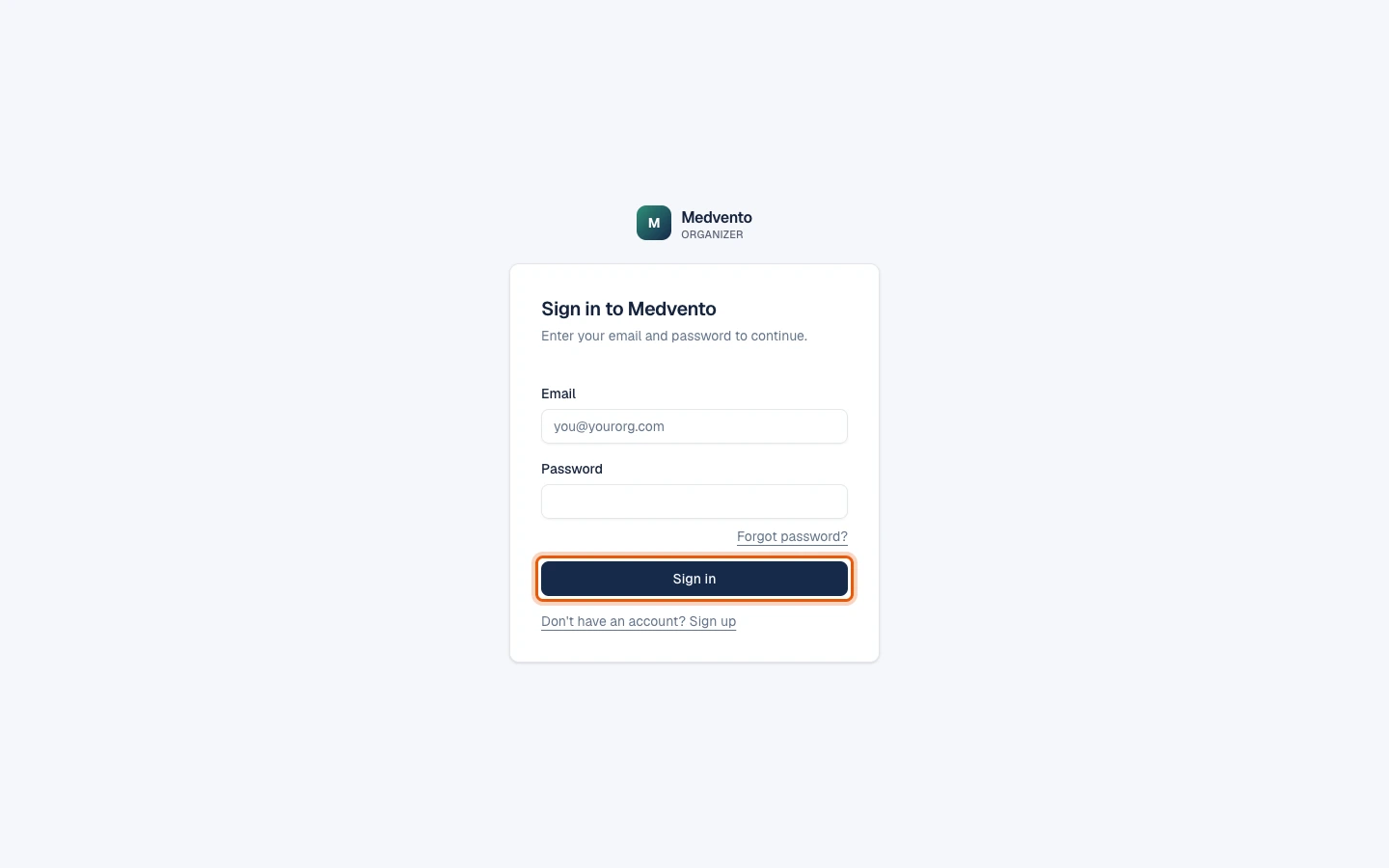
Go to org.medvento.com and sign in with your email and password. If you forget your password, use Forgot password on the sign-in page. Bookmark org.medvento.com: it is the permanent address of the organizer portal.
Pricing
Pro costs ₹999/- per month, billed annually, excluding GST. A Free plan is also available.Frequently asked questions
How long does it take to sign up for Medvento?
The form itself is four short steps. The verification code usually arrives within a minute, and a paid plan adds the time the payment takes.
Who becomes the owner of the organization?
The person who completes sign-up becomes an owner. Owners can invite team members as owners or staff. Medvento does not allow removing the last remaining owner.
Can I start on the Free plan and upgrade later?
Yes. You can upgrade from the Billing page whenever you need a paid feature.
Why does Medvento ask for my state and GSTIN?
They decide how GST is split on your invoice (CGST and SGST within your state, IGST across states). A valid GSTIN supplies the state automatically.
What do I do if I never receive the verification code?
Check Spam or Junk, wait a minute, then select Resend code. You can ask for a new code after 60 seconds. If it still does not arrive, write to support@medvento.com.
Next step
Where to start: the Medvento setup roadmap for a new society
The order to set up a society on Medvento: sign up, publish compliance details, create an event, open registration, check in and issue certificates.
How to set up compliance details and publish your privacy policy
Add your grievance officer, registration and GST details in Settings, Compliance. Medvento then publishes six policy pages for your events.