 Medvento
How to create an event and finish its Basics
Create a Medvento event from the Events page, complete its Basics tab, and learn what to finish before you open registration and publish event pages.
To create an event on Medvento, open Events, select New event, enter the event name and dates, and choose Create event. The event starts in configuration, which means nothing is public yet. Then open the event's Basics tab to set the timezone, registration deadline, registration code prefix, venue and CME credit hours. Before you open registration, make sure your organization's Privacy Policy is published and the event has at least one ticket.
Before you start
- You need a Medvento organization. If you do not have one yet, read how to sign up and set up your organization.
- Publish your organization's Privacy Policy. You can create the event without it, but Medvento will not open registration until it exists. See how to set up compliance details.
- Any team member (owner or staff) can create and edit events. Some actions, covered below, are owner-only.
Step 1: Create the event
- Open Events in the left-hand menu.
- Select + New event at the top right.
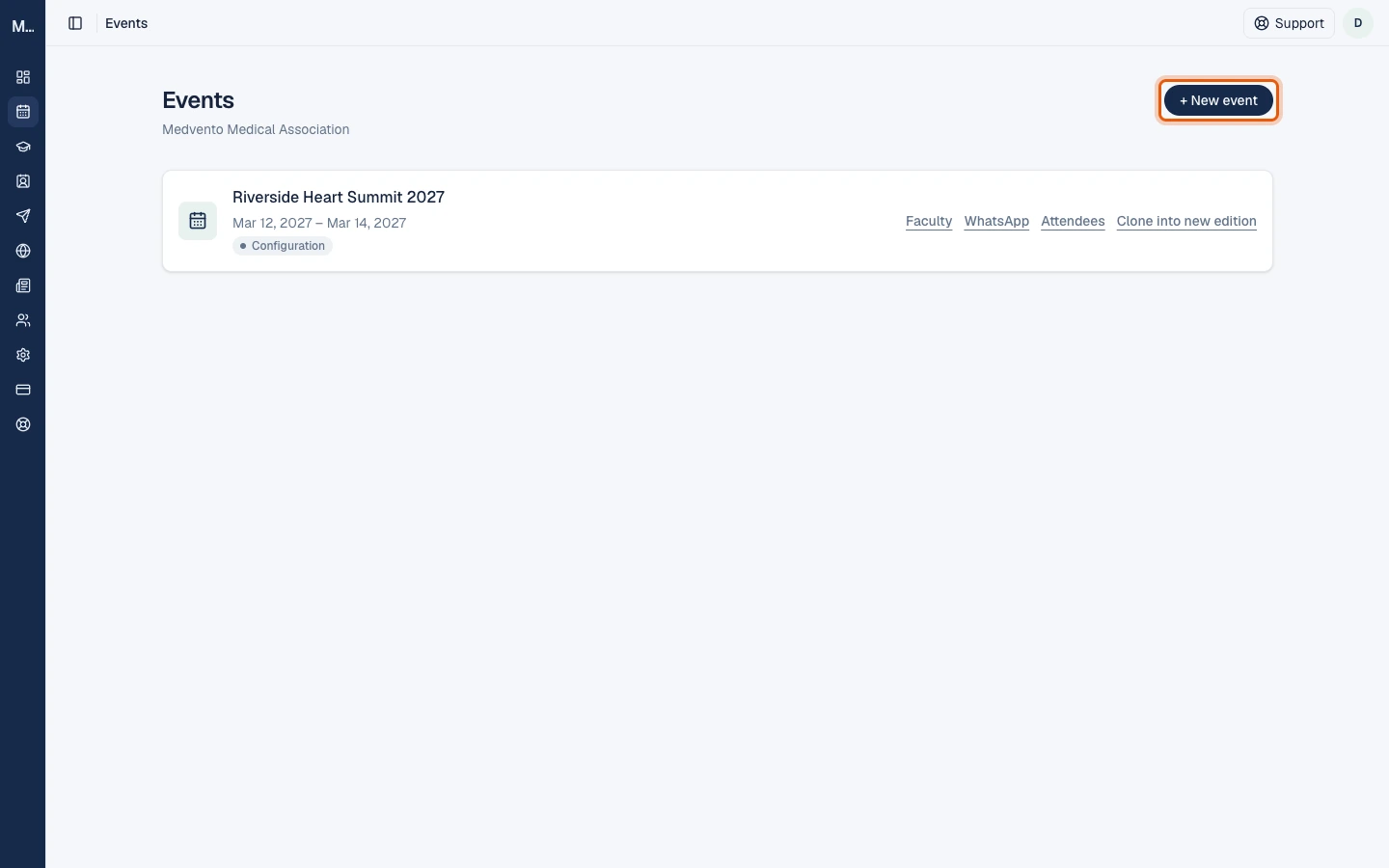
- In the Create event dialog, fill in the fields below.
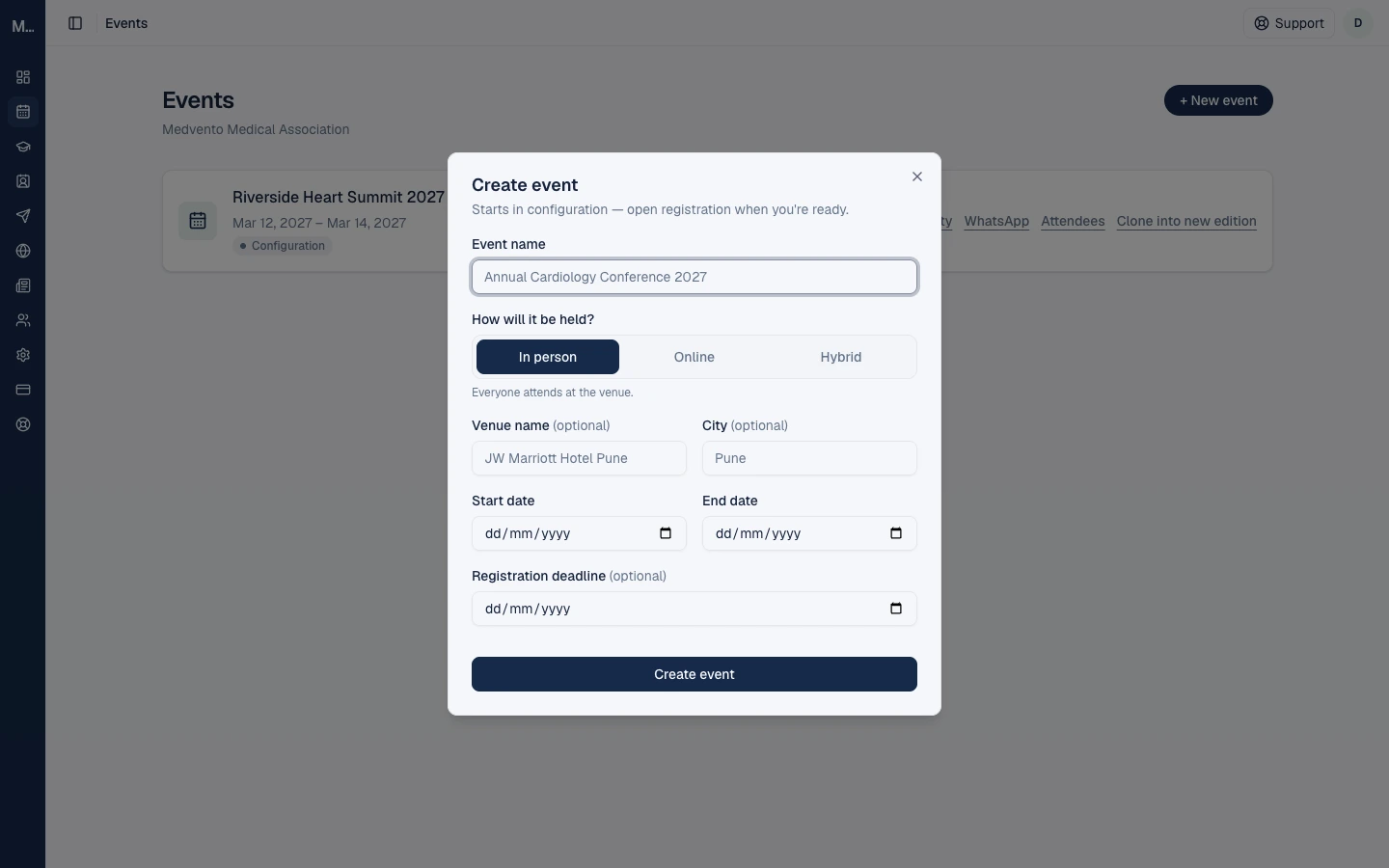
| Field | What to enter | Required? | Limit |
|---|---|---|---|
| Event name | The name delegates will see, for example "Annual Cardiology Conference 2028" | Yes | 200 characters |
| How will it be held? | In person, Online or Hybrid | Yes (In person is preselected) | |
| Venue name and City | Shown for in-person and hybrid events | No | |
| Start date and End date | The first and last day of the event | Yes | End date cannot be before the start date |
| Registration deadline | The last day delegates can register | No | Registration closes at 11:59 PM on this day, in the event's timezone |
- Select Create event.
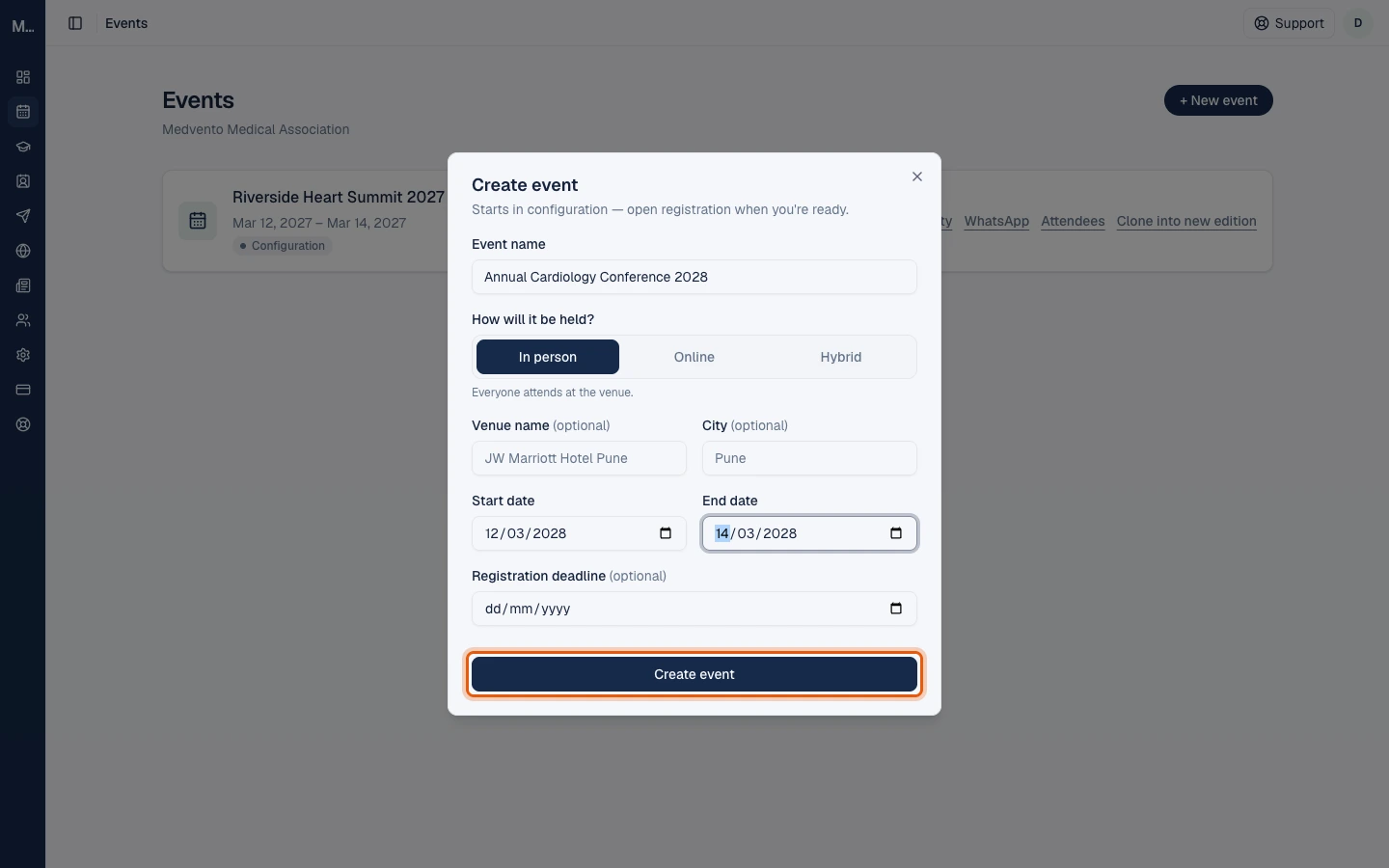
After you create the event, Medvento opens it. If your organization has not published a Privacy Policy yet, a reminder pop-up appears first. You can dismiss it and come back later.
Step 2: Complete the Basics tab
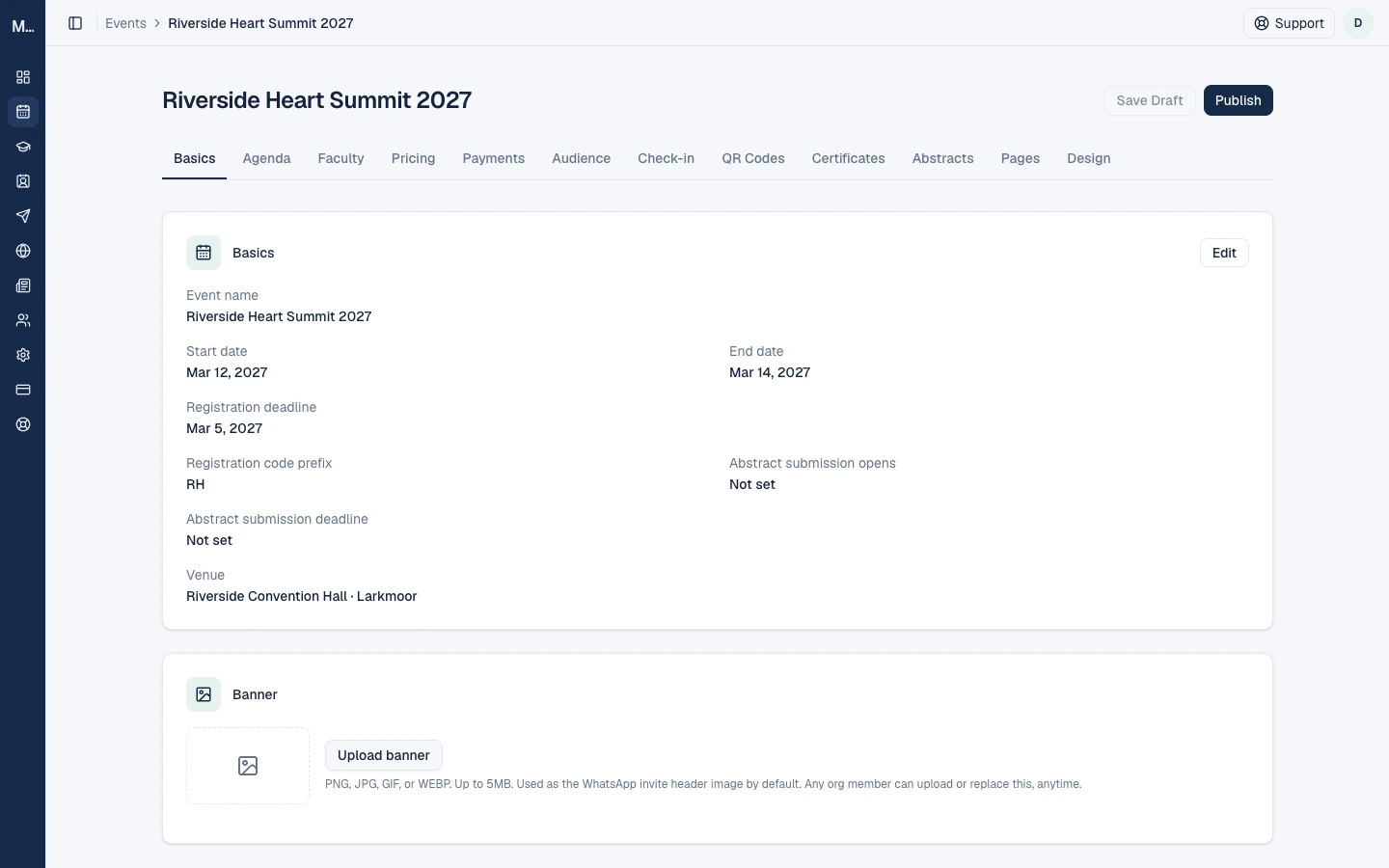
Every event opens on its Basics tab. The row of tabs above it covers everything else about the event. Select Edit on the Basics card to open the Edit basics panel.
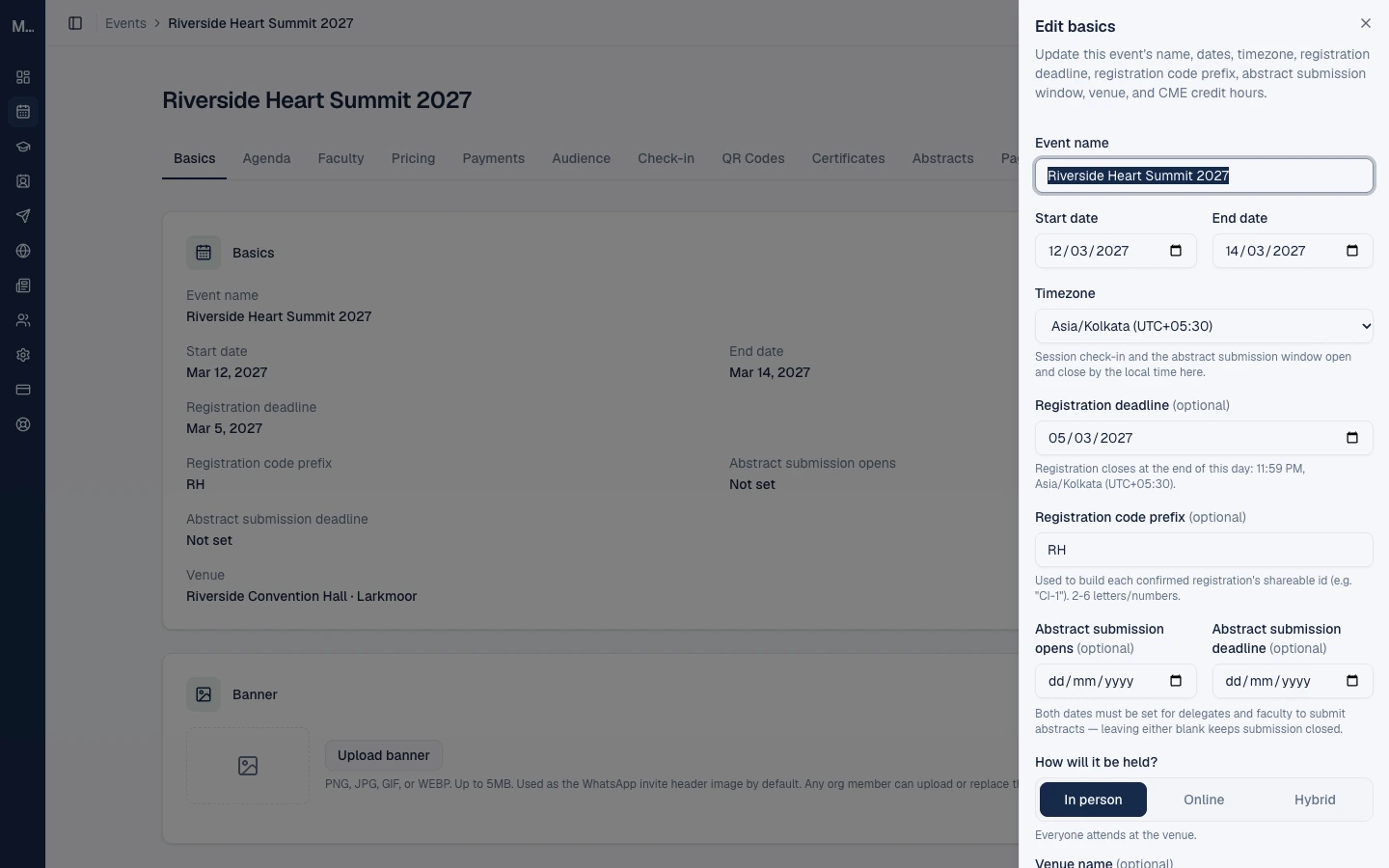
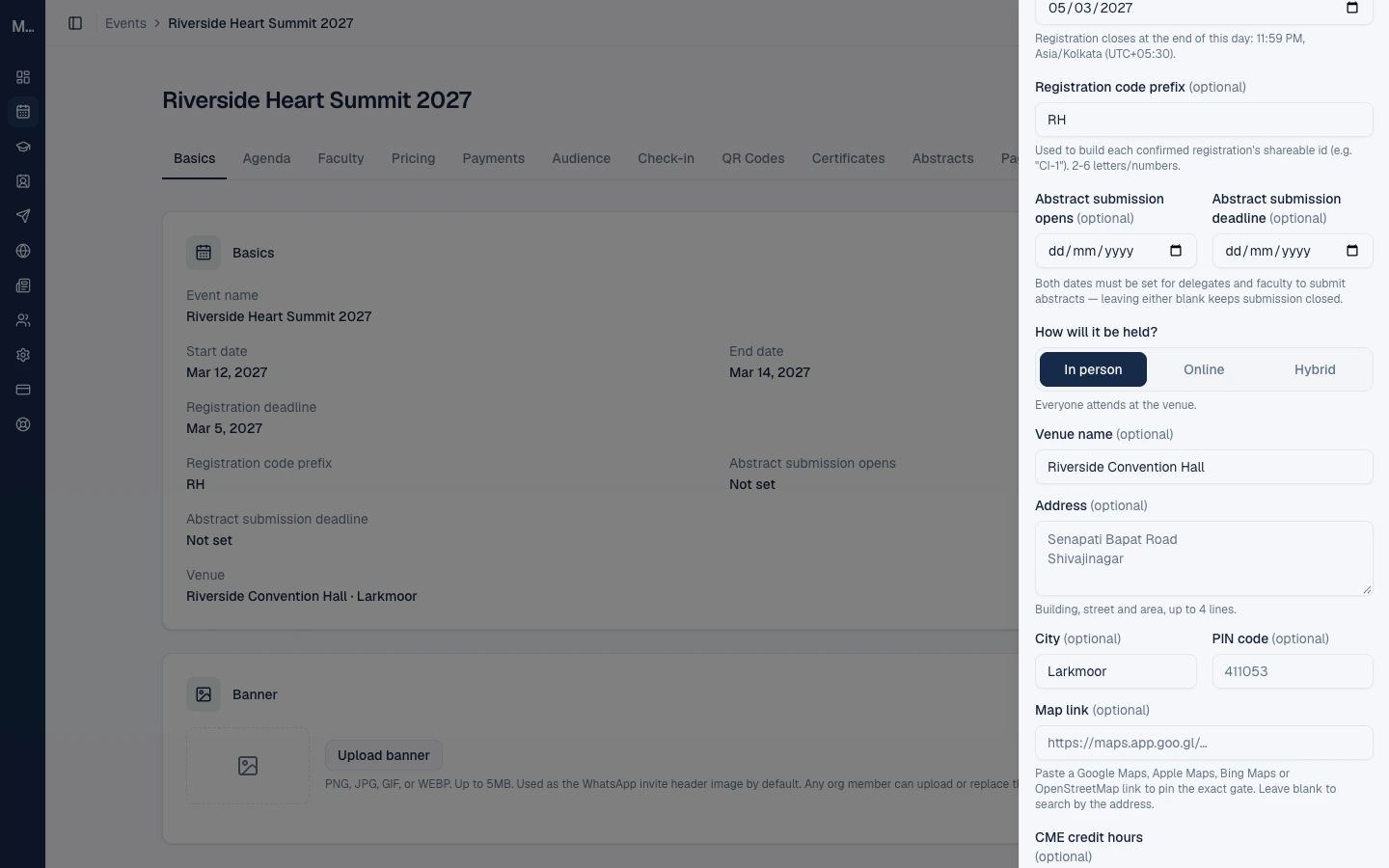
| Field | What it does | Limit or rule |
|---|---|---|
| Event name, Start date, End date | As in the Create dialog | Name up to 200 characters |
| Timezone | Decides the local time for session check-in, the abstract window and the registration deadline | Defaults to Asia/Kolkata (UTC+05:30) |
| Registration deadline | Registration closes at 11:59 PM on this day in the event's timezone | Optional |
| Registration code prefix | Letters at the start of every confirmed registration's shareable ID, for example "CI" gives "CI-1" | 2 to 6 letters or numbers |
| Abstract submission opens and deadline | The window in which delegates and faculty can submit abstracts | Set both dates. If either is blank, submission stays closed. Independent of the registration deadline |
| How will it be held? | In person, Online or Hybrid | Online and Hybrid events also ask for a meeting link (see below) |
| Venue name, Address, City, PIN code | Where the event takes place | Address up to 4 lines. PIN code is 6 digits |
| Map link | A link that pins the exact gate or entrance | Must be a Google Maps, Apple Maps, Bing Maps or OpenStreetMap link. If blank, directions use a search on the address |
| CME credit hours | The credit hours the event carries, used for CME certificates | A number such as 2.5 |
Online and hybrid events: the meeting link
For an Online or Hybrid event, enter the meeting link (a link starting with https) and an optional passcode. Only your organization's team can see them in Medvento. They are not shown on public pages. Delegates with a confirmed registration receive them in their confirmation email under "Join online", and you can also send them in a campaign.
The banner
On the Basics tab, Upload banner adds an event image (PNG, JPG, GIF or WEBP, up to 5 MB). Medvento uses it as the header image of WhatsApp invitations by default. Any team member can upload or replace it at any time.
What gets locked after registration opens
Once an event has been published (registration opened), its name, dates, timezone, registration deadline and registration code prefix are locked. You can still change the abstract submission window, the venue and the CME credit hours. Once an event goes live, the CME credit hours also lock, so set them before the event starts.
If you change something that delegates may already rely on, such as the venue, Medvento asks you to confirm and reminds you that delegates are not notified automatically. Send a campaign if they need to know.
What to finish before you open registration
The header on the event shows Save Draft and Publish. Save Draft is inactive: every tab saves its changes as you make them. Publish opens registration; it does not publish your event's web pages, which you do separately under the Pages tab.
Medvento refuses to open registration, with a clear message, when:
- The Privacy Policy is not published. Fix this under Settings, Compliance. See compliance details.
- The registration deadline has already passed. Change the deadline in the Basics, then try again.
Medvento also warns you, without blocking, when:
- The event has no tickets, so delegates cannot register. Add them under the “Pricing” tab.
- A paid ticket has no payment method set. Choose how delegates pay under the Payments settings of the “Pricing” tab.
- An online or hybrid event has no meeting link yet.
Your organization must also have an active plan and must not be suspended. A suspended organization cannot publish event pages or open new registrations.
Before you publish the event page
Publishing the page is separate from opening registration. Before you publish, check that:
- If the page lists people in a Contact persons block, you have ticked the consent box for the page: you confirm those people agreed to have their details shown. Medvento will not publish the page without it.
- The page's design warnings (logo size, colours, blocks that render nothing) are looked at. These are advice, not blockers.
- Your event name, dates and venue read correctly, because they appear throughout the page.
The full walkthrough is in how to build your event page.
What each tab is for
| Tab | What you do there | Learn more |
|---|---|---|
| Basics | Name, dates, timezone, deadline, venue, CME hours | This page |
| Agenda | Sessions and speakers | Build the event agenda |
| Faculty | Invite speakers and assign them to sessions | Invite faculty to an event |
| “Pricing” tab | Ticket tiers, price slabs and payment settings | Set up registration and payments |
| Payments | Verify and manage direct payments | Set up registration and payments |
| Audience | Contacts and groups linked to this event | Manage attendees |
| Check-in | The registration roster and attendance | Manage attendees |
| QR Codes | Printable QR codes for session check-in | Session QR check-in |
| Certificates | CME certificate setup and issue | Covered in a later guide |
| Abstracts | Topics, reviewers and submissions | Collect and review abstracts |
| Pages | The event's public web pages | Build your event page |
| Design | Colours, fonts and the organization menu bar | Build your event page |
Event stages
An event moves one step at a time, in one direction: configuration, registration open, live, closed, post-event. After registration opens, the stage badge in the header shows the next step as a button, with a confirmation window:
- Owners and staff can Go live and Close event.
- Only owners can mark an event post-event. Certificates are issued only for post-event events.
Frequently asked questions
Can I create an event before I publish my Privacy Policy?
Yes. You can create and configure the event. You cannot open registration until the Privacy Policy is published.
What is the difference between Publish and publishing the event page?
Publish in the event header opens registration. The event's web pages are published separately from the Pages tab.
Can I change the event dates after registration opens?
No. The name, dates, timezone, registration deadline and registration code prefix lock once the event is published. Plan them before you open registration.
Does an event need a registration deadline?
No. It is optional. If you leave it empty, no deadline day is applied; you control registration by moving the event through its stages.
Who can see the meeting link and passcode?
Only your organization's team, and delegates with a confirmed registration through their confirmation email. They never appear on public pages.
Can I copy an event I ran last year?
Yes. Events can be cloned into a new edition from the Events list, which copies tickets, price slabs, the abstract window, topics and page settings, but not registrations or abstracts.
Next step
Set up registration and payments, then build your event page.
Team roles and permissions: what owners and staff can do on Medvento
Medvento has two roles, owner and staff. See what each can do across events, money, compliance and the team, and how to invite, change or remove members.
How to build your event agenda: sessions, topics and speakers
Add sessions to your Medvento event with times, rooms and CME credits, break them into topics, assign speakers and show the programme on your event page.