 Medvento
How to set up your Medvento subdomain or your own domain for event pages
Choose a your-name.medvento.com address or connect a domain you own to your Medvento website, with the rules, DNS steps, plan requirements and limits.
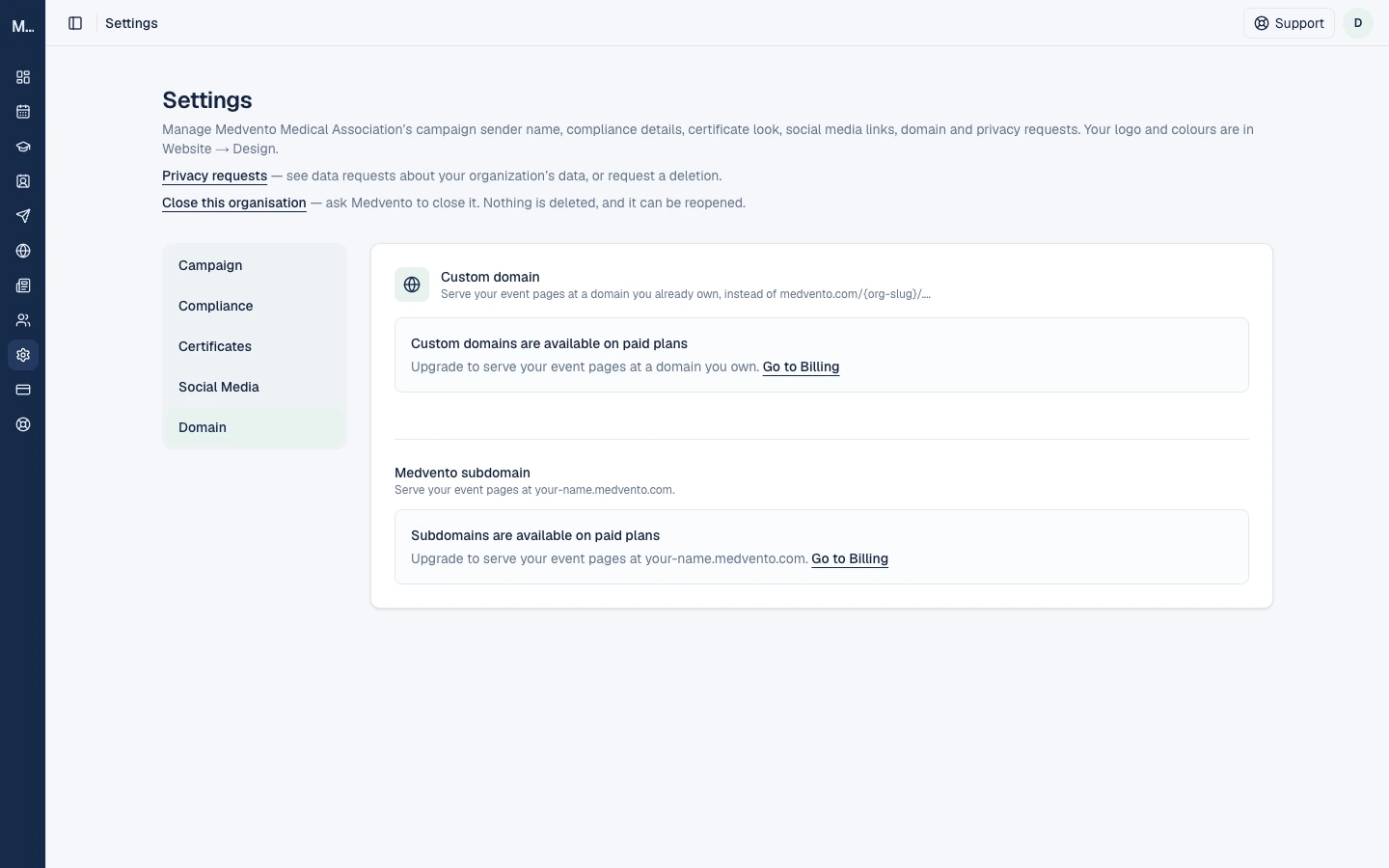
Your organization's pages are always available at medvento.com/<your-organization>. Organizations on a paid subscription can also choose a subdomain such as yourorg.medvento.com (an owner chooses it once, and it can never be changed) or connect a domain you already own, such as events.yourorg.com. Both are set up in Settings, Domain. A subdomain needs no technical setup. A custom domain needs you to add one DNS record at your domain registrar and then check verification.
Before you start
- You need a paid subscription that is active. The Domain tab shows "Subdomains are available on paid plans" and "Custom domains are available on paid plans" otherwise, with a Go to Billing link. See how to sign up.
- Choose the address deliberately. A subdomain cannot be changed later.
- For a custom domain, you need access to the domain's DNS settings.
Option 1: Choose a Medvento subdomain
Open Settings, Domain and find Medvento subdomain: "Serve your event pages at your-name.medvento.com."
| Rule | Detail |
|---|---|
| Who can choose | Only an owner. Staff see "Only an organization owner can choose the organization's subdomain" |
| Plan | Paid and active. A lapsed plan shows "Your plan has lapsed, renew to choose a subdomain" |
| Length and characters | 3 to 30 lowercase letters, numbers or hyphens |
| Hyphens | Not at the start or end, and not two in a row as the third and fourth characters |
| Reserved | Words such as admin, api, app, blog, billing, docs, events, help, login, mail, org, status, support and www cannot be used, and neither can another organization's name |
| Taken | "That name is already taken. Choose another." |
Steps
- Type your name in Subdomain name. A live preview shows "Your pages will be at" your address.
- Select Choose subdomain.
- Confirm: "Set (your address) as your subdomain? It can't be changed later." Select Confirm, or Back to change it.
Once set, the subdomain is read-only, with Copy link and Open. There is no DNS setup, so it works straight away, within about a minute.
How it behaves
- Paid and active (or lapsed): your home page and event pages are served at the subdomain, and links to
medvento.com/<your-organization>redirect to it. A lapsed plan keeps serving the subdomain. - If your organization moves to a free level, the subdomain redirects to your
medvento.com/<your-organization>pages. Your chosen name stays reserved for you. - The name stays reserved for your organization if it is suspended, downgraded or closed.
Option 2: Connect your own domain
Open Settings, Domain, Custom domain: "Serve your event pages at a domain you already own, instead of the medvento.com address." Despite the wording, your home page is served on the domain as well. Any team member can add a custom domain, not only owners. You can have one domain per organization.
Steps
- Enter the domain in Domain, for example
events.yourorg.com(up to 253 characters). Select Add domain. - Medvento shows "Domain saved. Add the DNS record below, then check verification." A box lists the DNS record: Type, Name and Value, with the status Pending verification.
- At your domain registrar, add that DNS record.
- Back in Medvento, select Check verification.
- If you see "Not yet verified. DNS changes can take time to propagate, try again shortly", wait and check again. DNS changes can take from minutes to several hours, and Medvento does not check automatically. Select Check verification each time.
- When it works you see "Domain verified, it's now live." and the status Verified.
To change the domain, edit the field and select Update domain. To remove it, clear the field and select Remove domain.
Which domains are allowed
- It must be a valid hostname.
- Domains belonging to Medvento (medvento.com, medvento.shop and anything under them) are not allowed. For a medvento.com address, choose a subdomain instead.
- A domain already used by another organization is refused.
What happens when your plan changes
| Situation | Result |
|---|---|
| Your plan lapses | A verified domain keeps serving. You cannot change or verify a domain until you renew |
| You are on a free level and try to add one | Not allowed: "Upgrade to a paid subscription to finish verification" |
| You remove a verified domain | You must confirm. Pages at it stop serving. On a free level you cannot add it back, and while lapsed you cannot add it back until you renew |
Removing a domain is always allowed.
Subdomain or your own domain?
| Subdomain | Your own domain | |
|---|---|---|
| Who sets it up | An owner | Any team member |
| Technical work | None | Add one DNS record |
| Can it change later? | No | Yes |
| Looks like | yourorg.medvento.com | events.yourorg.com |
| Best for | A quick, tidy address | A domain you already own and promote |
You can use both. If you do, choose which address you share, and keep it consistent.
Frequently asked questions
Can I change my Medvento subdomain later?
No. It is fixed once chosen. Choose carefully.
Do I need to change DNS for a Medvento subdomain?
No. Only a custom domain needs a DNS record.
How long does a custom domain take to verify?
It depends on your registrar's DNS. Check verification again after a few minutes, and if it still fails after some hours, check the record you added.
Does my custom domain stop working if my plan lapses?
A verified domain keeps serving, but you cannot change or verify it until you renew.
Can I use medvento.com for my own domain?
No. Medvento's own domains are not allowed.
Next step
How to build your organization's website on Medvento: content, design and menus
Edit your organization's public home page on Medvento, set its logo, colours, fonts, menu, footer and social links, and publish it.
Plan, billing and GST invoices on Medvento: upgrade, renew and what lapses
How owners upgrade or renew the organization's Medvento plan, what happens when it lapses, how GST invoices and refunds work, and where to find them.