 Medvento
How session QR code check-in works: print, display and scan
Generate a QR code for each session in Medvento, print it, and let delegates check themselves in by scanning. Includes timing rules and CME attendance.
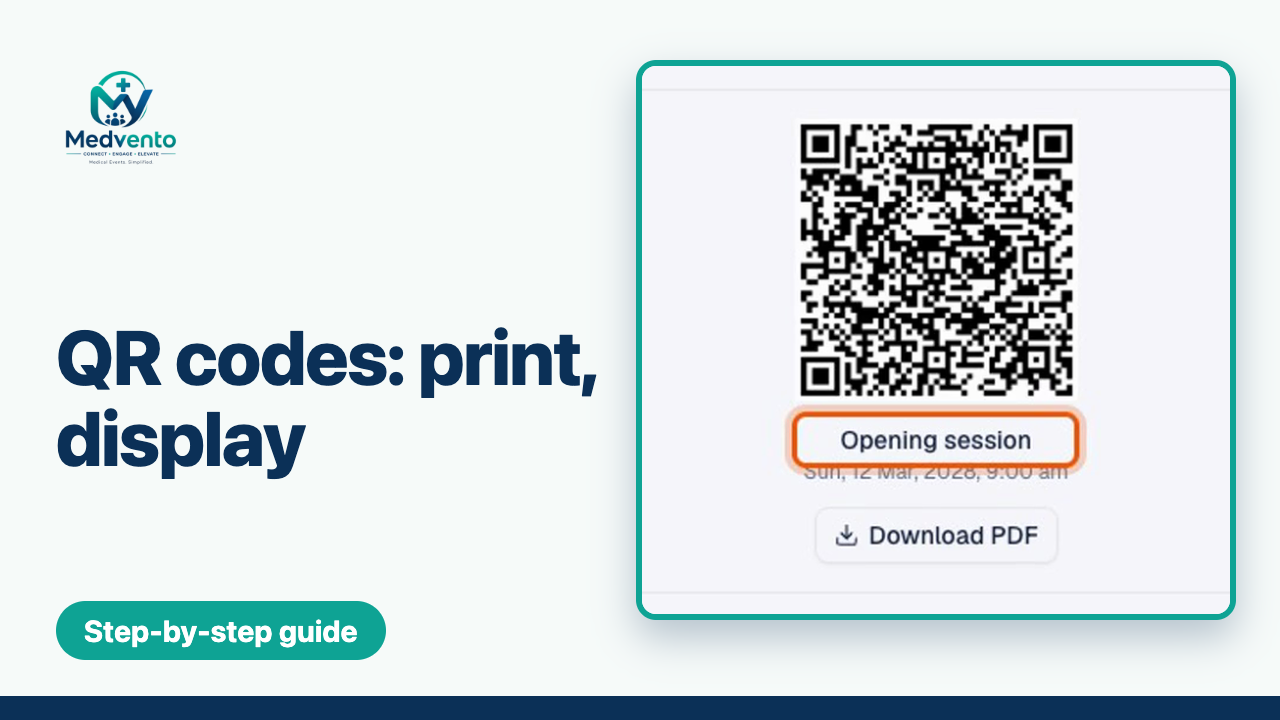
Medvento creates one QR code for every session of your event. Download the codes as PDFs, print them, and put one at the door or on the screen of each session. Delegates scan the code with their phone, enter the email or phone number they registered with, and are checked in for that session. Scanning only works while the event is Live, from 30 minutes before the session starts until 30 minutes after it ends. Session check-ins are what Medvento uses to work out CME credit hours.
Before you start
- Add your sessions on the event's Agenda tab. A QR code exists only for a session that has been created.
- Delegates must be registered: see how to share your registration page.
- Set the event to Live when the event begins. Use Go live in the event header. Until then the QR Codes tab shows a warning that scans will not be recorded.
Step 1: Get the QR codes
Open the event's QR Codes tab. It shows one card per session with the session's name, date and start time, and a Download PDF button. Download all gives you every session's PDF in one go.
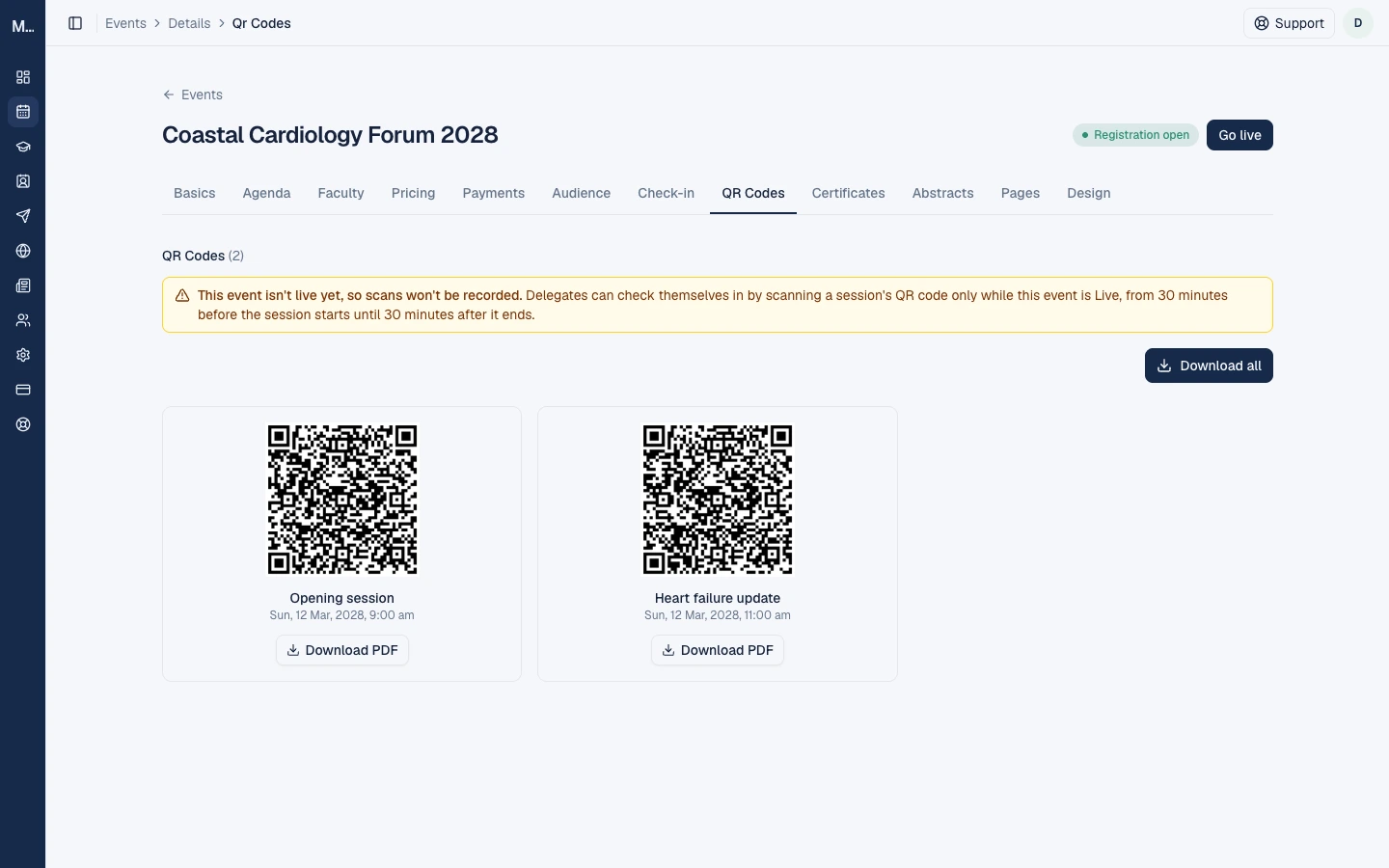
The warning on the tab explains the rule: "Delegates can check themselves in by scanning a session's QR code only while this event is Live, from 30 minutes before the session starts until 30 minutes after it ends."
Step 2: Print and place the codes
- Print each session's PDF and place it where delegates will see it as they enter that room, or show it on a screen. A4 is a good size.
- Put the right code at the right session. Each code is for one session only.
- Keep the code visible for the whole check-in window.
- Do not share a session's QR code on social media or by email before the event. Anyone who has it can open the check-in page, although only a registered delegate can check in.
Step 3: What delegates do
A delegate points their phone camera at the code and taps the link it shows. A check-in page opens with the event name, the session name and time, and two fields: Email (or phone) and Phone. They enter the email address or phone number they registered with and select Check in. No app and no account are needed.
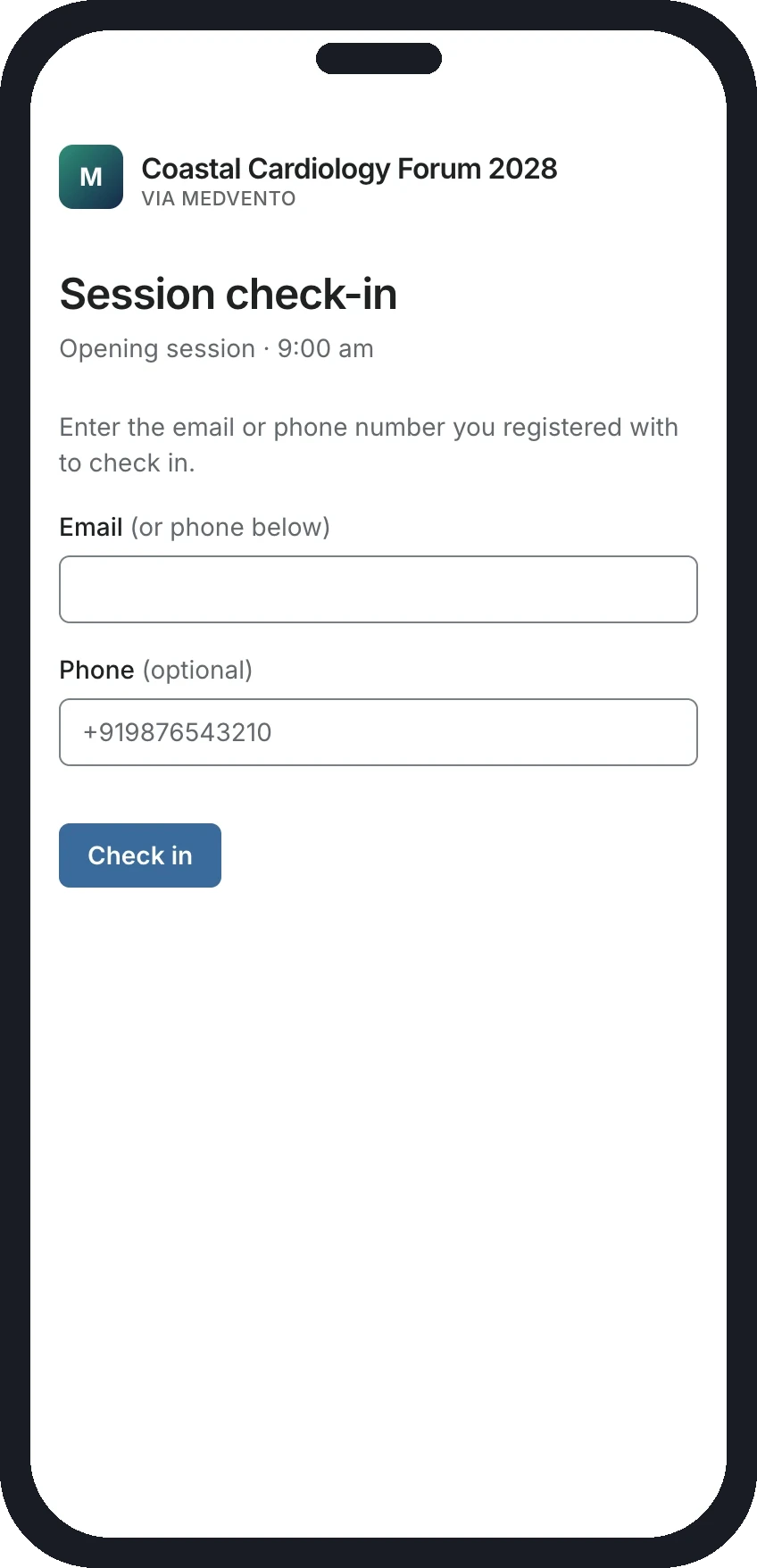
Tell delegates in advance to use the same email or phone number they registered with.
How check-in feeds CME credit
Medvento accepts two kinds of attendance, and both are supported:
- Session scans: each time a delegate scans a session code, that session is recorded.
- Event-level check-in: your team marks a delegate as attended from the Check-in roster. Use it for delegates who cannot scan, or when a phone fails.
If a delegate has any session scans, those scans are used to calculate their CME hours. If they have none, the event-level check-in is used as a fallback and credits the event's full configured hours. With neither, no certificate can be issued. Read the guide to certificates for details, planned next.
Common problems
| Problem | What to check |
|---|---|
| The page says check-in is not open | The event must be Live, and the time must be within 30 minutes before the session starts and 30 minutes after it ends |
| The delegate is not found | They must use the email or phone number they registered with, and their registration must be confirmed |
| A delegate's phone cannot scan | Mark them as attended on the Check-in roster instead |
| The QR tab has no codes | Add sessions on the Agenda tab first |
QR codes on certificates are different
Certificates carry their own QR code, which lets anyone verify a certificate. It has nothing to do with session check-in.
Frequently asked questions
Do delegates need to download an app to check in?
No. They scan with their phone camera and enter the email or phone number they registered with.
Can delegates check in before the event goes Live?
No. Scans are only recorded while the event is Live, within the session's check-in window.
Is there one QR code for the whole event?
No. There is one per session, so Medvento can record which sessions each delegate attended.
What if a delegate scans the wrong session?
Each scan records that session only. Make sure each code is displayed at its own session.
Do I have to use QR codes?
No. You can mark attendance by hand on the Check-in roster instead.
Next step
See manage attendees for the roster, and create your first event for how stages work.
How to use the check-in roster to track delegates, attendance and certificates
See every confirmed delegate on the Medvento Check-in tab, search by name or phone, mark attendance by hand and track emails, certificates and abstracts.
How to invite faculty to your event and assign them to sessions
Add speakers to your Medvento faculty directory, invite them to an event, track their replies and assign confirmed faculty to sessions and topics.