 Medvento
How to use the check-in roster to track delegates, attendance and certificates
See every confirmed delegate on the Medvento Check-in tab, search by name or phone, mark attendance by hand and track emails, certificates and abstracts.
The Check-in tab of an event lists every confirmed registration, with payment, check-in, confirmation email, certificate and abstract status in one table. Search by name, email, phone, registration code or certificate number, and tick the Checked in box to mark a delegate as attended by hand. The roster shows 50 delegates per page and has no export, filters or sortable columns, so copy any attendance sheet you need by hand. This page is about people who registered for an event. For your marketing contact lists, read how to build contact lists.
Open the roster
Open the event and select Check-in. The heading shows "N of M checked in". The intro reads: "Delegates registered for this event, with payment, check-in, certificate and abstract status."
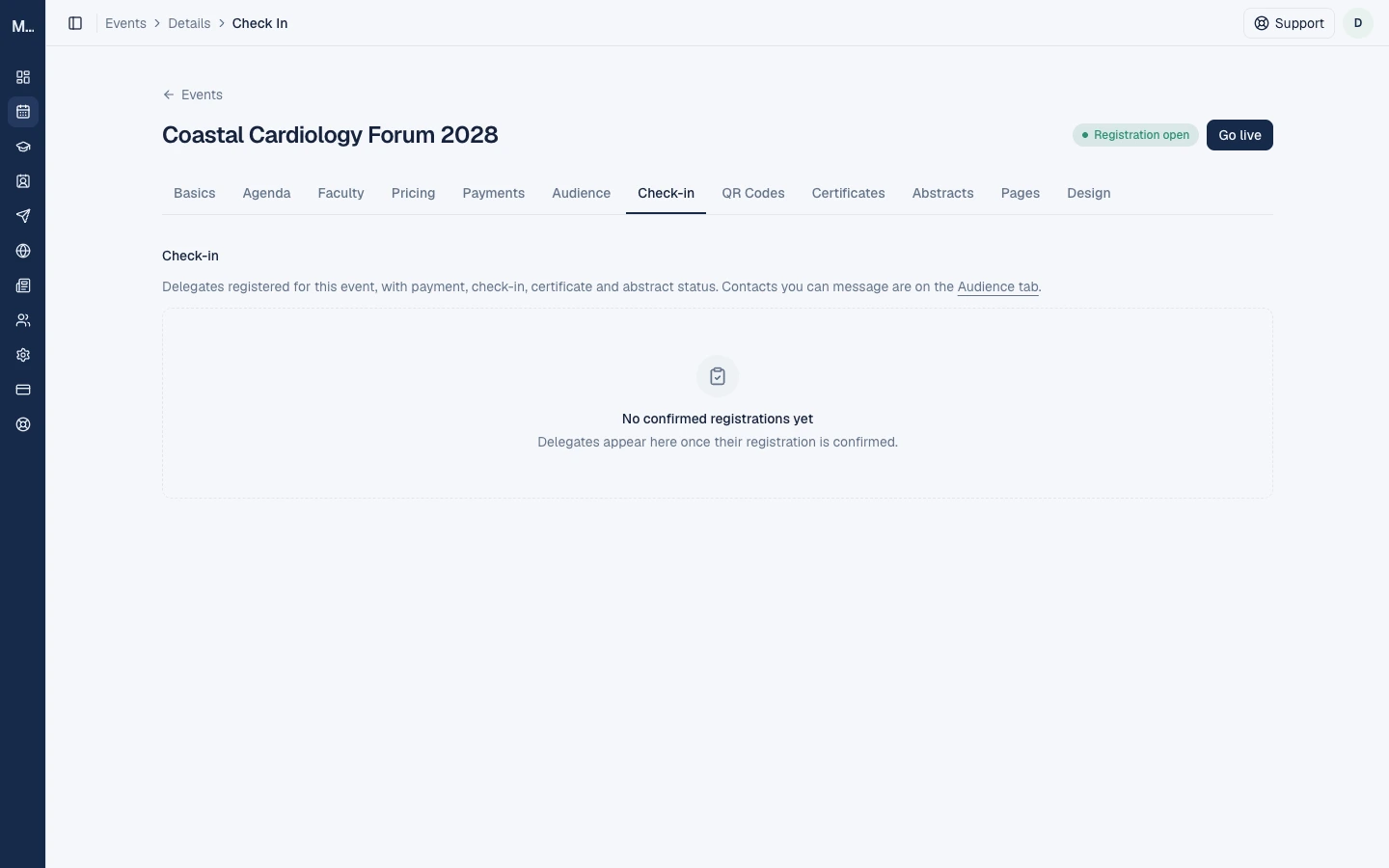
Only confirmed registrations appear. Pending, unpaid and failed attempts are not listed. On a new event you see "No confirmed registrations yet. Delegates appear here once their registration is confirmed."
Columns
| Column | What it shows |
|---|---|
| Name | The name, the registration code, and the delegate's answers to your custom registration questions under "Registration answers" |
| Email, Phone | Full details. Nothing is hidden |
| Council registration | The number and council, if you asked for it. Shown here only, never on public pages |
| Tier | The ticket |
| Payment | Free, Paid online, or Paid directly (confirmed) |
| Checked in | A checkbox and who checked them in |
| Confirmation email | Delivered, Sent, Bounced, Not delivered, Marked as spam, Waiting, Failed or Not sent |
| Certificate | Status, certificate number and actions |
| Abstract submission, Late exception | Links and buttons for abstracts |
Search and paging
Use the single search box: "Name, email, phone, code or certificate no." and select Search. Matching is by "contains", ignoring case. Phone searches ignore spaces and need at least 4 digits. A query can be up to 100 characters. The count appears, with Clear. The list is always sorted by name from A to Z and shows 50 per page with Previous and Next buttons. The address keeps your search and page, so you keep your place after each tick.
Mark attendance by hand
Tick the Checked in box on a delegate's row. It shows "Checked in", the date and time in the event's timezone, and who did it. Untick it to undo.
- Any team member can do it.
- The registration must be confirmed.
- It works at any time: before the event is live, during and after. There is no confirmation window and the delegate is not notified.
- It is separate from session QR check-in, which needs the event to be Live and is limited to the session's time window. See session QR check-in.
How check-in affects CME credit
Either kind of attendance qualifies a delegate for a certificate. If a delegate has any session scans, their CME hours come from the sessions they scanned. If they have only the event check-in, the event's full credit hours apply. The roster does not show which sessions a delegate scanned. It shows only the event-level tick. Each session's scan count is on the Agenda and QR Codes tabs. See how to issue CME certificates.
Confirmation emails
The Confirmation email column shows the status, with the reason on hover. Select Resend email (or Retry email after a failure) to send it again. You can resend up to 3 times per registration, with a 10-minute wait between tries. Emails wait while your organization is suspended, its messaging is on hold or its email is unverified. See how to share your registration page.
Certificates
The Certificate column shows nothing until the event is post-event, then Pending, Issued (with the number and a View link), No CME hours, Retrying, Failed, Held or Waiting. Any team member can Resend. Only owners can Reissue one certificate or Reissue all. Details are in how to issue CME certificates.
Abstracts
For each delegate you can Copy submission link, Email submission link, Record abstract (an abstract received another way) and, once the window has closed, Grant late exception. See how to collect and review abstracts.
Good to know
- There is no export of the roster and no "checked-in only" view. The only count is "N of M checked in".
- Delegate details are fully visible to your team. Treat them as personal data: see privacy and consent for organizers.
- Some actions need an active plan and an organization that is not suspended.
Frequently asked questions
Why is a delegate missing from the Check-in list?
Only confirmed registrations appear. A paid ticket is confirmed after you confirm the payment on the Payments tab.
Can I export the Check-in list?
No. There is no export. You can search and page through it.
Can I check someone in before the event starts?
Yes. Manual check-in has no stage or time limit. QR scans need the event to be Live.
Can I undo a check-in?
Yes. Untick the box.
Which sessions did a delegate attend?
The roster does not list them. Each session shows a scan count on the Agenda and QR Codes tabs.
Next step
Issue CME certificates after the event.
Event page blocks: what each block does, its limits and how to edit it
Every block you can add to a Medvento event page, such as Table, Fee table, Gallery and Contact persons, with its limits, edit options and consent rules.
How session QR code check-in works: print, display and scan
Generate a QR code for each session in Medvento, print it, and let delegates check themselves in by scanning. Includes timing rules and CME attendance.