 Medvento
How to invite faculty to your event and assign them to sessions
Add speakers to your Medvento faculty directory, invite them to an event, track their replies and assign confirmed faculty to sessions and topics.
To invite faculty to a Medvento event, add the person to your organization's Faculties directory or invite them directly from the event's Faculty tab. Choose a faculty type (such as Keynote Speaker), and Medvento emails them a personal link to confirm or decline. They need no account. Once someone has confirmed, you can assign them to sessions and topics on the agenda, and they appear on your public Faculty block. Only confirmed faculty are ever shown publicly.
Before you start
- Create the event and its agenda: how to create an event and how to build the event agenda.
- Make sure your organization's email is verified and the organization is active. Invitation emails are blocked for a suspended organization, a lapsed plan, or when messaging is on hold.
- Get the person's permission to publish their details. Faculty details such as a photo, designation and institution appear on public pages. Medvento does not ask faculty to agree to this, so your organization must have their agreement. See privacy and consent for organizers.
Two places for faculty: the directory and the event
| Place | What it is |
|---|---|
| Faculties (left menu) | Your organization's directory of people, organized into Faculty groups. It is shared by every event. A person belongs to one group |
| Faculty tab of an event | The people invited to this one event, each with a faculty type, a status and an optional personal note |
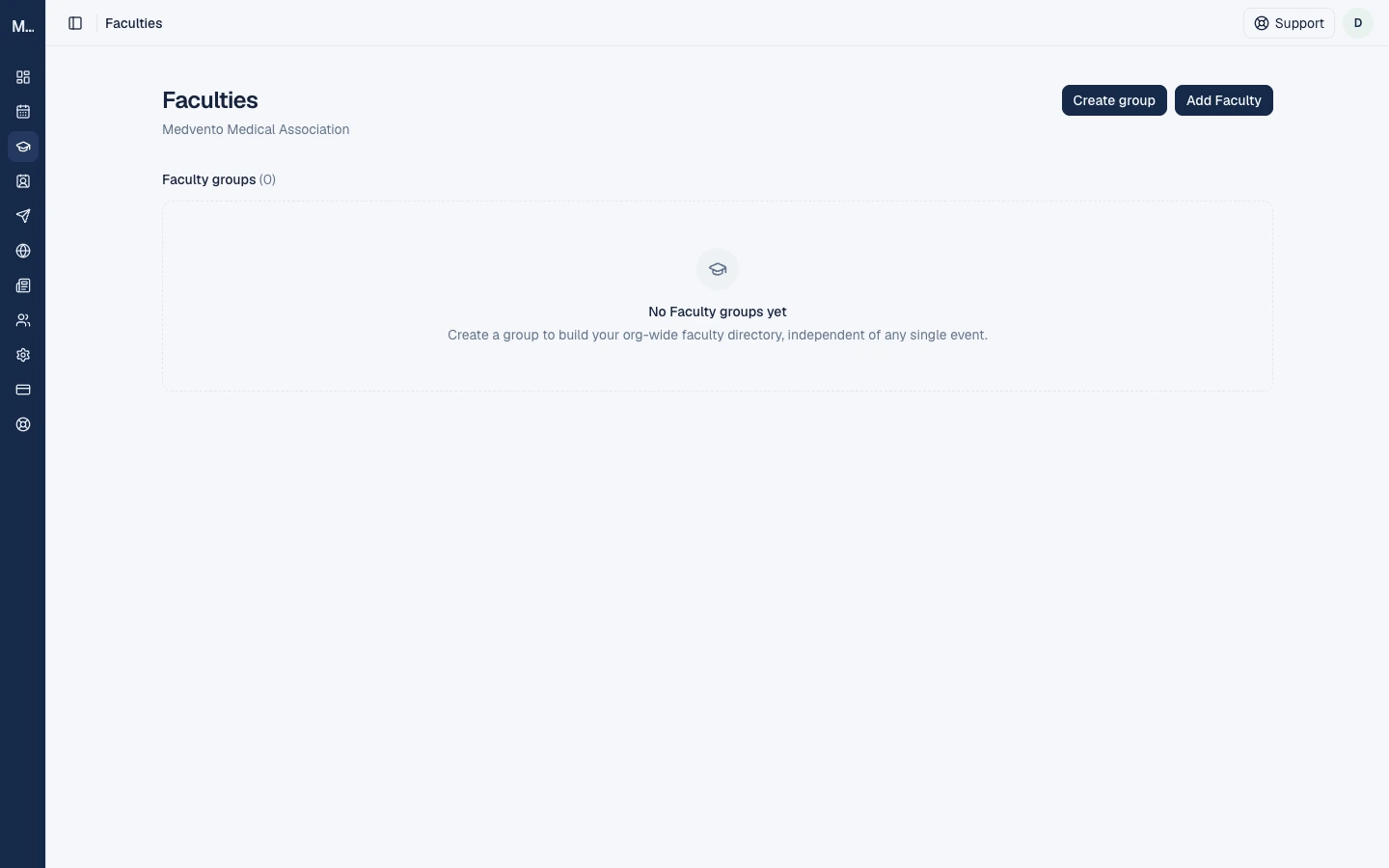
Adding a person to the directory sends no email. A default group called "All Faculty" is created for you, and anyone you invite from an event is added to it automatically. A profile you edit in the directory changes everywhere the person appears.
Add a person to the directory
Select Add Faculty in the directory.
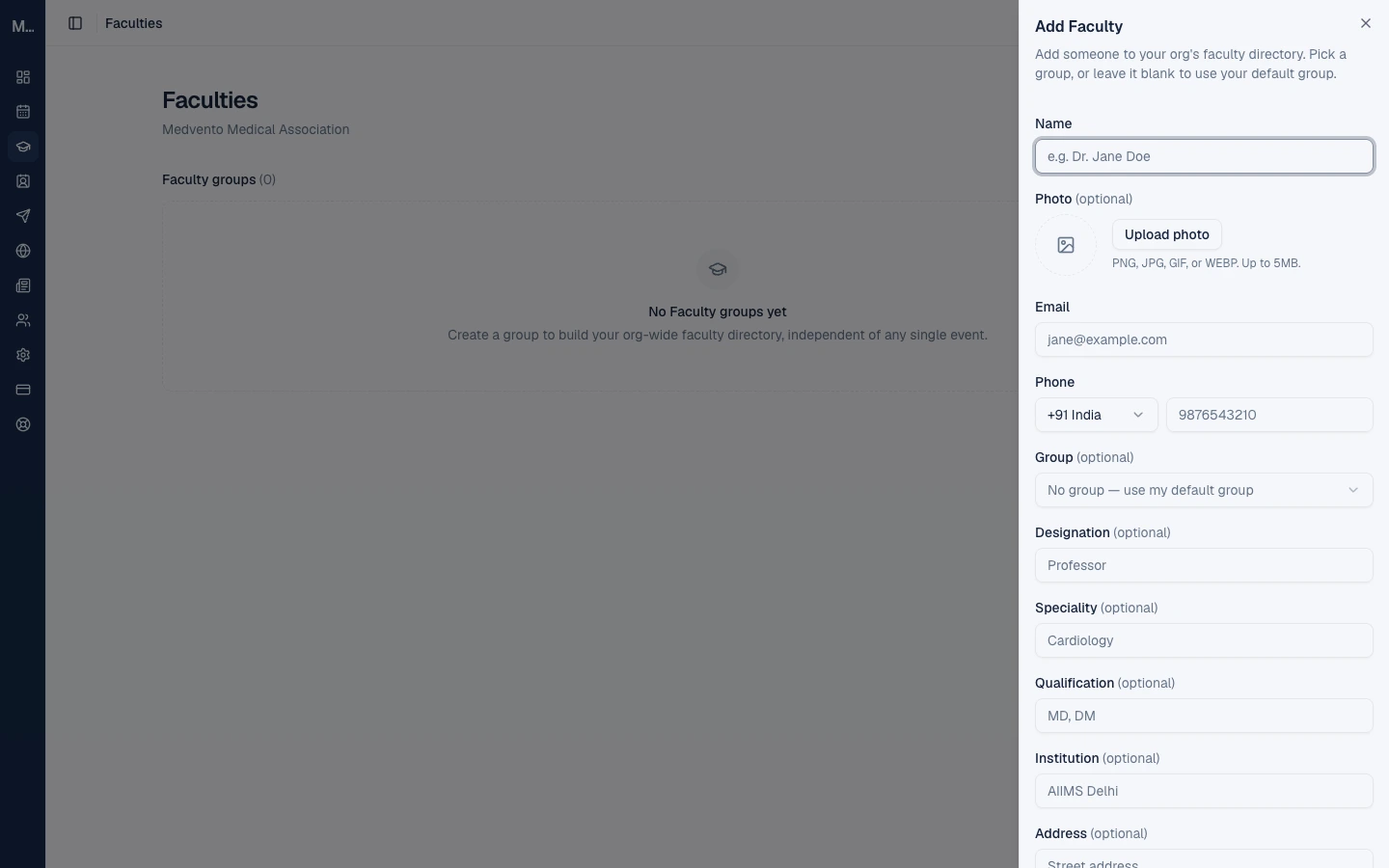
| Field | Rule |
|---|---|
| Name | Required, up to 200 characters |
| Email or phone | At least one is required. An email is stored in lower case. Indian numbers need no country code |
| Photo | Optional. PNG, JPG, GIF or WEBP up to 5 MB. You crop it to a square with zoom and brightness, and it is saved as a 512-pixel JPEG |
| Group | Optional. Leave blank to use your default group |
| Designation, speciality, qualification, institution, address, city, country, state, pincode, notes | Optional |
The same email or phone number cannot be in your directory twice, in any group.
Import many people from a CSV
Open a group and select Import contacts. Use a CSV file with columns such as name, email and phone. Each row needs an email or a phone. Good rows are added and bad rows are reported. The first import into a group asks you to confirm that you have consent, and does not ask again for that group.
Step 1: Invite faculty to the event
Open the event's Faculty tab. There are three ways to add faculty.
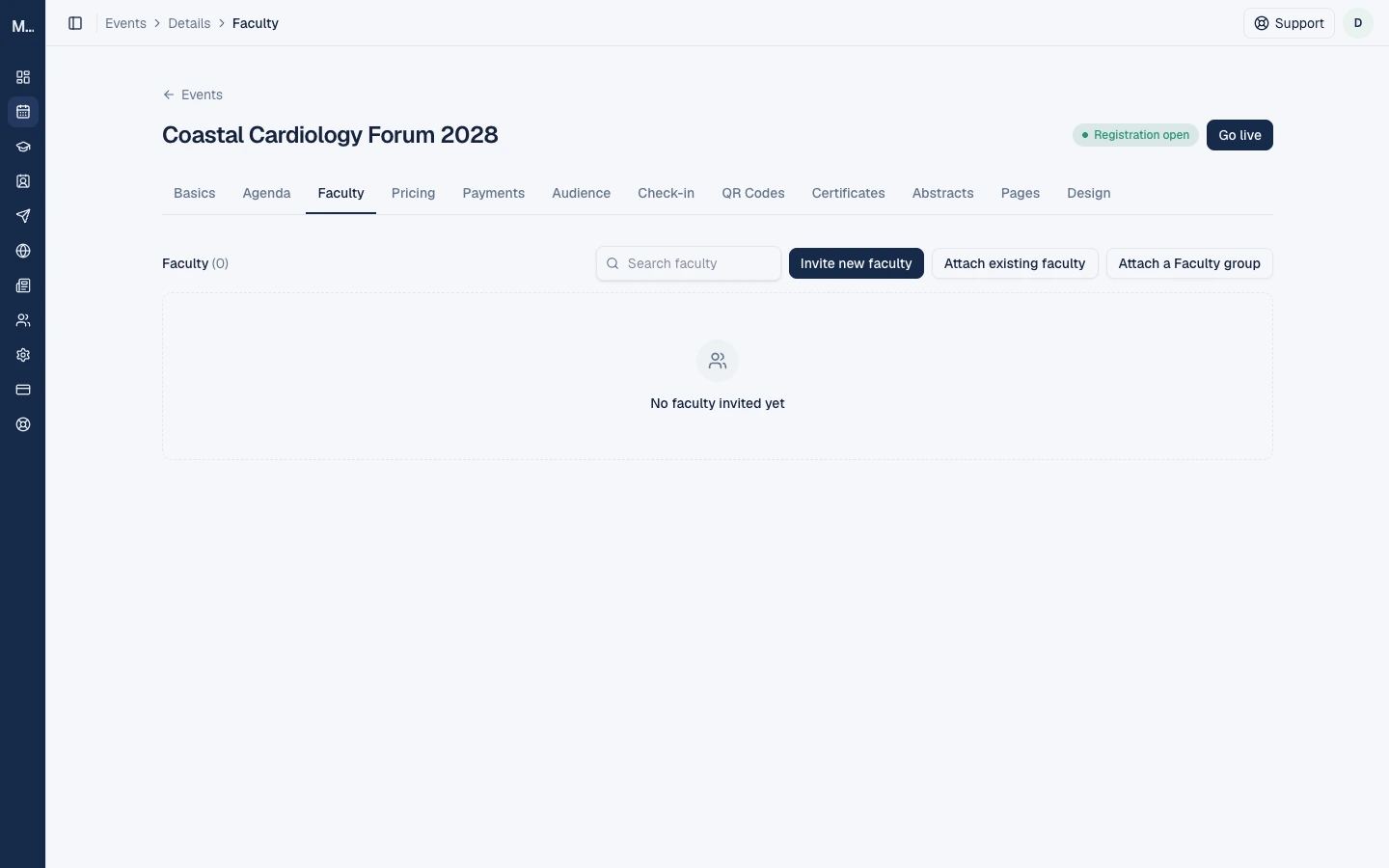
| Button | Use it to |
|---|---|
| Invite new faculty | Add a new person. Medvento creates their directory profile and attaches them |
| Attach existing faculty | Search your directory and attach someone you already have |
| Attach a Faculty group | Attach a whole group at once, up to 200 people per request |
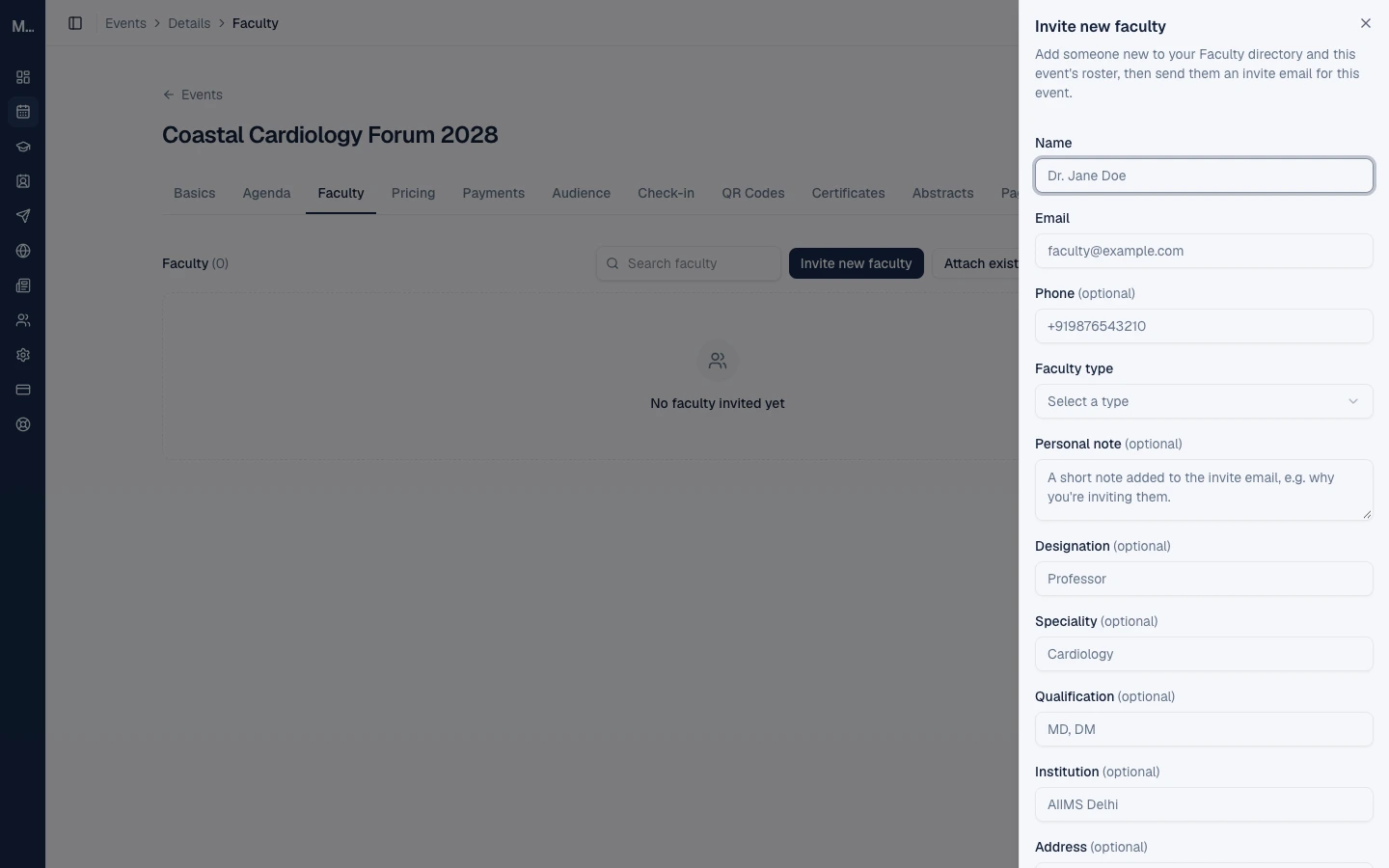
When you invite someone, you fill in:
- Name (required) and Email (required).
- Faculty type, from a fixed list: Keynote Speaker, Session Chairperson, Panelist, Guest of Honor or Faculty/Speaker.
- Personal note (up to 1,000 characters), shown in the email as a quote.
- The optional profile fields.
- Send invite email now. Untick it to add the person without emailing them yet.
You can see and edit the invitation email before it goes. The default subject is "You're invited as" followed by their faculty type and the event. The email always has a button, Confirm or decline your participation, which you cannot remove. You can edit the subject, message and footer, and tick Save as my organization's default to reuse your wording. The merge tokens are {{event_name}}, {{faculty_type}} and {{faculty_name}}.
The email is sent straight away, not in the background. If it fails, you see "Failed to send the invite email, try again."
Step 2: Track their replies
Each faculty row shows a status badge.
| Status | Meaning |
|---|---|
| Waiting for confirmation | Invited, no reply yet |
| Confirmed | Accepted. They can now be assigned to sessions |
| Assigned | Confirmed and linked to at least one session or topic. This happens automatically |
| Declined | Said no |
| Removed | You removed them |
Resend invite is available only while the status is Waiting for confirmation. It uses the same link and your organization's saved default wording, not any one-off edits you made. Medvento does not send an email to you when someone replies, so check this tab.
Invitation links do not expire. If you invite a declined or removed person again, Medvento issues a new link and the old one stops working.
What the faculty member does
They open their link, check or add their details, and select Confirm participation or Decline. They cannot upload a photo or write a biography: you enter those. Read how faculty respond to an invitation.
Step 3: Assign confirmed faculty to sessions
Only Confirmed or Assigned faculty can be linked to a session. Declined and not-yet-confirmed people cannot.
- On the Faculty tab, open a confirmed person's row and use the Sessions checklist. Each session can carry a free-text role of up to 100 characters, such as Chairperson, Co-Chair, Moderator, Speaker or Panelist.
- Or, when you add or edit a session on the agenda, choose its Speakers and Topics.
- A session can have many speakers. A person can be linked to a session once.
- The faculty type (such as Keynote Speaker) is separate from the per-session role.
Remove a faculty member
Use the row's menu and choose Remove. This deletes their links to every session and topic and sets the status to Removed. They stay in your directory.
Show faculty on your event page
Add a Faculty block to your event page. It shows a round photo, name, faculty type, designation and institution for every Confirmed or Assigned person. It does not show a biography, phone, email or address. By default it shows everyone, including people confirmed later. See the event page blocks reference.
Limits and things to know
- A person cannot be in two groups.
- Names up to 200 characters. Personal note up to 1,000.
- There is no biography field. The public block shows no biography.
- If you change a faculty member's photo or details, public pages update shortly after.
- A declined faculty member cannot change their mind. If they want to join, re-invite them.
Frequently asked questions
Do faculty need an account?
No. They use the personal link in the invitation email.
Can I invite someone without sending an email?
Yes. Untick Send invite email now, then use Send invite on their row later.
Who is shown on my public Faculty block?
Only people whose status is Confirmed or Assigned.
Does the faculty member upload their own photo?
No. You add the photo to their profile.
Does the invitation link expire?
No. It works until you re-invite a declined or removed person, which replaces it.
Will I be told when someone confirms?
Not by email. Check the Faculty tab.
Next step
Build the event agenda and assign your confirmed faculty to sessions.
How session QR code check-in works: print, display and scan
Generate a QR code for each session in Medvento, print it, and let delegates check themselves in by scanning. Includes timing rules and CME attendance.
How to respond to a faculty invitation on Medvento (for speakers)
If a society invited you to speak at its event on Medvento, here is how to confirm or decline, which details you can update and what happens next.