 Medvento
How to share your registration page, confirm payments and track registrations
After you open registration on Medvento: share the page, see who registered, confirm direct bank or UPI payments and understand the emails delegates get.
Once registration is open and your event pages are published, share your event's address with your members. Delegates register on the form, and you follow their progress on two tabs: Check-in shows everyone who registered, and Payments shows direct bank or UPI payments waiting for your confirmation. A delegate on a free ticket is confirmed straight away. A delegate on a paid ticket is confirmed only after you match their payment to your bank statement. This guide covers both sides: what you do, and what your delegates see, which is also explained in how delegates register.
Before you share
Check that the following are done:
- Registration is open and the Registration and Home pages are published: how to create an event and how to build and publish an event page.
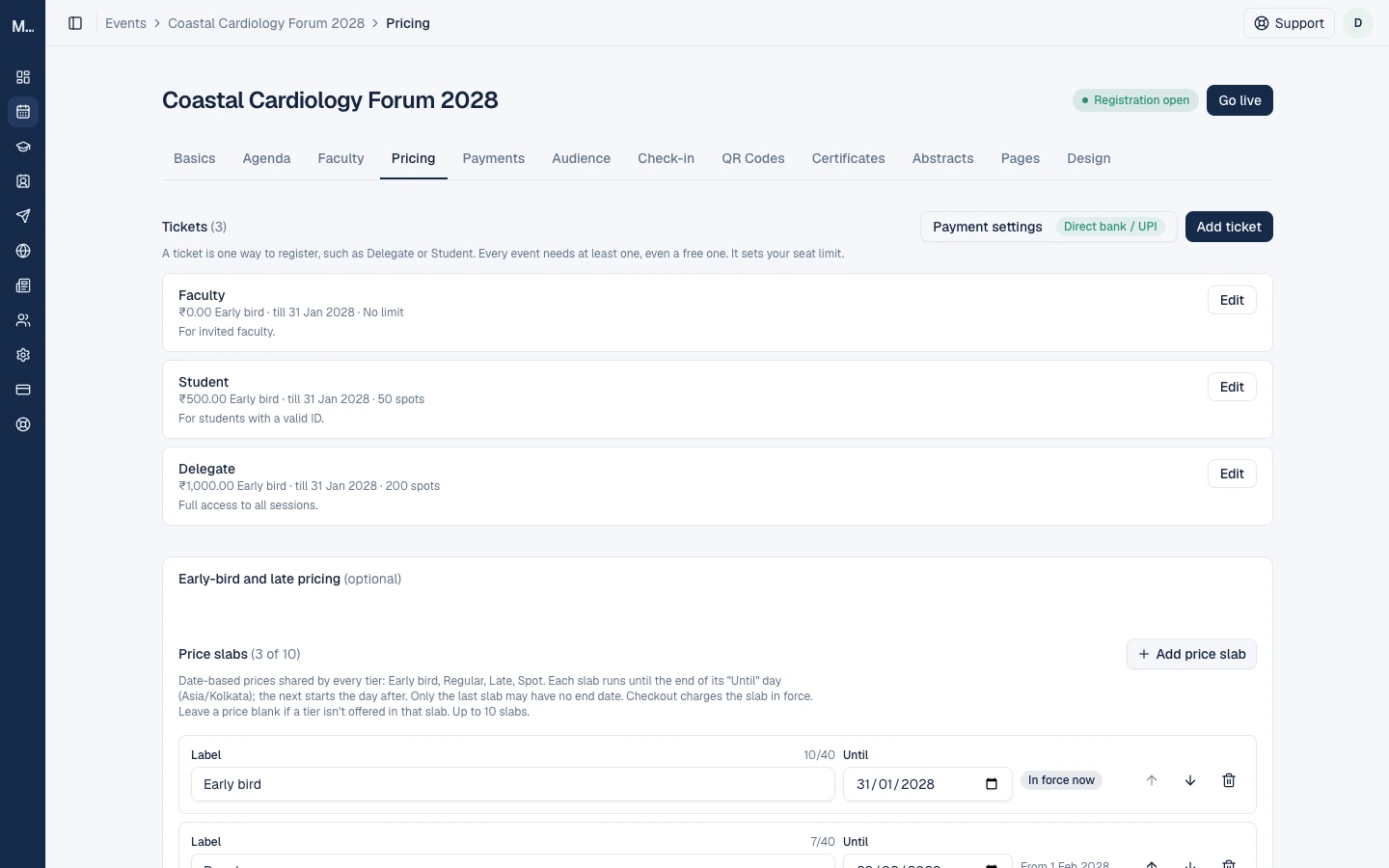
- The event has tickets, and for paid tickets the payment details are saved: tickets, payment and the registration form.
- Your Privacy Policy is published, because delegates must agree to it to register: compliance details.
Step 1: Share the event address
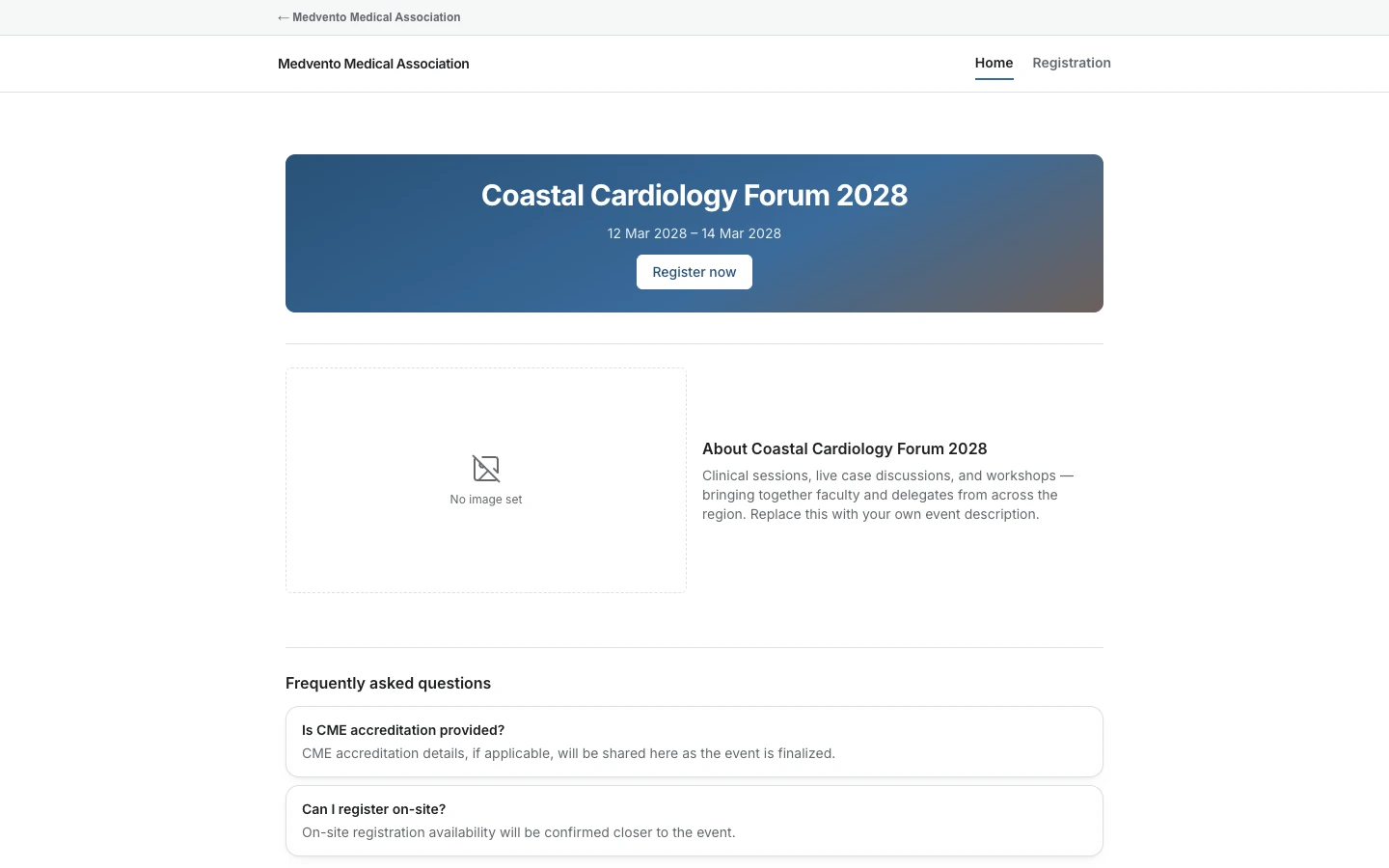
Delegates can reach registration from your event's pages: the Home page has a Register now button, and the Registration page leads to the form.
| What to share | Address | Use it for |
|---|---|---|
| The event page | medvento.com/<your-organization>/<event> | Posters, social posts and websites. Delegates read about the event first |
| The registration form | medvento.com/<your-organization>/events/<event>/register | A direct link in emails and WhatsApp messages |
Send the link by email or WhatsApp to your contacts through a campaign: see the guide on campaigns, planned next. Delegates can register on a phone as easily as on a computer.
Registration closes at 11:59 PM on your registration deadline day, in the event's timezone. After that the form no longer takes registrations.
Step 2: See who has registered
Open the event's Check-in tab. It lists every delegate whose registration is confirmed, with their payment, check-in, certificate and abstract status. Delegates appear once their registration is confirmed: immediately on a free ticket, and after your confirmation on a paid ticket.
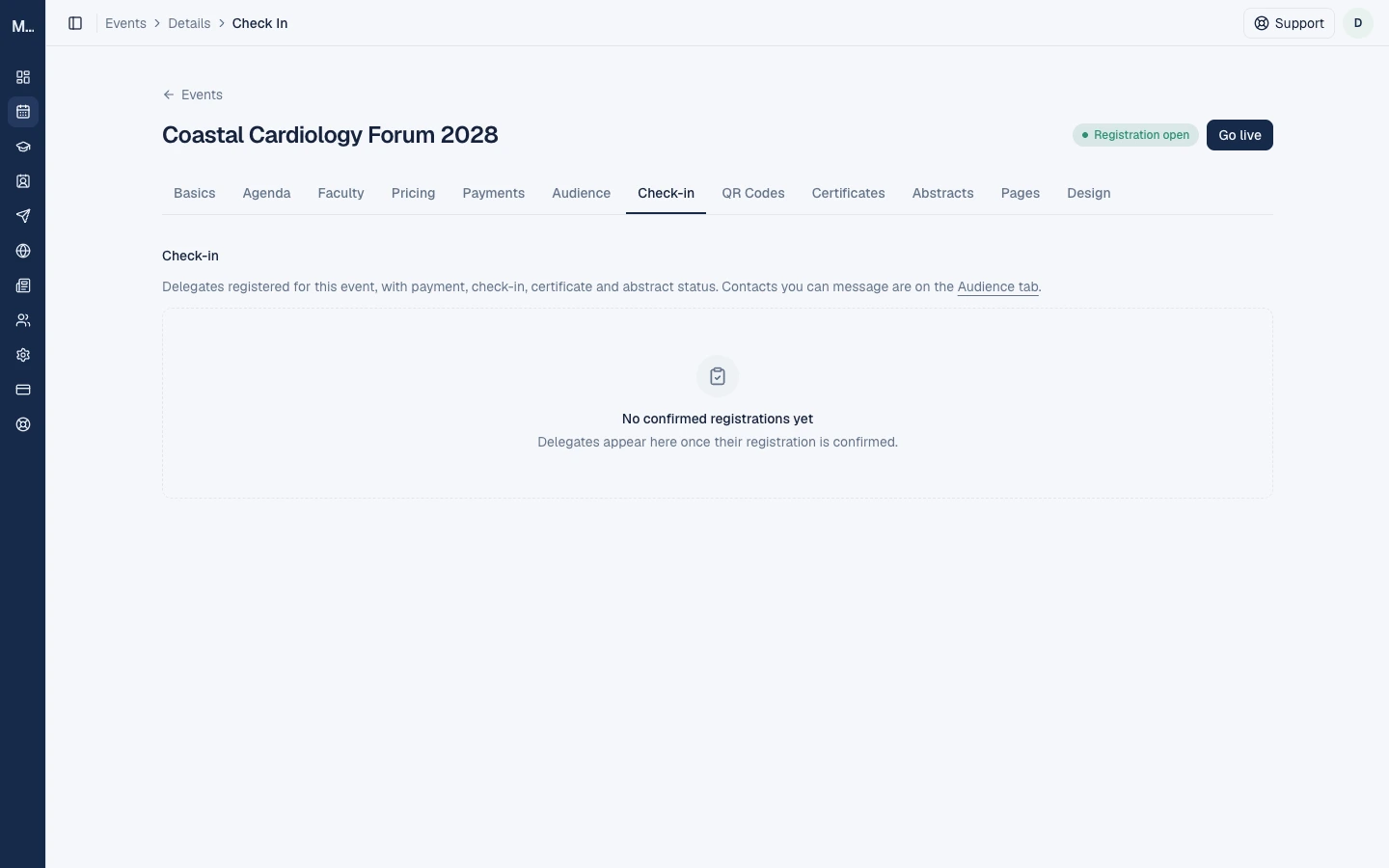
The roster also shows each delegate's answers to your registration form questions and whether their confirmation email was delivered. You can resend a confirmation email if a delegate says it did not arrive.
Step 3: Confirm direct payments
For tickets paid directly, open the event's Payments tab. Medvento never holds or moves the money: delegates pay your bank or UPI, and you confirm each payment against your own statement.
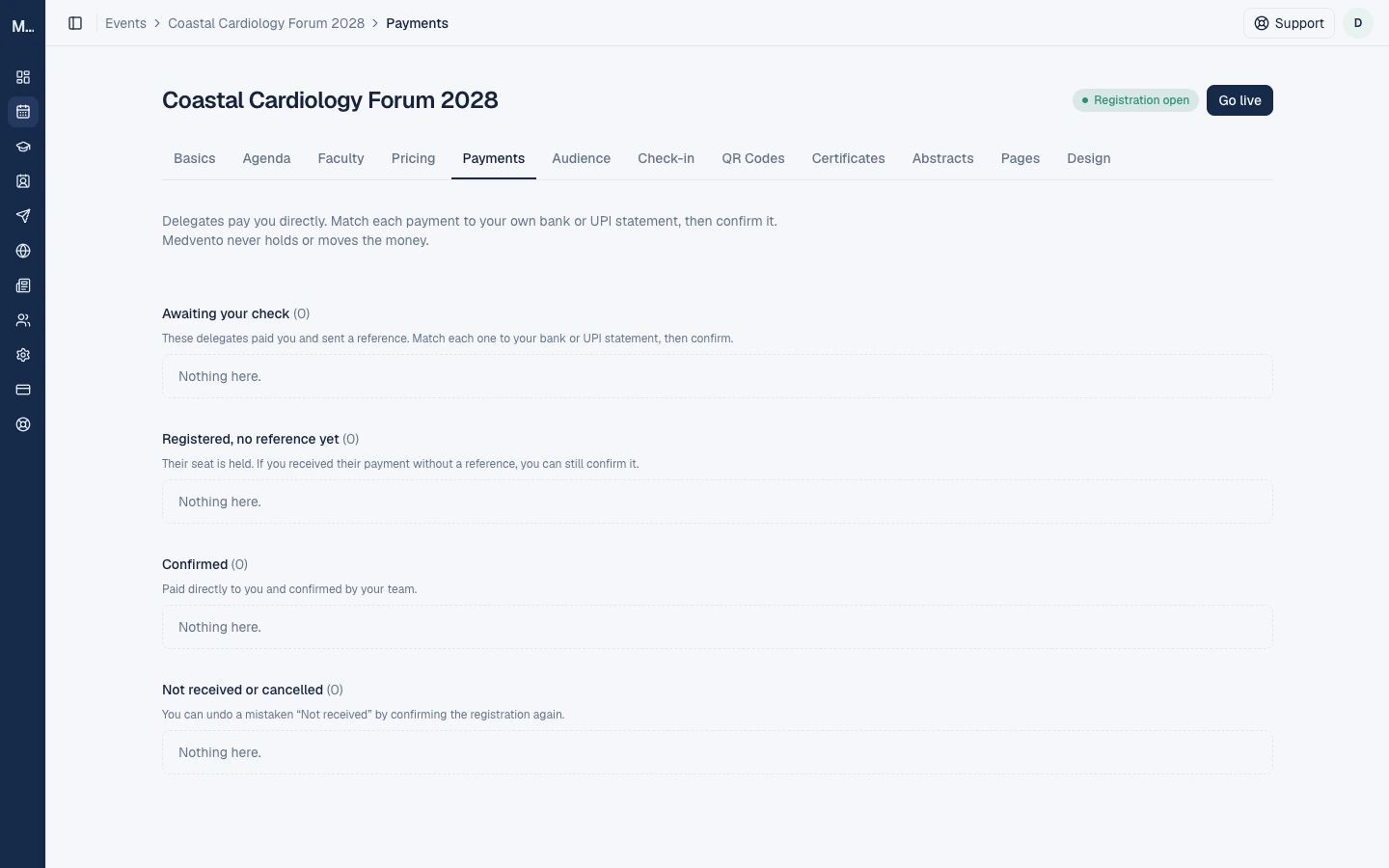
The tab has four lists:
| List | Who is in it | What you do |
|---|---|---|
| Awaiting your check | Delegates who paid you and sent a payment reference | Match the reference to your bank or UPI statement, then confirm |
| Registered, no reference yet | Delegates whose seat is held but who have not sent a reference | If you received their payment anyway, you can still confirm it |
| Confirmed | Delegates paid directly to you and confirmed by your team | Nothing. They are on the Check-in roster |
| Not received or cancelled | Payments you marked as not received, and cancelled registrations | You can undo a mistaken "Not received" by confirming again |
How a direct payment works from both sides
- The delegate registers and chooses a paid ticket. Medvento holds their seat for the hold period you set (1 to 7 days, 3 by default) and sends them your payment details.
- The delegate pays your bank or UPI, then sends the payment reference and the date they paid. Sending the reference extends the hold, to at most 14 days, so you have time to check.
- You check your statement. If the payment is there, select Confirm. The delegate is registered, gets a confirmation email and appears on the Check-in roster.
- If you cannot find it, mark it Not received. The delegate is told, with fixed wording and no promise of a refund.
- If the hold runs out with no payment, the seat is released automatically and the delegate is emailed.
Registration confirmation emails are prepared in the background. They usually reach delegates within a few minutes. If your organization's messaging has been paused or suspended, emails wait and are sent once that clears.
Check references carefully. A payment reference may only be used once per organization among live registrations, so a reused reference is a warning sign. Never confirm a registration on a delegate's word alone.
Once a payment is confirmed
You can cancel a confirmed registration, but not after the delegate has been checked in or has received a certificate. Medvento does not move money, so any refund is made by you, outside Medvento.
Seat limits
A ticket with a seat limit counts held seats as taken. A page can show a ticket as full while an unpaid hold is still waiting. If a hold lapses, the seat returns, but the public page can take up to an hour to show it again.
Frequently asked questions
How do delegates register for my event?
They open your event page or the registration form link, fill in their details, choose a ticket, agree to the Privacy Policy and select Register.
When does a paid registration become confirmed?
When you confirm the payment on the Payments tab. A registration on a free ticket is confirmed immediately.
What happens if a delegate does not pay in time?
The seat is released after the hold period, and the delegate is emailed.
Can I see who has not yet paid?
Yes. They are in the Registered, no reference yet list and the Awaiting your check list on the Payments tab.
Does Medvento handle refunds?
No. Medvento does not hold the money, so you refund directly.
A delegate says they never got a confirmation email. What do I do?
Open the Check-in tab and look at the confirmation email status. You can resend it from there. Ask the delegate to check spam, and check that you entered the right address.
Next step
Check delegates in on the day with QR codes, and read manage attendees.
How to set up tickets, payment and the registration form
Set up an event's registration on Medvento: create free or paid tickets, choose how delegates pay, add price slabs and design the registration form.
How to register for an event on Medvento (for delegates)
How to register for a conference run on Medvento: fill in the form, choose a ticket, pay by bank or UPI if needed, and what to expect after you register.