 Medvento
How to build your event agenda: sessions, topics and speakers
Add sessions to your Medvento event with times, rooms and CME credits, break them into topics, assign speakers and show the programme on your event page.
To build your event's agenda on Medvento, open the Agenda tab, select Add session, enter the title, date, start and end time (plus an optional room, track, type, description and CME credits), and select Next to optionally add speakers and topics. Sessions must fall within the event's dates. The agenda feeds your public Agenda block, the session QR codes for check-in, and the CME hours on certificates.
Before you start
- Create the event and set its dates: how to create an event. Sessions can only be on the event's dates.
- Invite your speakers first if you want to assign them while you add sessions: how to invite faculty. Only confirmed faculty can be assigned.
Step 1: Add a session
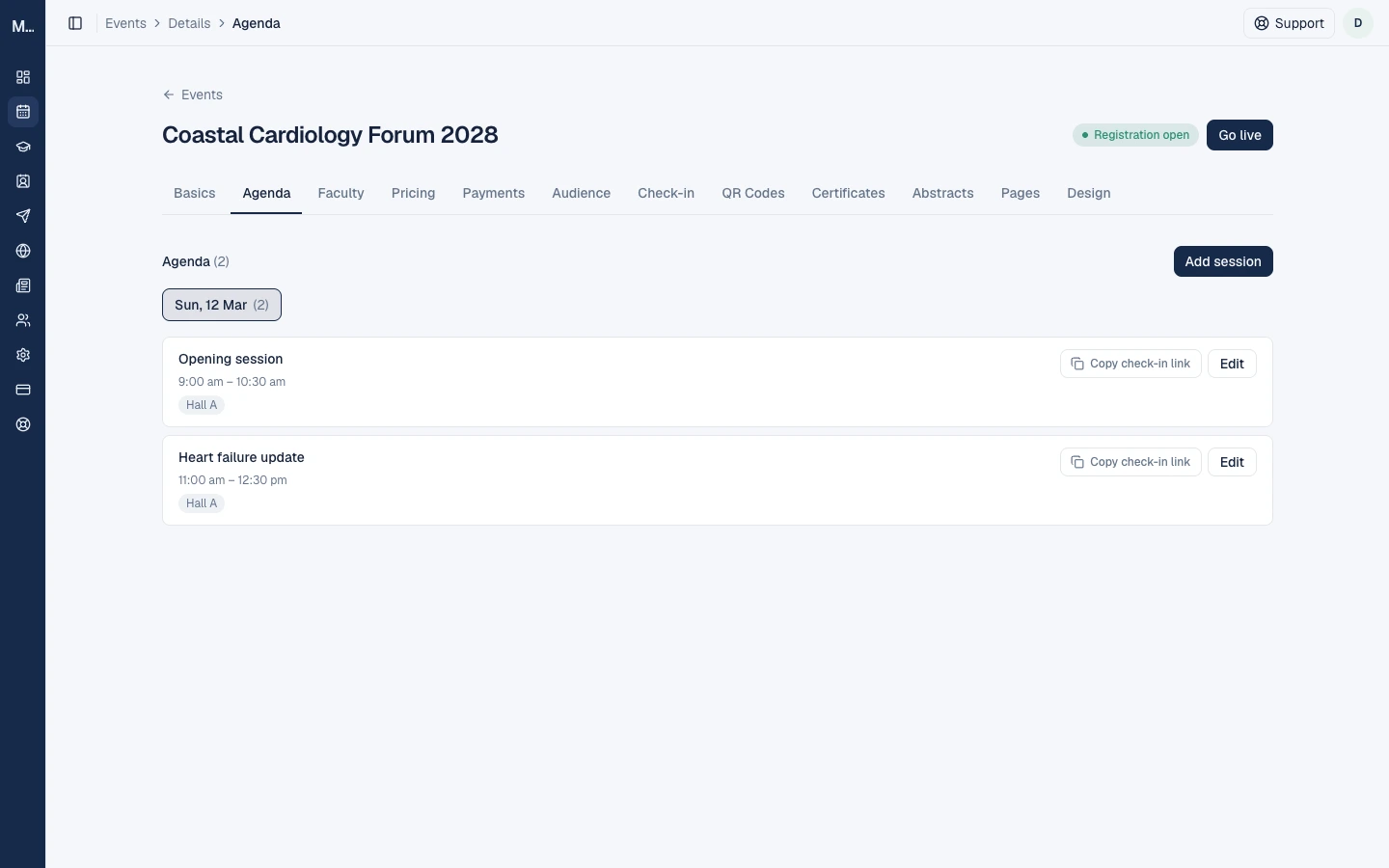
Open the event's Agenda tab. Sessions are grouped by day and ordered by start time. Select Add session.
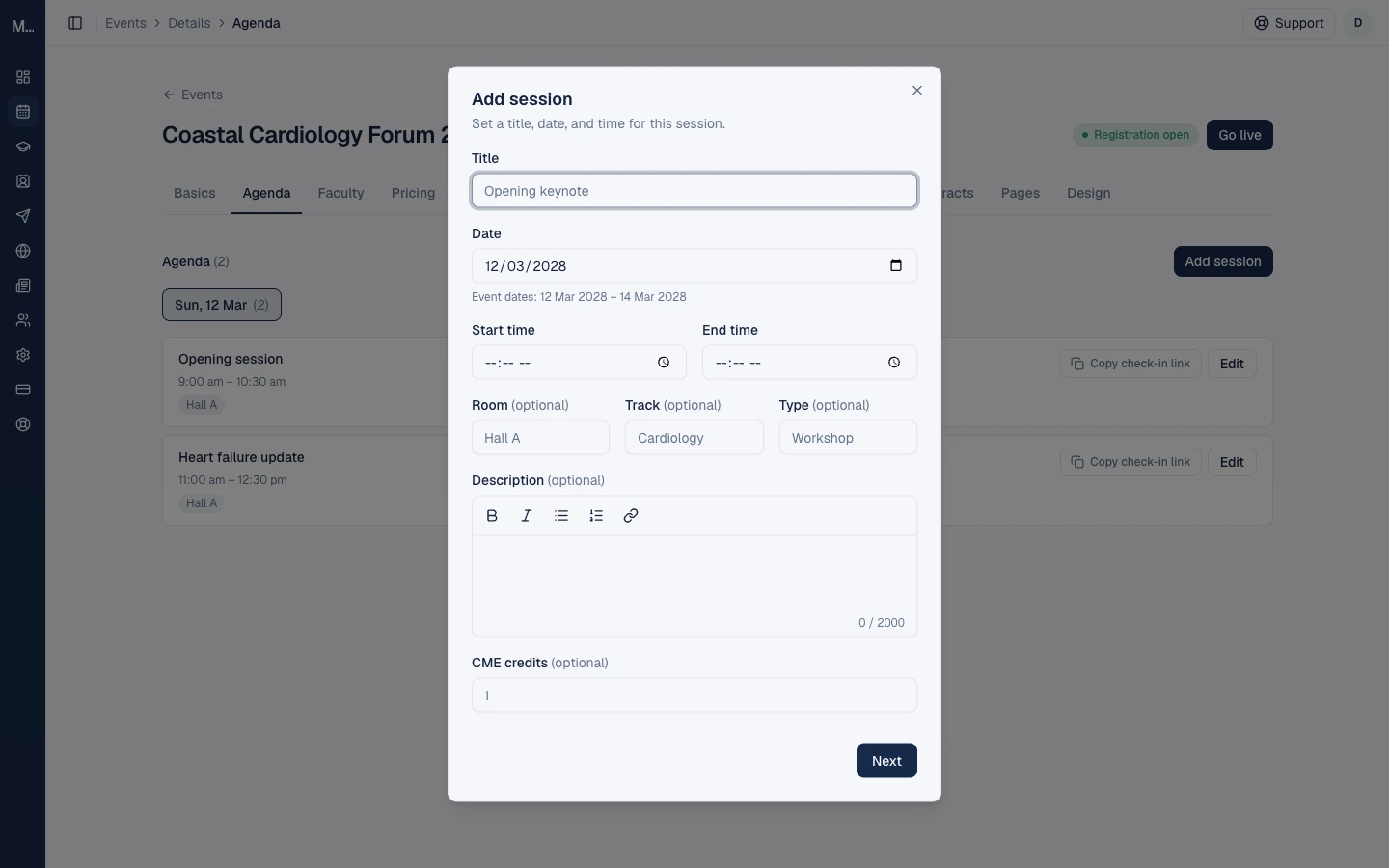
| Field | Required? | Rule |
|---|---|---|
| Title | Yes | 1 to 200 characters |
| Date | Yes | Must be within the event's dates, which the dialog shows |
| Start time, End time | Yes | In the event's timezone. The end must not be before the start. The form does not allow a session to cross midnight |
| Room | No | Up to 200 characters, for example "Hall A" |
| Track | No | Up to 200 characters, for example "Cardiology" |
| Type | No | Up to 200 characters, for example "Workshop" |
| Description | No | Up to 2,000 characters of simple formatting: bold, italics, lists and links |
| CME credits | No | 0 to 1,000, in steps of 0.25 |
Select Next. The session is saved at this point.
Tracks and parallel sessions are only the free-text Track and Room fields. Medvento does not check for clashes between sessions in the same room or with the same speaker, so check your own timetable.
Step 2: Add speakers and topics (optional)
The second step lets you choose Speakers (confirmed faculty) and add Topics to the session. You can skip it with Finish and do it later from Edit.
- Speakers: each speaker can have a free-text role of up to 100 characters, such as Chairperson, Moderator or Speaker.
- Topics: a session can have topics, such as individual talks in a symposium. Each topic has a title of 1 to 200 characters and its own presenters. You can reorder, rename and delete topics.
Edit or delete a session
Select Edit on a session. You can change any field and the speakers and topics. Deleting a session asks you to confirm. If you change something that affects CME credits for a session that has already started or has check-ins, Medvento asks you to confirm first.
If you later change the event's dates, a session outside the new dates is marked Outside event dates. Nothing moves or deletes automatically, so fix it yourself.
What the agenda is used for
| Where | How |
|---|---|
| Agenda block on your event page | Shows time, title, room, track, type and speakers with their roles, for each session. It does not show the description, topics or CME credits |
| QR codes | Each session has its own check-in QR code. Copy check-in link on the Agenda tab copies its link. See session QR check-in |
| CME hours | Session check-ins determine a delegate's CME hours |
| Abstracts | An accepted abstract can be linked to a session topic on the Abstracts tab |
The public Agenda and Faculty blocks show speakers only when they are confirmed or assigned, and only once the event is out of its configuration stage.
Frequently asked questions
Can two sessions overlap?
Yes. Medvento does not check for clashes, so you can run parallel sessions. Use the Room and Track fields to show where each is.
Can a session run past midnight?
The form does not allow it. End the session at the end of the day and add a second one if needed.
Can I add a session outside the event dates?
No. The date must be within the event's start and end dates.
How do I assign a speaker?
Assign confirmed faculty in the session's second step, in Edit, or from the faculty's row on the Faculty tab.
Where do sessions appear for delegates?
On your event page, if you add an Agenda block.
Next step
Check delegates in with session QR codes and build your event page.
How to create an event and finish its Basics
Create a Medvento event from the Events page, complete its Basics tab, and learn what to finish before you open registration and publish event pages.
How to build and publish an event page
Create your event's pages on Medvento from a template, add and arrange blocks, preview, pass the pre-publish checks and publish, Registration page first.