 Medvento
How to register for an event on Medvento (for delegates)
How to register for a conference run on Medvento: fill in the form, choose a ticket, pay by bank or UPI if needed, and what to expect after you register.
To register for an event that uses Medvento, open the event's page or the registration link you were sent, fill in the registration form, choose a ticket, agree to the organization's Privacy Policy and select Register. If your ticket is free, you are registered straight away and get a confirmation email. If it is paid, the organization will give you bank or UPI details to pay, and you send them your payment reference so they can confirm you. This guide is for delegates. Organizers should read how to share your registration page and confirm payments.
Before you start
- Use an email address you can open now. Your confirmation and payment instructions are sent there.
- Keep your phone number handy, and a note of your registration details, such as your medical council number if the form asks for it.
- For a paid ticket, have your bank app or UPI ready.
Step 1: Open the event page
You will usually receive a link by email or WhatsApp. The event page shows the dates, venue and programme, with a Register now button.
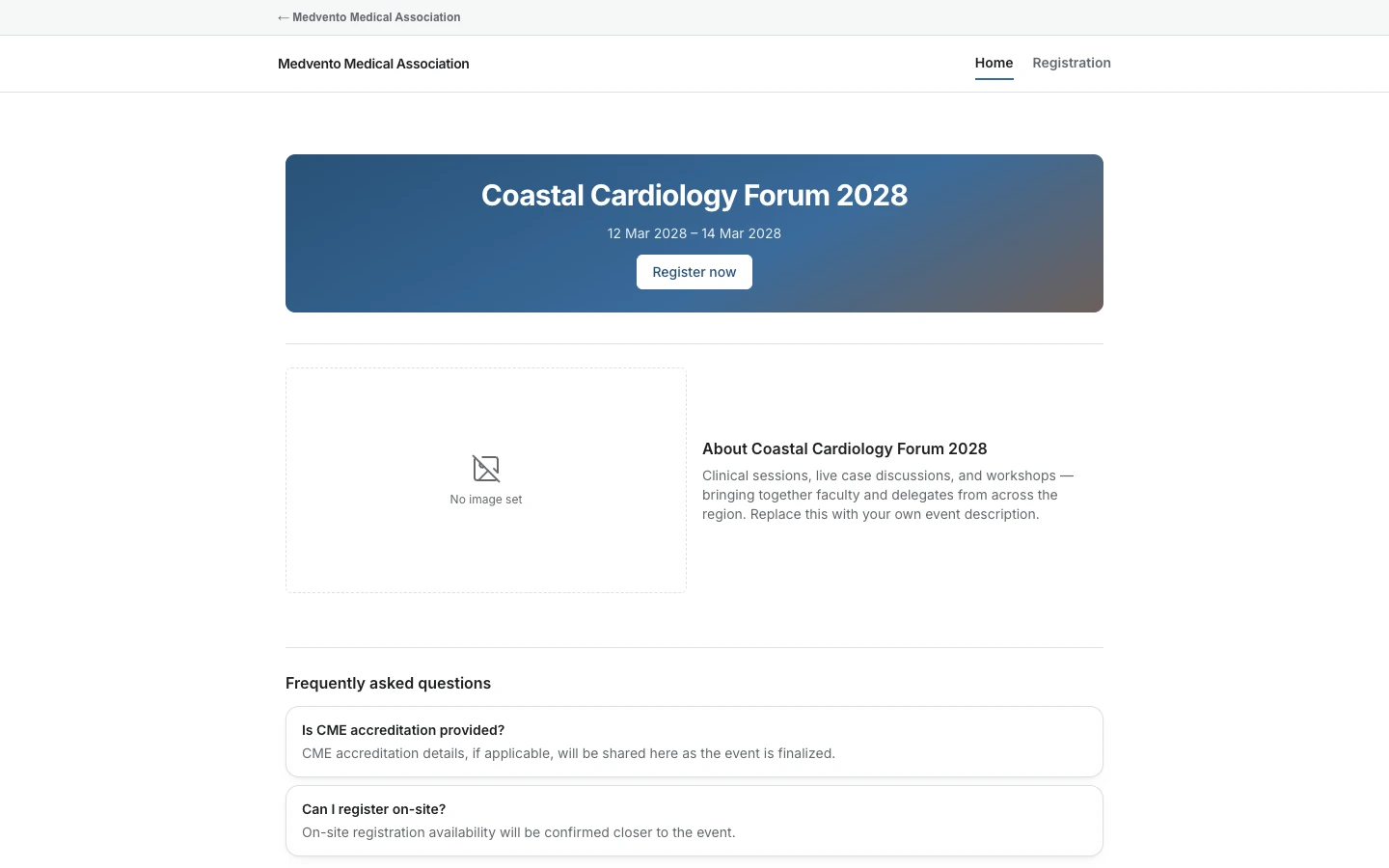
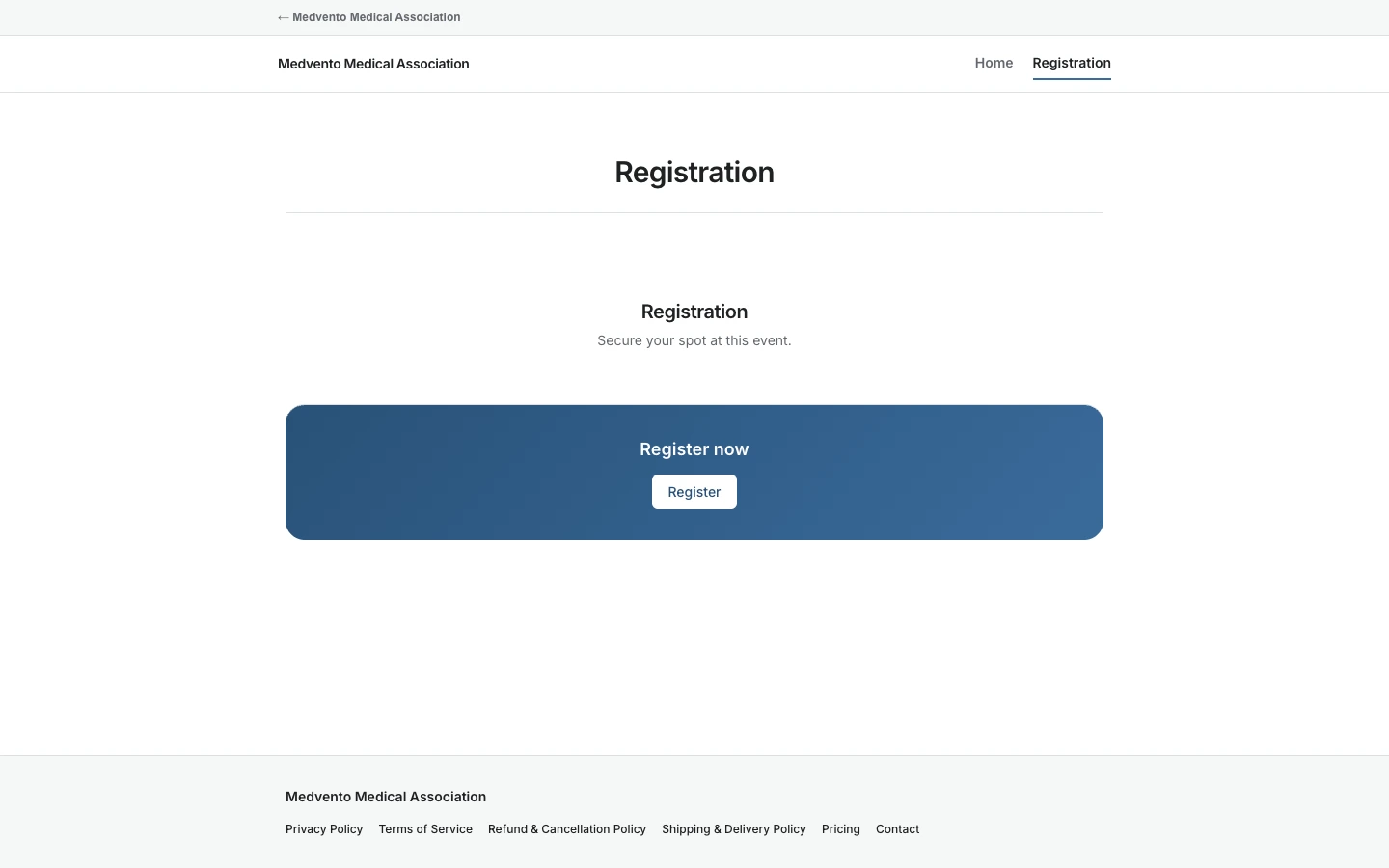
Select Register now, or go to the event's Registration page, and select Register.
Step 2: Fill in the form
The form opens with the organizer's questions. Full name and Email are always required. The organizer may also ask for your phone number, country, state, city and details such as your speciality, medical council number or institution. Fields marked "optional" can be left blank.
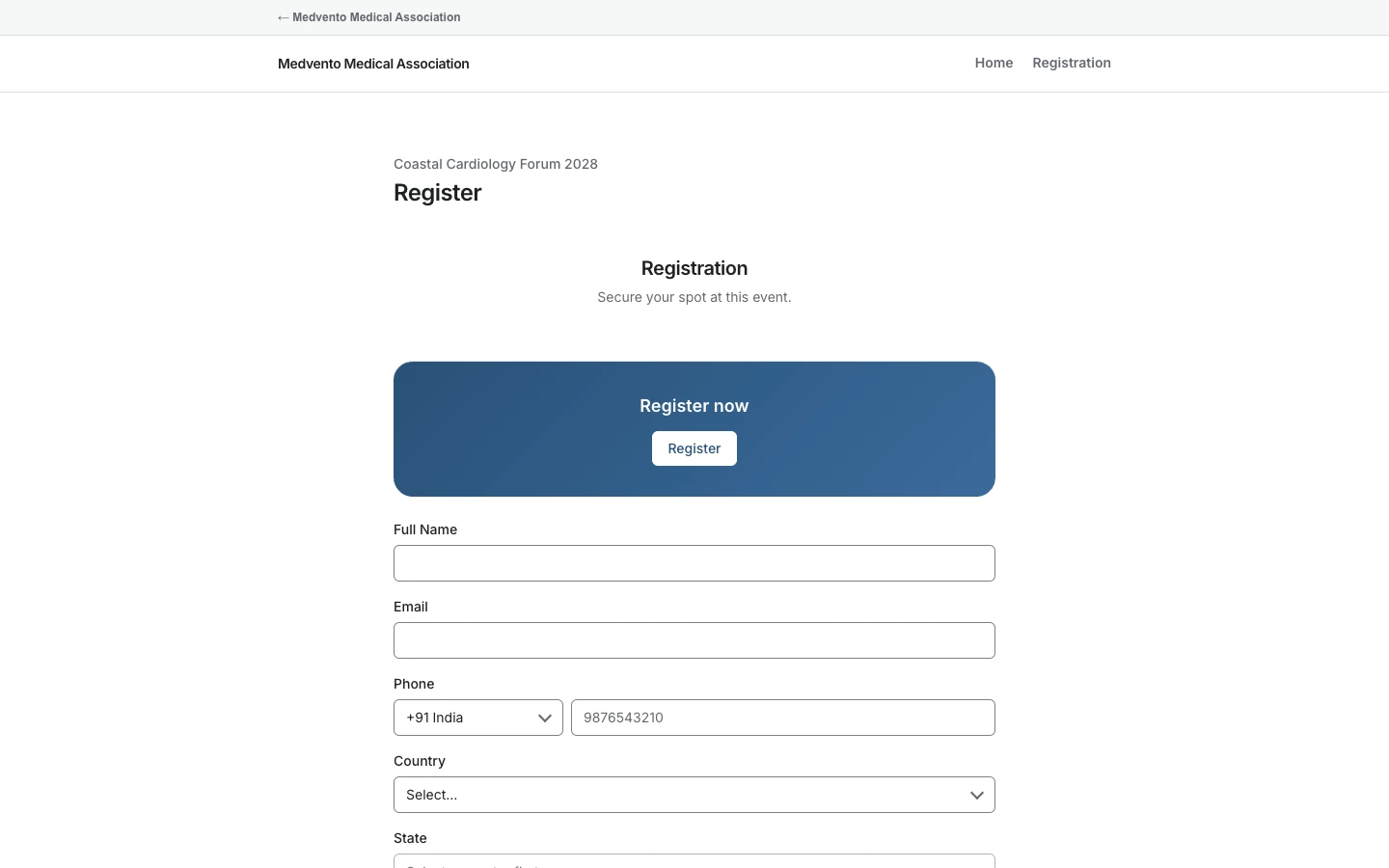
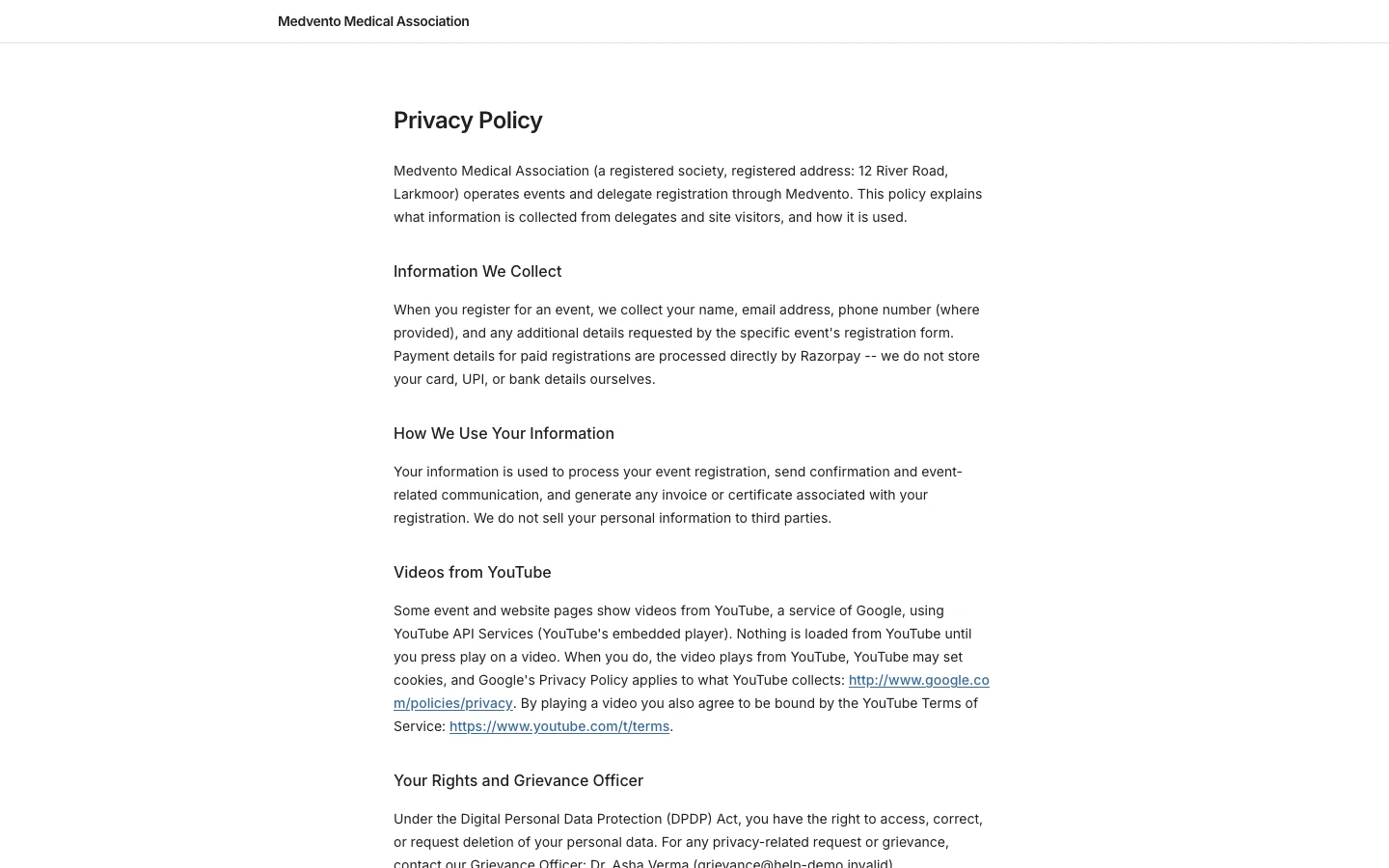
Your answers go to the organizing society, which decides how they are used. You can read the society's Privacy Policy from a link on the form.
Step 3: Choose a ticket and agree to the Privacy Policy
Under Registration tier, choose a ticket. Each shows its name, price, the price period (for example "Early bird, till 31 Jan 2028") and what it includes. Some tickets have a limited number of seats, and a full ticket cannot be chosen.
Tick the box to confirm you have read and agree to the Privacy Policy, then select Register.
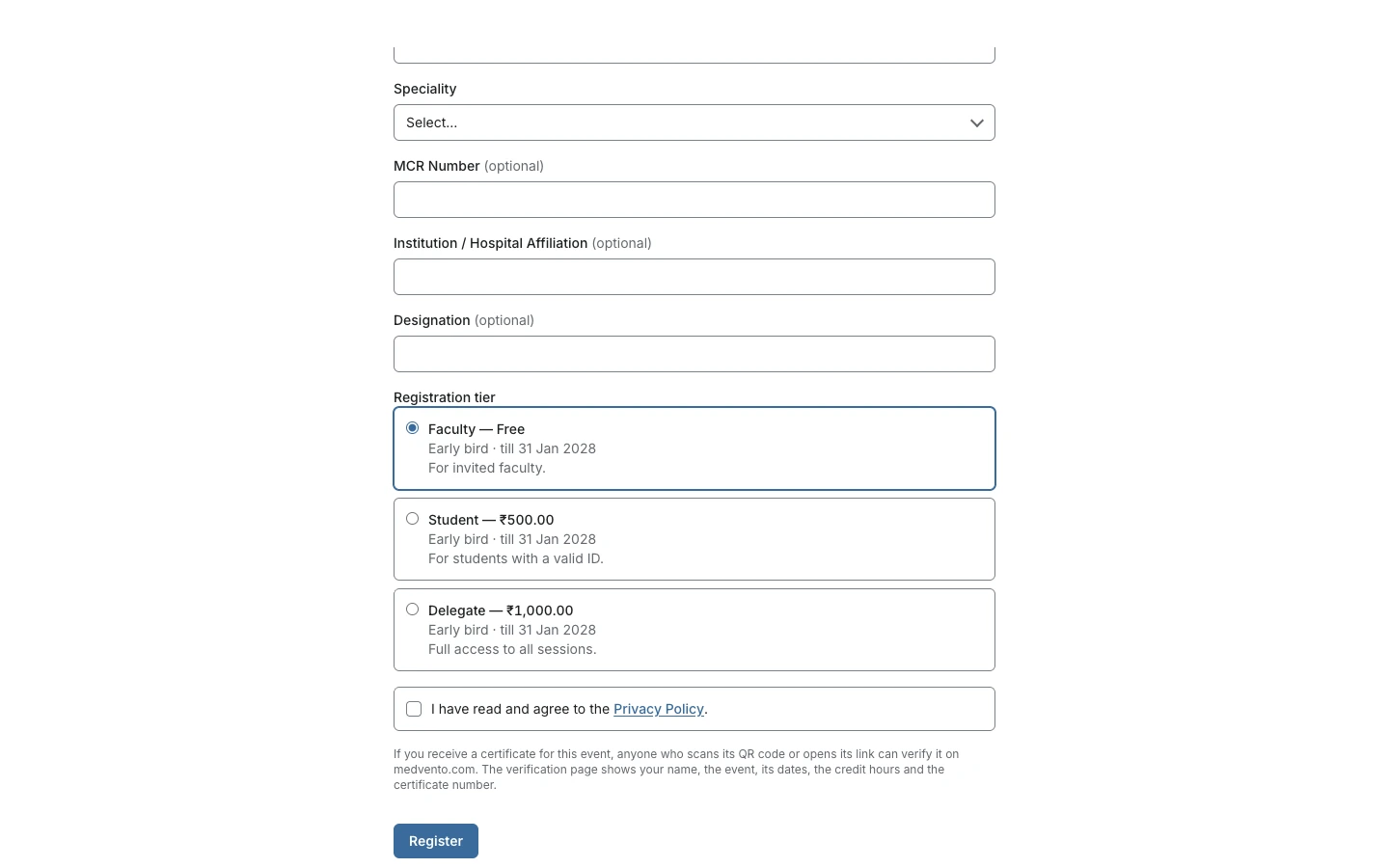
Near the button, a notice explains that if you receive a certificate, anyone who scans its QR code or opens its link can verify it. The verification page shows your name, the event, its dates, the credit hours and the certificate number.
On a phone
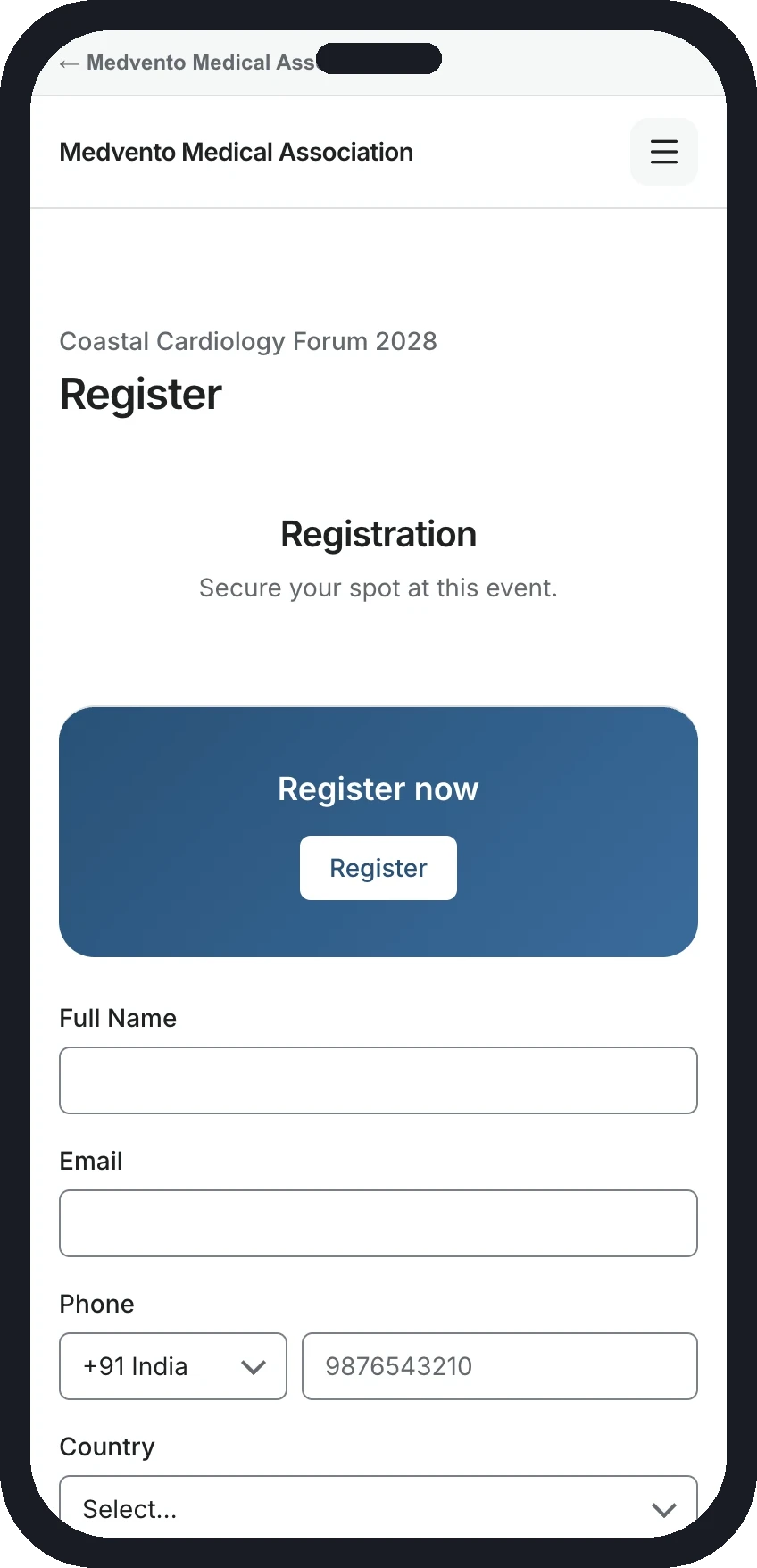
The form works on a phone. Tap the field, fill it in, and scroll to the ticket choices at the bottom.
After you register
A free ticket
You are registered at once. A confirmation email is sent to your address, usually within a few minutes. Check your spam folder if it does not arrive, and ask the organizer to resend it.
A paid ticket paid directly to the organizer
- After you register, the organizer's bank or UPI details are shown to you and emailed to you. Your seat is held for a limited number of days (the organizer chooses between 1 and 7).
- Pay the amount shown to the organizer's bank account or UPI id. Medvento does not take or hold your money.
- Open the payment page from your email and send your payment reference (the bank or UPI transaction number, 8 to 35 letters and digits) and the date you paid. You can do this once, and the paid date must be within the last 60 days. Sending the reference gives the organizer extra time to check, up to 14 days in all.
- The organizer matches your payment to their bank statement and confirms it. You then get a confirmation email.
Keep your payment link private. The link in your email is personal to your registration. Do not forward it.
If something goes wrong
- If you do not pay before your seat hold ends, the seat is released and you are told by email.
- If the organizer cannot find your payment, you are told it was not received. Contact the organizer with your payment proof.
- Medvento does not handle refunds. Ask the organizer.
Your privacy
The organization that runs the event decides what it collects and how it uses your data. You can ask the organization to show, correct or delete your data through the data request form linked from its pages. Read the organization's Privacy Policy before you register.
Frequently asked questions
How do I register for a conference on Medvento?
Open the event page, select Register now, fill in the form, choose a ticket, agree to the Privacy Policy and select Register.
Do I need to create an account to register?
No. You register with your name and email on the event's form.
How do I pay for my registration?
When the organizer takes direct payments, you pay their bank account or UPI id and send your payment reference. Your ticket is confirmed when they check it.
I paid but have no confirmation. What should I do?
Make sure you sent your payment reference through the payment page. The organizer must confirm your payment, so contact them with your payment proof.
Can I change my details after I register?
Contact the organizer and ask them to help. The form does not let you edit a registration after you submit it.
Is my data safe?
The organizer decides how your data is used and must publish a Privacy Policy. You can use the data request form linked from their pages.
Next step
On the day, you may be asked to check in by scanning a session QR code: see how session QR check-in works.
How to share your registration page, confirm payments and track registrations
After you open registration on Medvento: share the page, see who registered, confirm direct bank or UPI payments and understand the emails delegates get.
A CME and conference platform for Indian medical societies: how Medvento works end to end
How Medvento runs a society's conference from registration to CME certificates: attendance by session QR, credit hours, automatic issue and verification.