 Medvento
How to collect and review abstracts: set up, share links and decide
Set up abstract topics and the submission window in Medvento, send each author a personal link, grant late exceptions, assign a reviewer and decide.
To collect abstracts on Medvento, set the abstract submission window (an opening and a closing date) in the event's Basics, optionally add topics on the event's Abstracts tab, then send each author their personal submission link from the Check-in or Faculty tab. Authors need no account. They open their link, fill in a title, authors, abstract text and an optional file, and submit. You then assign one reviewer to each abstract, and that reviewer accepts or rejects it. The decision is final. Medvento does not email the author the result, so you tell them yourself.
Before you start
- Create the event: how to create an event.
- Authors must be either delegates with a confirmed registration or faculty you have invited and who have not declined. See how delegates register and invite faculty.
- Decide who will review. Reviewers must be members of your organization's team, so invite them first: roles and permissions.
Step 1: Set the submission window
Open the event's Basics tab and select Edit. Under the registration fields you will find two optional dates.
| Field | What it does |
|---|---|
| Abstract submission opens | Submissions open at the start of this day, 12:00 AM in the event's timezone |
| Abstract submission deadline | Submissions close at the end of this day, 11:59 PM in the event's timezone |
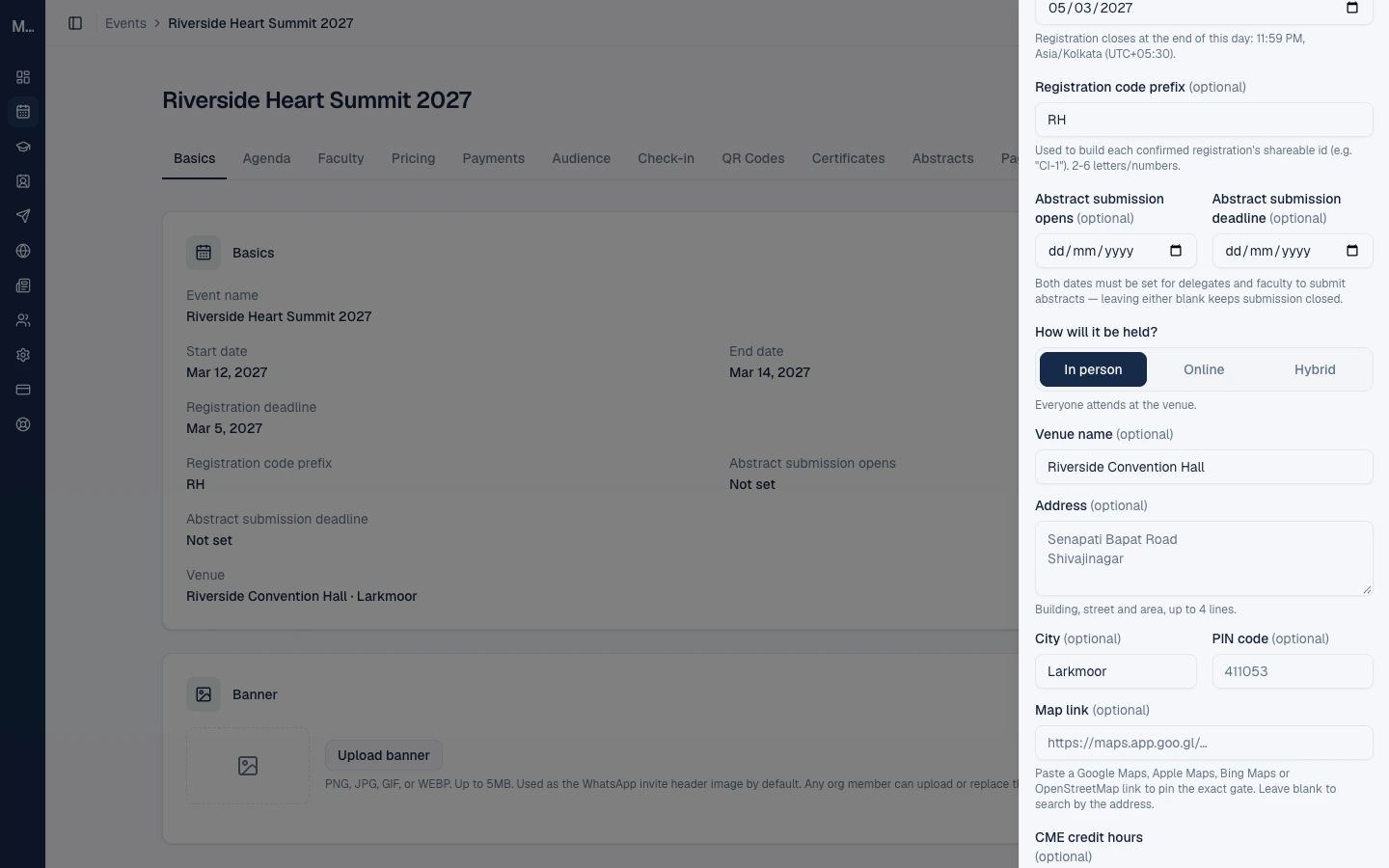
Three rules matter:
- Set both dates. If either is blank, submission stays closed.
- The window is separate from the registration deadline. Authors can submit abstracts before, during or after registration, whatever you choose.
- You can change the window after the event is published, unlike the event's name and dates. The opening date cannot be after the deadline, but they can be the same day.
Step 2: Add topics (optional)
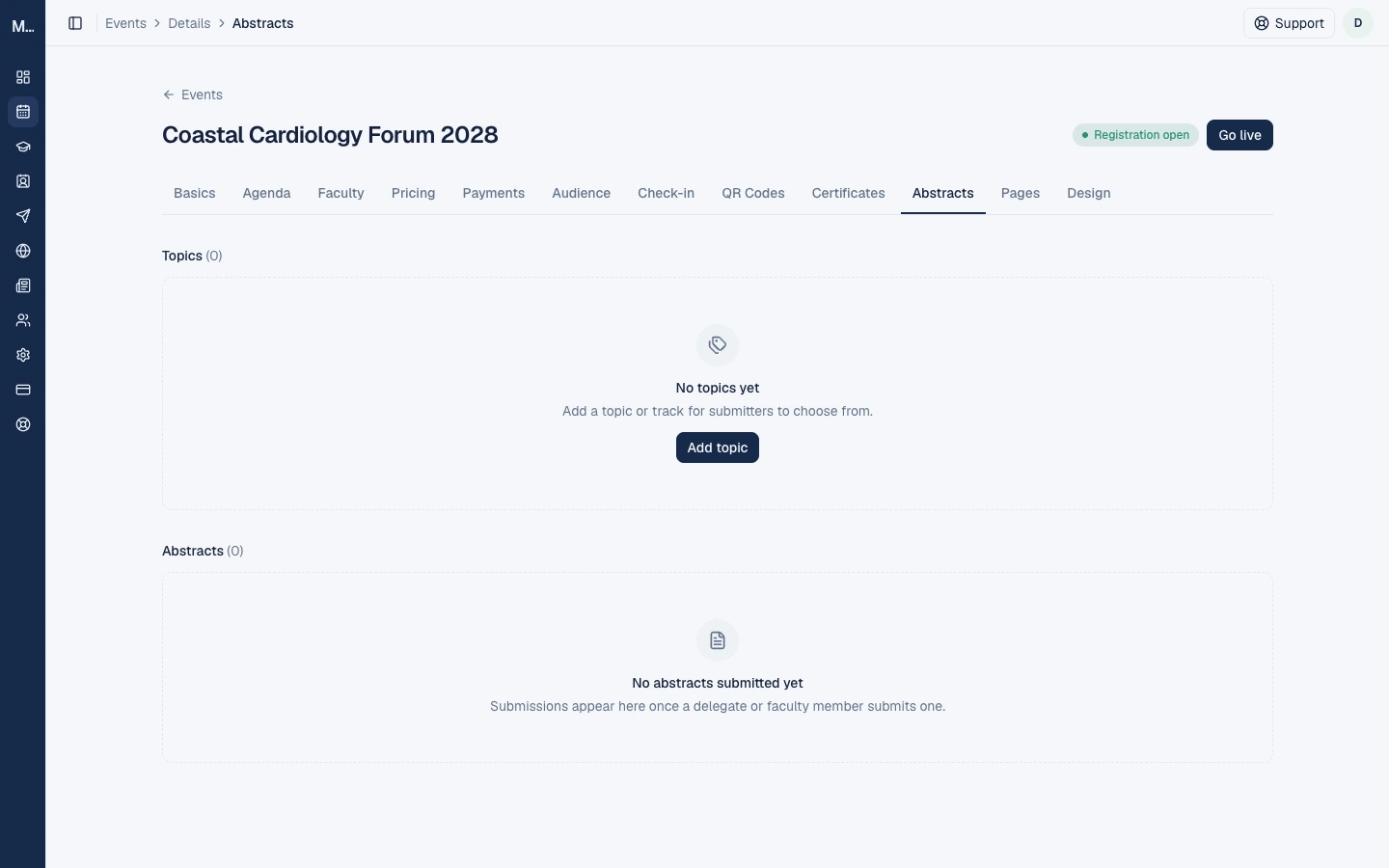
Open the Abstracts tab. The Topics section lets you give authors a track to choose from, such as Cardiology or Interventional.
Select Add topic, type a Topic name (up to 200 characters) and select Add topic again.
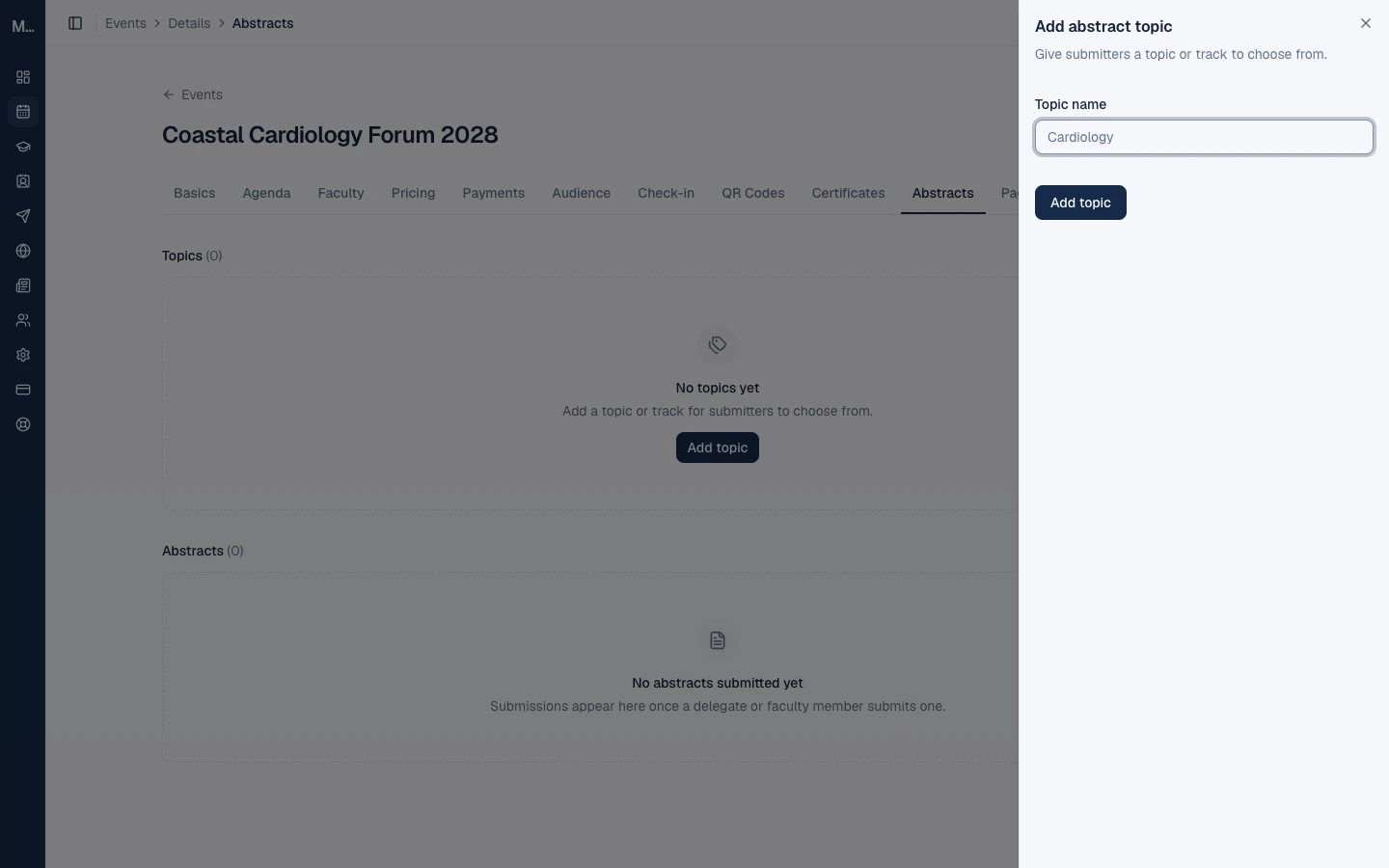
How topics change the rules:
- If you add topics, an author must choose one, and each author can submit one abstract per topic.
- If you add no topics, each author can submit one abstract for the whole event.
- You can delete a topic. Abstracts already submitted under it keep the topic name they were saved with.
- Cloning an event copies its topics, but never its abstracts.
Step 3: Send each author their link
There is no single public link for everyone. Each author has a personal link tied to their registration or faculty invitation, and it identifies who is submitting. It looks like medvento.com/<organization>/events/<event>/submit-abstract?token=.... It does not expire, and it works only for this event. Anyone who has the link can submit as that person, so share it only with them.
Find the links in two places:
- Delegates: the event's Check-in tab, in the Abstract submission column of the registrations table.
- Faculty: the event's Faculty tab, on the person's row.
For each person you can:
| Action | What it does |
|---|---|
| Copy submission link | Copies their personal link so you can paste it into your own email or WhatsApp message |
| Email submission link | Sends them an email with the link, one person at a time |
The email has a subject, a message and a footer you can edit, with merge tokens for the event name and the recipient's name. The default subject is "Submit your abstract for" followed by the event name. The email always has a Submit your abstract button, and you cannot remove it. You can tick the option to save your wording as your organization's default. The email sends only if your organization is verified, not suspended and has an active plan, and its messaging is not on hold. If a person has no email on file, copy the link instead.
To invite a lot of authors, copy the links into a mail merge or a campaign: see the guide on campaigns, planned next.
Step 4: Track submissions and assign a reviewer
Submissions appear on the Abstracts tab in a table: Submitter, Title, Topic, Status, Reviewer and Agenda Session. Select a title to expand it and read the abstract text, the authors and a link to the submitted file.
A new abstract has the status Submitted and the reviewer Unassigned. Reviewer assignment is manual: nothing is assigned automatically. Any team member can assign a reviewer, and the reviewer can be any current member of your organization's team, shown by email. You cannot change the reviewer once the abstract has been decided.
Step 5: The reviewer decides
Only the assigned reviewer sees Accept and Reject buttons, in the Status column. A confirmation window follows.
- There is one reviewer per abstract and no scoring or comments.
- The decision is final. It cannot be reversed, and a second attempt is refused.
- An owner or staff member who is not the assigned reviewer cannot decide.
For an accepted abstract, the Agenda Session column lets you link it to an agenda session topic, so it appears on your programme.
Telling authors the result
Medvento does not send a decision email. The author learns the result only by reopening their personal link, which then shows "Your abstract has been accepted" or "Your abstract was not accepted". Email or message your authors yourself after reviewing.
Manual options
| Situation | What to do |
|---|---|
| An author missed the deadline | After the window has closed, select Grant late exception on the person's row in Check-in or Faculty. Their link then works even though the window is closed. It applies to that person only. There is no undo |
| An author sent the abstract another way, such as email | Select Record abstract on their row. Enter the title, authors and abstract text on their behalf. This works at any time and sends them the usual confirmation email |
| An author wants to change or withdraw their abstract | Medvento has no edit or withdraw option. Once submitted, it cannot be changed or deleted from the app. Ask the author to contact you, and decide how to handle it |
A late exception does not help while the window has not opened yet, or if no window has been set.
Limits and good practice
- Title: up to 2,000 characters. Authors: up to 2,000. Abstract text: up to 20,000 characters, with no word count.
- One file of up to 10 MB per abstract (see the author's guide for the accepted types).
- Rate limits: to prevent misuse, there are limits on how often one device can submit or upload in an hour.
Personal data
Abstracts hold names and affiliations. When someone asks for their data to be deleted, Medvento deletes their abstracts that were not accepted, with their files. Accepted abstracts are kept, and their title and author list stay, because they are part of your programme. Check titles and author lists for personal details before you accept an abstract. Read privacy and consent for organizers.
Uploaded files are stored in your organization's file storage. Do not accept files that contain patient data.
Frequently asked questions
Do authors need an account to submit an abstract?
No. They use their personal link. There is no login.
How do I get a link for an author?
Open the Check-in tab for delegates or the Faculty tab for faculty, and copy or email their submission link.
Can I use one link for every author?
No. Each link is personal, tied to one registered delegate or one invited faculty member.
Who reviews the abstracts?
The reviewer you assign. There is one reviewer per abstract, and their decision is final.
Does the author get an email when I accept or reject?
No. You must tell them. They can also reopen their link to see the status.
Can an author edit an abstract after submitting?
No. Medvento does not let authors edit or withdraw an abstract.
What if the deadline has passed?
Grant a late exception to that person, or record the abstract for them yourself.
Next step
Share the author's guide, how to submit an abstract, with your authors.
How to respond to a faculty invitation on Medvento (for speakers)
If a society invited you to speak at its event on Medvento, here is how to confirm or decline, which details you can update and what happens next.
How to submit an abstract for a conference run on Medvento
Submit your abstract with your personal link: pick a topic, enter title, authors and text, attach a file, and see what happens next. No account needed.